Floor Plan to 3D: Why Most AI Renderers Get It Wrong — and How Data-Grounded Generation Fixes It
Upload a floor plan PDF. Get a photorealistic 3D rendering in under 30 seconds. That's the promise dozens of AI tools are making in 2026 — from Rendair AI and FloorVis to Drafto, Magic Hour, and floor-plan.ai.
The problem? Most of them produce beautiful images that bear little resemblance to the actual floor plan you uploaded.
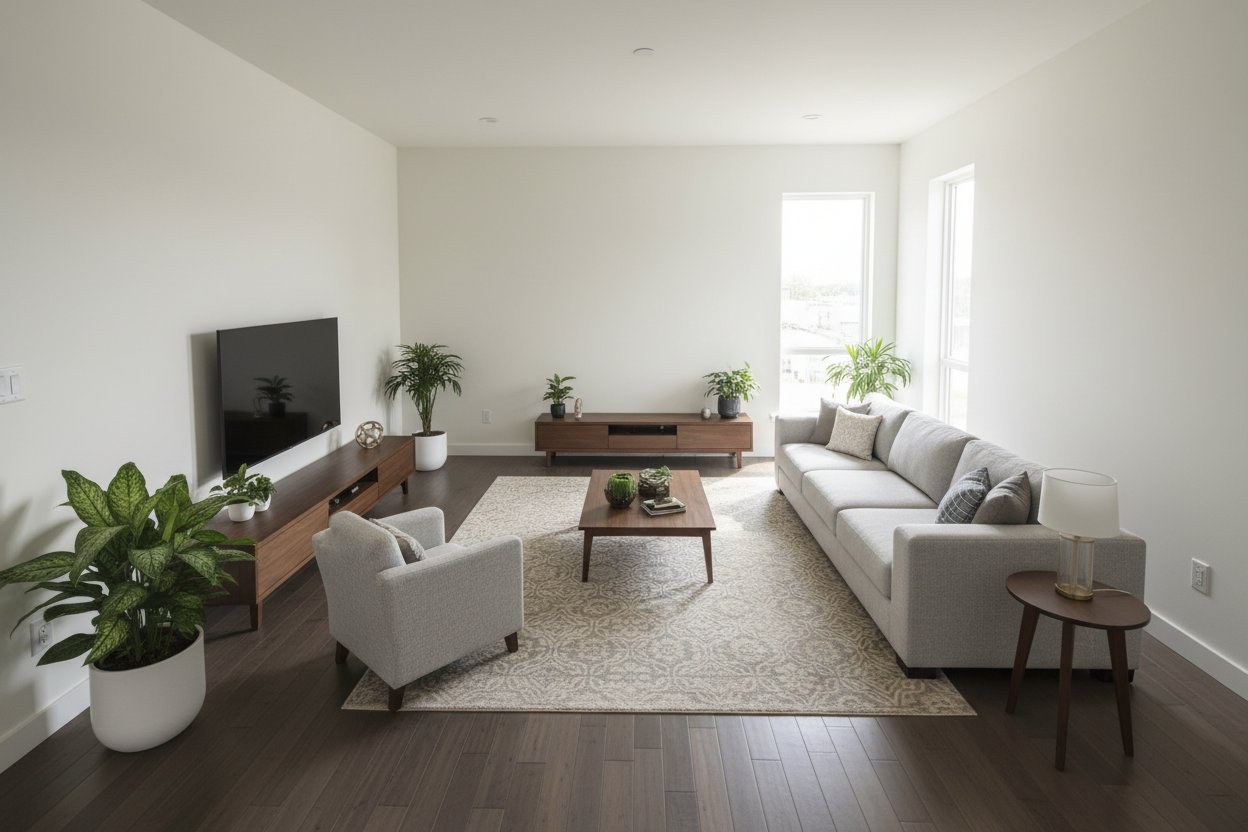
We ran into this ourselves while building Aginera's free Floor Plan to 3D tool. Early versions produced gorgeous isometric renders — hardwood floors, potted plants, designer furniture — but the bed ended up in the living room, the kitchen vanished, and the porch was nowhere to be found. The AI was hallucinating a generic apartment instead of rendering the specific plan in front of it.
This is the fundamental challenge with image-to-image AI rendering: the model sees pixels, not architecture. It doesn't know that the large rectangle on the left is a 51 sqm living room and the small rectangle beside it is a 7 sqm toilet. It just sees shapes and fills them with whatever looks good.
We solved it by doing something none of the other tools do: extracting real architectural data from the PDF first, then grounding the image generation on that data.
The Problem with Image-Only AI Renderers
Most floor plan to 3D tools follow a simple pipeline:
- User uploads an image (JPG, PNG, or screenshot)
- Image is sent to a generative AI model with a generic prompt
- AI produces a "3D-looking" version of the image
This approach is fast. It's also fundamentally limited.
The AI model has no understanding of what the rooms are, how large they are relative to each other, which ones are indoor versus outdoor, or where the doors and windows connect. It fills in details based on statistical patterns from its training data — which means a one-bedroom apartment in Mumbai might come back looking like a three-bedroom condo in Manhattan.
Common failures include:
- Wrong furniture placement — beds in living rooms, sofas in bedrooms
- Missing rooms — outdoor areas like porches, courtyards, and balconies disappear entirely
- Incorrect proportions — a 50 sqm hall rendered the same size as a 5 sqm bathroom
- Generic layouts — the output looks "nice" but doesn't match the input at all
- Single-floor only — multi-story buildings get reduced to one rendering
These failures matter. If you're a real estate developer using the render for pre-sales, an architect showing a client their future home, or a contractor visualizing a project before construction — an inaccurate rendering is worse than no rendering at all.
Aginera's Approach: Extract First, Render Second
Aginera's floor plan tool takes a fundamentally different path. Instead of treating the floor plan as just an image, we treat it as a document to be understood.
Step 1: PDF Classification and Page Routing
When you upload a multi-page PDF, the system doesn't blindly process every page. An AI-powered page classifier examines each page and determines its type: floor plan, elevation, section, electrical layout, or non-drawing page. Only actual floor plan pages proceed to the extraction pipeline.
This means a 20-page architectural drawing set with 4 floor plans across different levels gets correctly identified — and each floor plan gets its own analysis and rendering.
Step 2: Spatial Data Extraction
This is where Aginera diverges completely from generic renderers. Instead of passing the image directly to a generative model, we run a purpose-built extraction pipeline that identifies:
- Rooms — name, type (bedroom, kitchen, bathroom, outdoor), area in square meters, perimeter, and exact boundary polygon
- Walls — positions, thickness, and classification (exterior vs. interior)
- Doors — locations, types (single swing, double, sliding), and which two rooms each door connects
- Windows — positions and widths along exterior walls
- Adjacency graph — which rooms share walls, forming the connectivity map of the floor plan
The output is a structured data model — not an image. Every room has a measured area, a classified type, and a polygon defining its exact shape and position on the page.
Step 3: Interactive 3D Model (Babylon.js)
Before any photorealistic rendering happens, the extracted data is used to build a real interactive 3D model using Babylon.js. This isn't a static image — it's a navigable architectural scene where you can orbit, zoom, and inspect every room.
The 3D model uses the extracted polygon data to reconstruct walls at correct heights, place door and window openings in the right positions, and render room floors with distinct materials. You can switch between Presentation, QA, and X-Ray display modes to inspect the model from different angles.
This is the same technology we use in our construction takeoff platform, where accurate spatial reconstruction is critical for MEP estimation and quantity surveying.
Step 4: Data-Grounded AI Rendering
Here is where the magic happens. When the photorealistic rendering is generated, we don't just send the floor plan image to a generative model. We send:
- The 2D floor plan image captured directly from the extracted data — a clean, labeled layout showing every room in its correct position with its correct dimensions
- A structured spatial description generated from the extracted data, including:
- Room arrangement in a spatial grid (top-to-bottom, left-to-right)
- Each room's measured dimensions and area
- Indoor vs. outdoor classification (so courtyards and porches get landscaping instead of furniture)
- Room-to-room adjacency connections
- Door locations between specific rooms
- Window counts on exterior walls
- Strict placement rules that tie furniture types to room types — a bed only goes in a bedroom, a sofa only in a living room, kitchen cabinets only in a kitchen
This combination of visual reference + structured data + explicit constraints gives the generative model enough grounding to produce a rendering that actually matches the floor plan.
Step 5: Per-Floor Rendering
For multi-story buildings, each floor gets its own rendering. A 4-page PDF with 4 detected floor plans produces 4 separate photorealistic renders — one for each floor — with floor-level navigation in the UI.
This is important for bungalows, duplexes, apartment buildings, and hotels where each level has a distinct layout. Generic tools that produce a single render for a multi-page PDF miss most of the building.
How This Compares to Other Tools
The floor plan visualization market in 2026 broadly falls into three categories:
Manual editors (Floorplanner, RoomSketcher, SketchUp) — you draw the layout yourself, then the software renders it. Accurate but slow. Requires design skills.
Scan-to-plan tools (CubiCasa, Matterport, Magicplan) — you physically walk through an existing building with a phone camera or LiDAR scanner. Great for as-builts, but you need to be on-site.
AI renderers (Rendair AI, FloorVis, Drafto, Magic Hour, floor-plan.ai) — you upload an image and get a render back in seconds. Fast but prone to the accuracy problems described above.
Aginera sits in a fourth category: extraction-first visualization. We process the actual construction document (PDF), extract structured data, build a real 3D model, and then generate photorealistic renderings grounded on that extracted data. The result is more accurate than pure image-to-image tools and faster than manual modeling.
| Capability | Generic AI Renderers | Manual Editors | Aginera |
|---|---|---|---|
| Accepts construction PDFs | Rarely (image only) | No | Yes |
| Understands room types & sizes | No | Manual input | Auto-extracted |
| Correct furniture placement | Random | Manual | Type-matched |
| Interactive 3D model | No | Sometimes | Yes (Babylon.js) |
| Multi-floor support | No | Manual | Auto-detected |
| Per-floor rendering | No | Manual | Automatic |
| Free tier | Varies | Limited | Yes — no signup |
Why Data Grounding Matters
The difference between a "nice-looking render" and a "useful render" comes down to grounding.
A render that doesn't match the floor plan is decoration. A render that accurately reflects the room layout, proportions, and spatial relationships is a communication tool — it helps buyers visualize the space, helps architects validate designs, and helps contractors plan construction.
Data grounding is what makes this possible. When the AI knows that Room A is a 20 sqm bedroom adjacent to a 6 sqm toilet through a single-swing door, it can produce a rendering where the bedroom has a bed, the toilet has a toilet, and the door connects them correctly. Without this data, the model is guessing.
Try It Yourself
Aginera's Floor Plan to 3D tool is free — no signup required. Upload a floor plan PDF, or try one of the pre-loaded samples (a ground floor house, 1BHK apartment, 2BHK multi-floor, bungalow, or hotel layout) to see the extraction, 3D model, and photorealistic rendering in action.
For construction professionals who need this as part of a larger workflow — including MEP takeoff, quantity estimation, and BOM extraction — the visualization pipeline is built into the Aginera DesignOps platform.
Related reading:
- Automatic Extraction of 2D Drawings to 3D Models — the full pipeline from PDF upload to interactive 3D walkthrough
- Introducing Advanced 3D Viewer Integration — how the Babylon.js viewer powering this tool works under the hood
Aginera builds AI agents for construction and manufacturing. Our extraction pipeline processes architectural, structural, MEP, and civil drawings to produce structured takeoffs, interactive 3D models, and data-grounded visualizations — helping preconstruction teams bid faster and more accurately.