CAD Drawing Management: The Definitive Best Practices Guide for 2026
Every engineering team has lived the nightmare: a fabricator builds from Rev B while Rev D has been out for two weeks. A procurement team orders the wrong panels because someone pulled the drawing from a local folder instead of the shared drive. A bid goes out with outdated quantities because the estimator used last month's PDF export.
These are not edge cases. They are the default outcome when CAD drawing management is treated as a file storage problem instead of a workflow problem.
This guide covers everything engineering teams need to get drawing management right in 2026 — from naming conventions to AI-powered search, version control to automated takeoff integration.
Why Drawing Management Matters More Than Ever
The cost of disorganized drawings goes far beyond wasted time searching for files. A 2025 FMI study found that poor document management in construction and engineering accounts for $31.3 billion in rework costs annually in the US alone.
For engineering teams specifically, the numbers are stark:
- 30% of engineering time is spent searching for the correct version of drawings
- 23% of engineering change orders trace back to someone working from an outdated revision
- $4,200 average cost per rework incident when the wrong drawing version reaches fabrication or construction
- 2–4 week average delay when revision confusion triggers a stop-work order
The problem compounds with project size. A 200-sheet commercial MEP project might go through 5–8 revision cycles before construction. That is 1,000–1,600 individual sheet revisions to track across multiple disciplines, each one a potential source of error.
Essential Naming Conventions
The foundation of drawing management is a naming convention that every person on the project can follow without consulting a reference guide. The convention needs to encode enough information to identify a drawing without opening it, while being short enough to read in a file browser.
The Structure That Works
A proven format for engineering drawing filenames:
[ProjectCode]-[Discipline]-[SheetNumber]-[Description]-Rev[Revision]
Real examples:
PRJ2026-E101-PowerPlan-Level2-RevC.dwg
PRJ2026-M201-HVACDuctLayout-Roof-RevA.dwg
PRJ2026-P301-PlumbingRiser-RevB.dwg
Discipline Prefixes
Standardize on industry-recognized discipline codes:
| Prefix | Discipline | Examples |
|---|---|---|
| A | Architectural | Floor plans, elevations, details |
| S | Structural | Foundation, framing, connections |
| E | Electrical | Power plans, lighting, panels |
| M | Mechanical/HVAC | Duct layouts, equipment schedules |
| P | Plumbing | Piping plans, riser diagrams |
| FP | Fire Protection | Sprinkler layouts, riser diagrams |
| T | Telecom/Low Voltage | Data, security, BDA/DAS |
Revision Naming
Use alphabetic revisions for design phases (Rev A, B, C) and numeric revisions for construction-phase addenda (Rev 1, 2, 3). This immediately tells anyone whether a revision happened before or after bid.
Never use dates in revision names. "RevC" is unambiguous. "Rev-20260315" requires checking whether a later revision exists.
Version Control: Beyond "Final_v2_FINAL"
If your team has ever created a file called Panel_Schedule_FINAL_v2_revised_FINAL.dwg, your version control system has already failed.
What Version Control Actually Means
Version control for CAD drawings is not the same as version control for software code. Engineering drawings have unique requirements:
- Binary file formats — DWG, DXF, and RVT files don't diff like text. You cannot meaningfully merge two people's changes to the same drawing.
- Sheet-level granularity — a 200-sheet project has 200 independently revisable units, not one monolithic file.
- Legal significance — stamped and sealed drawings carry professional liability. The revision history is a legal record.
- Multi-discipline coordination — an electrical drawing revision might depend on an architectural change that hasn't been issued yet.
Implementing Effective Version Control
Rule 1: One authoritative copy. Every drawing has exactly one current version, stored in one location. All other copies are explicitly marked as "for reference" or "superseded." When someone asks "where is the latest E-101?", there should be exactly one answer.
Rule 2: Check-in/check-out. Only one person edits a drawing at a time. When an engineer checks out a drawing for editing, it is locked. This prevents the scenario where two people make changes to the same sheet and one set of changes gets overwritten.
Rule 3: Revision comments are mandatory. Every revision must include a description of what changed and why. "Updated per client comments" is insufficient. "Added 20A circuit for new server room per RFI-047" is useful.
Rule 4: Superseded drawings are archived, not deleted. When Rev C replaces Rev B, Rev B moves to an archive folder. It is not deleted. Construction disputes, insurance claims, and forensic investigations may require the complete revision history years after project completion.
Centralized Cloud Storage
Local file storage is where drawing management goes to die. Every team member with a "my local copy" is a potential source of revision conflict.
Requirements for Engineering Drawing Storage
Not all cloud storage is equal for engineering teams. A proper CAD drawing management system needs:
| Requirement | Why It Matters |
|---|---|
| Native CAD format support | Viewing DWG/DXF/RVT without conversion loss |
| Role-based access control | Designers edit, PMs review, clients view |
| Automatic backup and versioning | Protection against accidental deletion or corruption |
| Offline sync | Field teams need access without reliable internet |
| API integration | Connect to estimating, BOM, and procurement systems |
| Audit trail | Who accessed what, when, for compliance and liability |
Cloud vs. On-Premise
For teams still debating cloud adoption, the math has shifted decisively:
- Cloud storage cost: $5–15/user/month for enterprise-grade platforms
- On-premise storage cost: $50–100/user/month when you factor in hardware, IT support, backup infrastructure, and VPN maintenance
- Breach risk: Cloud providers employ dedicated security teams larger than most engineering firms. The "our server is more secure" argument rarely holds up against AWS, Azure, or GCP security postures.
- Remote access: The hybrid work reality of 2026 means at least some team members need access outside the office. VPN-based access to an on-premise server adds latency and complexity.
Standardized Folder Structures
A consistent folder structure eliminates the "where did they put it?" problem. Every project follows the same template, so any team member can navigate any project.
Recommended Project Folder Structure
Project/
├── 00_Project-Info/
│   ├── Contract/
│   ├── RFIs/
│   └── Meeting-Notes/
├── 01_Specifications/
│   ├── Div-26-Electrical/
│   ├── Div-23-Mechanical/
│   └── Div-22-Plumbing/
├── 02_Architectural/
├── 03_Structural/
├── 04_Electrical/
│   ├── Design/
│   ├── Issued-For-Construction/
│   └── As-Built/
├── 05_Mechanical/
│   ├── Design/
│   ├── Issued-For-Construction/
│   └── As-Built/
├── 06_Plumbing/
├── 07_Fire-Protection/
├── 08_Low-Voltage/
├── 09_Submittals/
├── 10_Addenda/
├── 11_Change-Orders/
└── 12_Closeout/
The numbering ensures folders sort in a logical order. The separation of "Design," "Issued for Construction," and "As-Built" within each discipline prevents the most common version confusion: someone pulling a design-phase drawing when the IFC revision is what they need.
Review and Approval Workflows
Formal review processes catch errors before they reach construction. Without a structured workflow, reviews happen informally — or not at all.
A Practical Review Workflow
- Designer uploads new revision to the project folder with revision comments
- System notifies assigned reviewers — the project engineer, discipline lead, and QA reviewer
- Reviewers mark up the drawing using cloud-based annotation tools. No printing, no paper markups.
- Comments are resolved by the designer with documented responses
- Discipline lead approves or rejects the revision
- Approved revision is promoted to "Current" status and previous revision moves to archive
- Downstream systems are notified — the estimating team, the BOM generator, the procurement system
The key is automation at steps 2, 6, and 7. Manual notification ("Hey, I updated E-101, can you take a look?") is unreliable. System-driven notification is consistent.
CAD Drawing Quality Control
Drawing quality control is not the same as design quality control. QC for drawings focuses on:
- Completeness: Are all required sheets present? Are schedules filled in? Are notes complete?
- Consistency: Do references between sheets match? Does E-101's panel schedule match the one-line diagram on E-601?
- Standards compliance: Do symbols follow the project's symbol legend? Are line weights correct? Is the title block filled in?
- Coordination: Does the electrical layout conflict with the ductwork shown on the mechanical drawings?
Automated QC Checks
Modern CAD drawing management platforms can automate many QC checks:
- Title block validation — verify project name, sheet number, date, and revision are filled in and consistent
- Cross-reference checking — verify that referenced sheets exist and their content matches the reference
- Symbol library compliance — flag non-standard symbols that don't match the project legend
- Layer naming compliance — check that AutoCAD layers follow the AIA or CSI naming standard
- Duplicate detection — identify sheets that appear to be duplicates or near-duplicates across revisions
AI-Powered Drawing Search and Analysis
Traditional drawing search relies on filenames and metadata. You search for "E-101" and find the file called E-101. But what if you need to find "all drawings showing Panel LP-2A" or "every sheet with fire alarm devices"?
AI-powered search understands drawing content, not just filenames:
- Component search: Find every sheet containing a specific fixture, panel, or equipment item
- Similar drawing detection: Identify sheets with similar layouts for consistency checking
- Cross-reference discovery: Map relationships between sheets (which plans reference which details)
- Change detection: Compare two revisions and highlight what actually changed — additions, deletions, and modifications
Integration with Estimating and BOM Workflows
The most valuable integration for CAD drawing management is connecting drawings to downstream business processes:
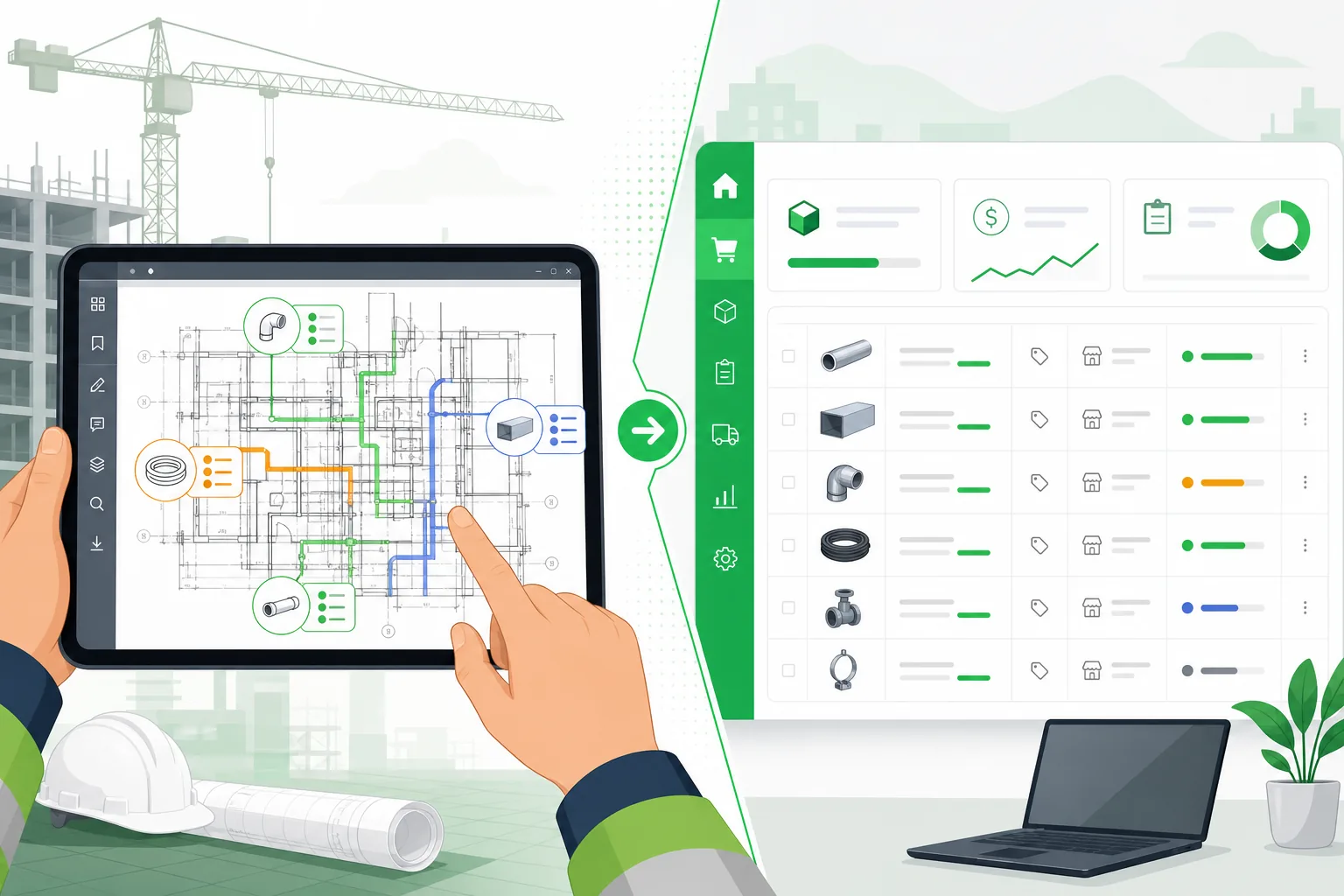
- Automatic BOM generation: Upload a drawing set and automatically extract a bill of materials — every component, quantity, and specification identified from the drawings
- Takeoff triggering: When a new revision is uploaded, automatically generate an updated quantity takeoff so estimates stay current
- Procurement linking: Connect BOM items to supplier catalogs for real-time pricing and availability
- Change impact analysis: When a drawing revision is issued, automatically identify which BOM items, estimates, and purchase orders are affected
How Aginera DesignOps Handles Drawing Management
Aginera DesignOps integrates drawing management with AI-powered analysis:
| Feature | What It Does |
|---|---|
| Unlimited cloud storage | Store drawings of any size or format — DWG, DXF, RVT, PDF |
| Automatic version tracking | Every upload creates a new version with full history preserved |
| 2D/3D web viewer | View any drawing format in the browser without CAD software |
| AI component extraction | Automatically identify and count every component on every sheet |
| BOM generation | Extract a complete bill of materials from drawing sets in minutes |
| Takeoff automation | Generate quantity takeoffs for electrical, mechanical, and plumbing disciplines |
| Role-based access | Control who can view, edit, and approve drawings by role |
| Change detection | Compare revisions side-by-side with differences highlighted |
The difference between a file storage system and a drawing management platform is what happens after upload. A file system stores your drawings. DesignOps reads them, understands them, and connects them to your estimating and procurement workflows.
Migration from Legacy Systems
If your team is currently using a mix of local drives, SharePoint folders, and email attachments, migrating to a proper drawing management system involves five phases:
Phase 1: Audit
Inventory every location where drawings currently live. This typically includes:
- Shared network drives
- Individual desktops and laptops
- Email attachments
- Third-party file sharing (Dropbox, Google Drive)
- FTP servers
- Physical plan rooms
Phase 2: Deduplicate and Clean
Identify and remove duplicate files, obsolete revisions, and orphaned drawings. A typical audit reveals that 30–40% of stored drawings are duplicates or superseded versions that should be archived.
Phase 3: Standardize
Rename files to the new naming convention. Restructure folders to the standard template. This is the most labor-intensive phase, but it only happens once.
Phase 4: Migrate
Move cleaned and standardized files to the new platform in phases — one project at a time, starting with active projects. Do not attempt a "big bang" migration of everything at once.
Phase 5: Train and Enforce
Train every team member on the new system. Establish clear policies: new drawings must be created in the new system; old systems are read-only for reference during transition, then decommissioned.
Start Organizing Your Drawings Today
Poor drawing management is not a technology problem — it is a process problem that technology can solve. The tools exist. The question is whether your team adopts them before the next costly revision error.
Try Aginera DesignOps free and bring structure to your drawing management workflow. Upload a drawing set and see AI-powered extraction in action — your first project is on us.
Frequently Asked Questions
What is CAD drawing management?
CAD drawing management is the process of organizing, versioning, storing, and collaborating on CAD drawings (DWG, DXF, RVT, PDF) across engineering teams. It includes naming conventions, version control, access control, review workflows, and integration with downstream systems like estimating and procurement.
What are the best practices for CAD drawing quality control?
Key quality control practices include automated title block validation, cross-reference checking between sheets, symbol library compliance verification, layer naming standards enforcement, and duplicate detection. Modern platforms automate these checks so QC happens continuously, not just at milestone reviews.
How do you organize CAD files for a large project?
Use a standardized folder structure with numbered discipline folders (Electrical, Mechanical, Plumbing, etc.), each containing sub-folders for Design, Issued for Construction, and As-Built phases. Combine this with a consistent naming convention that encodes project code, discipline, sheet number, description, and revision.
Should engineering teams use cloud-based CAD storage?
Yes. Cloud storage eliminates local-copy version conflicts, provides automatic backup, enables remote and mobile access, and typically costs less than on-premise infrastructure when you account for hardware, IT support, and maintenance. All major engineering platforms have moved to cloud-first architectures.
How does AI improve CAD drawing management?
AI enables content-based search (find drawings by what they contain, not just filenames), automatic component extraction, change detection between revisions, and integration with estimating and BOM workflows. Instead of manually reviewing every sheet, AI identifies what changed and flags items that need attention.