Sheet Metal Takeoff Software — STEP to Fabrication BOM
Drop a 3D CAD part and get an interactive model plus a fabrication BOM in seconds — material, sheet gauge, flat-pattern blank size, and cut weight, per part and across the assembly.
See it on a real part — no sign-up
A real CATIA part is already loaded below: interactive 3D on the left, the fabrication BOM on the right. Switch the material, try another sample, or upload your own STEP/STL/OBJ.
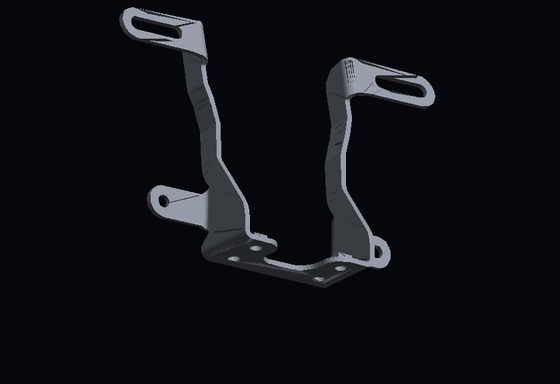
Sheet metal takeoff software uses AI to read a 3D CAD part — a STEP, STL, or OBJ file — and automatically produce a fabrication bill of materials: material, sheet gauge and thickness, the flat-pattern blank size, and the finished weight, per part and across the assembly. Instead of opening the model and keying those numbers in by hand, a shop uploads the file and reviews a BOM computed straight from the solid geometry — the same reading every time.
Quoting sheet metal shouldn't mean re-measuring the model by hand
A customer sends a STEP file and a drawing and asks for a price. Before you can quote, someone has to open the model, find the material and gauge, work out the flat-pattern blank so you know how much stock it eats, and calculate the weight. Multiply that across every part in an assembly and every RFQ in the queue, and estimating becomes the bottleneck.
Do it by hand and it's slow and inconsistent — two estimators read the same part differently, and a wrong gauge or blank size quietly walks margin out the door.
Aginera reads the solid geometry directly. Upload the part, and material, thickness, blank size, and weight come back the same way every time — in seconds, straight from the CAD model.
How It Works
Three steps from CAD file to fabrication BOM.
Upload the 3D part
Drag in a STEP, STP, IGES, STL, or OBJ file — the neutral formats every CAD system exports. Single parts or multi-body assemblies.
AI parses the geometry
An OpenCascade CAD kernel reads the solid, measures bounding box, volume, and surface area, and renders the part in an interactive 3D viewer.
Get the fabrication BOM
Material, sheet gauge, flat-pattern blank size, and weight per part — with assembly totals. Change the material to re-price, then export to Excel.
What the AI Derives from a 3D Part
Everything a shop needs to cut, form, and price — from the solid model.
Material & Weight
True solid volume × material density — steel, stainless, aluminium, copper, brass, titanium. Re-prices on material change.
Sheet Gauge & Thickness
Wall thickness recovered from geometry (2·vol/area), snapped to the nearest standard sheet gauge.
Flat-Pattern Blank
Developed blank area of the sheet so you know how much stock each part consumes.
Envelope & Bounding Box
Length × width × height in millimetres — the fit-up and nesting envelope for every part.
Form Classification
Flat plate, formed/bent, or solid — so a machined block is never handed a misleading gauge.
Part Count & Assembly Totals
Each body is a line; identical bodies collapse to a quantity. Distinct parts, total parts, and total weight.
Why Fabricators Use Aginera for Sheet Metal Takeoff
Quote from the model, not from memory
Material, gauge, blank size, and weight come straight off the CAD geometry — no re-measuring, no spreadsheet gymnastics before you can price a job.
The same reading every time
Geometry is deterministic: the same part returns the same numbers on Monday and Friday, from any estimator. No drift, no argument over whose measurement was right.
See the part while you price it
An interactive 3D viewer sits next to the BOM, so you can confirm you are looking at the right revision before the quote goes out.
Straight to Excel
Export the BOM to a spreadsheet your shop already runs on — no re-keying part numbers, weights, or blank sizes.
Frequently Asked Questions
What is sheet metal takeoff software?
Sheet metal takeoff software turns a part design into the numbers a shop needs to quote and cut it: material, thickness or gauge, the flat-pattern blank size, and the finished weight — per part and across the whole assembly. Aginera does this straight from the 3D CAD model instead of asking you to key it in by hand.
Which 3D file formats does it read?
STEP (.step/.stp) and IGES (.iges/.igs) B-rep solids — the neutral formats exported by CATIA, SolidWorks, NX, Creo, and Fusion — plus STL and OBJ meshes. Upload the part file and Aginera parses the geometry with an OpenCascade CAD kernel, renders it in an interactive 3D viewer, and derives the BOM.
How does it estimate sheet thickness and gauge?
From the solid geometry. For a thin part the material thickness is recovered as 2 × volume ÷ surface area, which holds for flat plate and for brackets bent out of flat stock — where the bounding box only tells you the bend depth, not the gauge. The estimate is snapped to the nearest standard sheet gauge and flagged as flat, formed, or solid so you know how much to trust it.
How is the part weight calculated?
Weight is exact geometry, not a guess: the CAD kernel computes the true solid volume, and Aginera multiplies by the density of the material you select — steel, stainless, aluminium, copper, brass, or titanium. Change the material and every weight re-prices instantly.
Can it handle assemblies with multiple parts?
Yes. Each solid body in the file becomes a BOM line with its own measurements, and identical bodies collapse into a single line with a quantity. You get a per-part breakdown and assembly totals — distinct parts, total part count, and total weight.
Is it accurate enough to quote from?
The geometry — bounding box, volume, surface area, and weight — is computed deterministically by the CAD kernel and is accurate to the model. Thickness and gauge are estimated from that geometry and are reliable for genuine sheet-metal parts; heavily machined or solid parts are flagged rather than given a misleading gauge. Treat it as a fast, consistent first pass a fabricator reviews, not a black box.
Upload your drawing → get takeoff + BOM in minutes
Free 7-day trial. No credit card required.