Export & import (Excel round-trip)
Export the takeoff to Excel, CSV, PDF, or an estimating-system format — and import an existing takeoff from Bluebeam, PlanSwift, Accubid, or a spreadsheet, mapping columns to Aginera fields.
Purpose
Get the takeoff out of Aginera in the format your estimating stack expects, and bring an existing takeoff in from another tool — a full round-trip.
Export
The Export menu in the takeoff top bar has four options:
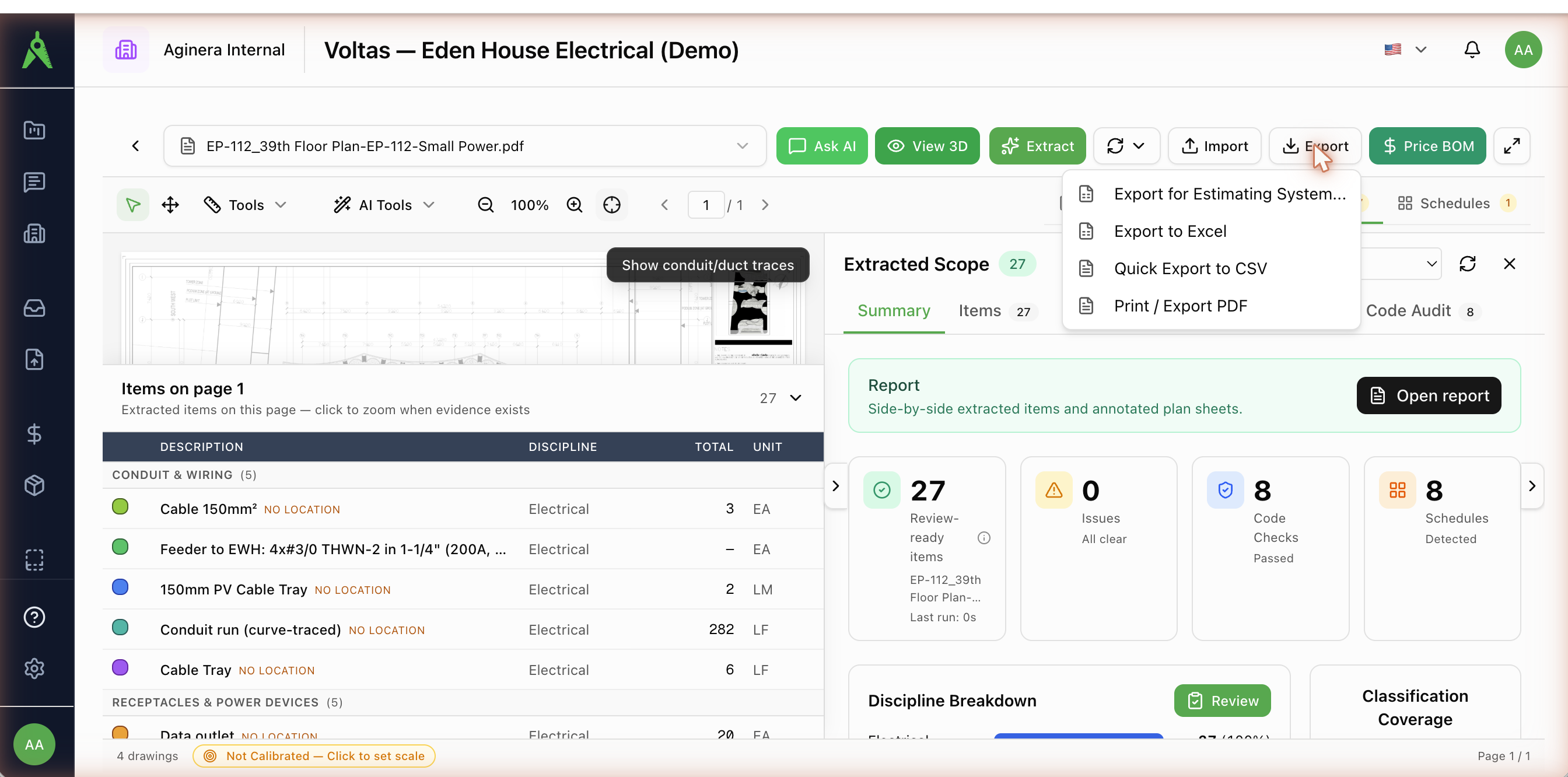
- Export to Excel — a multi-tab XLSX workbook (takeoff, estimate, summary). One click.
- Quick Export to CSV — a flat CSV of every item. Columns: Type Code, Category, Description, Qty, UOM, Length (m), Drawing No, Sheet Type, Area ID, Is Placeholder, Is Duplicate, Duplicate Of, Source Ref, Pages, Status, Confidence, Remarks, Document.
- Print / Export PDF — a shareable report pairing extracted items with annotated sheets.
- Export for Estimating System… — opens the export dialog below.
Export for Estimating System
The Export Takeoff & Estimates dialog offers named profiles for common estimating and takeoff tools, grouped by category:
| Group | Profiles |
|---|---|
| General formats | Generic Excel (XLSX), Steel Grating BOM (XLSX), Generic CSV |
| Electrical estimating | McCormick Systems, Trimble / Accubid, ConEst IntelliBid, Vision InfoSoft |
| Takeoff software | Bluebeam / PlanSwift / OST (CSV) |
| ERP / PM | Procore Estimating (CSV) |
| Developer / API | JSON API |
| Custom | Your organization's own templates |
Before exporting you can set the Export Scope — Takeoff Items Only, Estimate Items Only, or Takeoff + Estimate — and toggles for Reviewed items only, Pricing-eligible only, Include review items, Include rejected items (as a separate tab), and Include evidence / sheet refs.
What the Generic Excel workbook contains
Separate tabs for Takeoff, Estimate, and Summary. Item rows carry Type Code, Trade/Category, Description, Qty, Unit, Length, Sheet, and Confidence; the Summary tab totals quantities per unit (Total EA, Total LM, …); the Estimate tab carries Section, Labor Cost, Material Cost, Total, then Subtotal / Overhead / Profit / TOTAL. Quantities scaled off a drawing (rather than read from a printed dimension) are flagged “ESTIMATE — scaled off drawing, verify.”
Import
The Import button opens the Import External Takeoff wizard: choose a source system (or auto-detect), upload the file, then map its columns to Aginera fields.
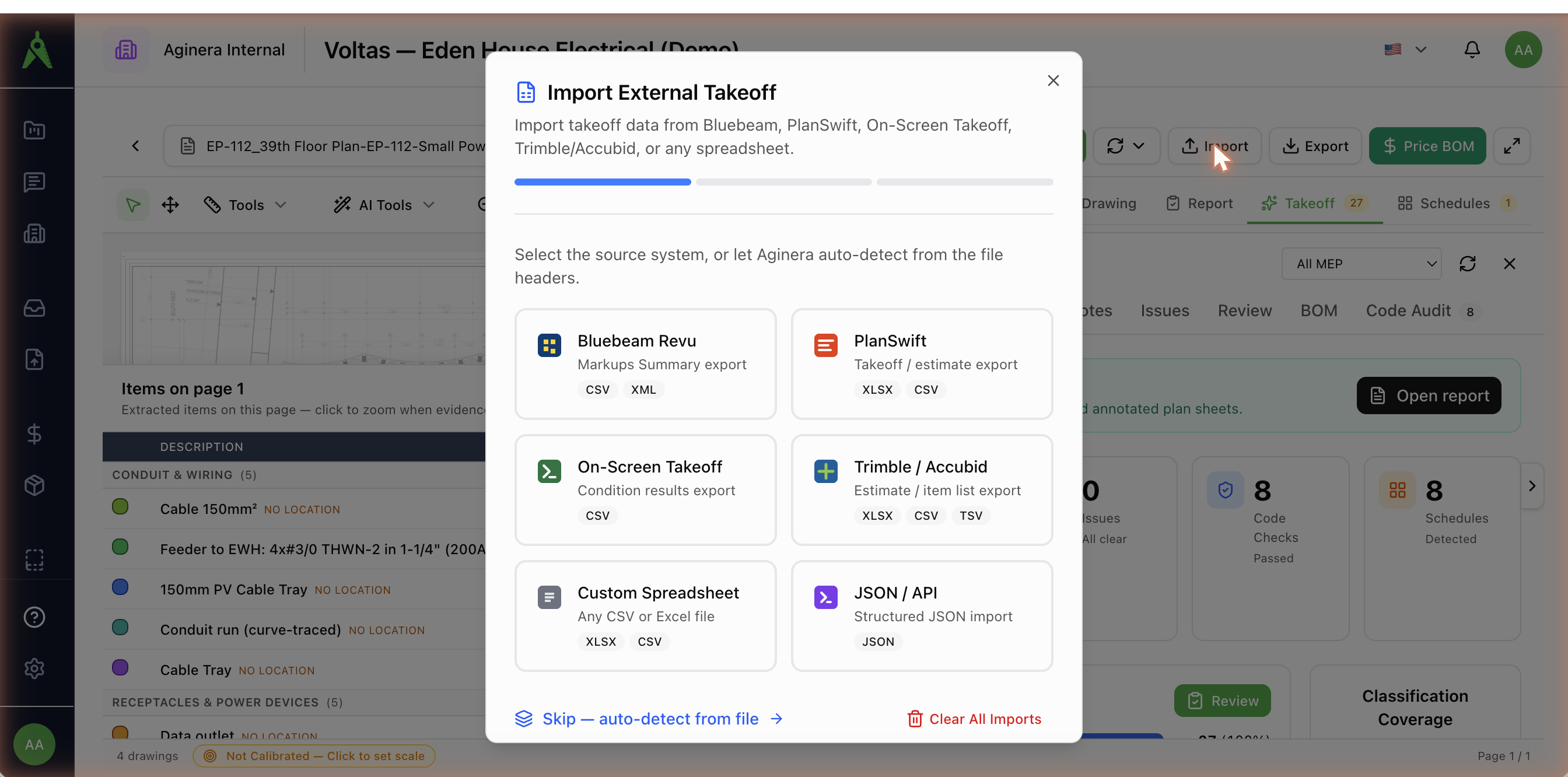
- Sources: Bluebeam Revu, PlanSwift, On-Screen Takeoff, Trimble / Accubid, Custom Spreadsheet, or JSON / API — or Skip — auto-detect from file. Downloadable per-vendor templates are provided.
- Accepted formats: CSV, XLSX, XLS, XML, JSON, TSV (up to 10 MB).
- Field mapping — map your columns to Aginera fields. Description and Quantity are required; optional fields include Unit, Sheet / Page, Cost Code, Item Code, Assembly / Group, Discipline, Location, Unit Material Cost, Labor Hours/Unit, Labor Rate, Total Material, Total Labor, Total Cost, and Notes.
- Import as — bring rows in as Takeoff Items, Estimate Lines, or Both. This is how an edited spreadsheet of quantities comes back into a project. Imported rows are tagged Imported from external system.
The round-trip
A common workflow is Export to Excel → edit quantities in the spreadsheet → Import (mapping back to Takeoff Items or Estimate Lines). Keep the Type Code / Item Code column intact so imported rows line up with the originals.
Import gotchas
Rows without a mapped Description are skipped. After importing, the result screen reports Imported / Skipped / Failed counts and the takeoff reloads. Clear All Imports removes imported items and cannot be undone.