Running extraction
The Extract dialog in detail — pick a trade, scan for the right sheets, add missed pages, and control what runs so you only pay for the pages you need.
Purpose
Run extraction on exactly the sheets that matter. The Extract button opens a short wizard: choose the trade, let Aginera scan for the sheets that belong to it, adjust the page selection, then run.
Step 1 — Pick the trade
Open Extract to see the trade picker. Choosing a trade tells Aginera which sheets to look for and which extraction schema to apply.
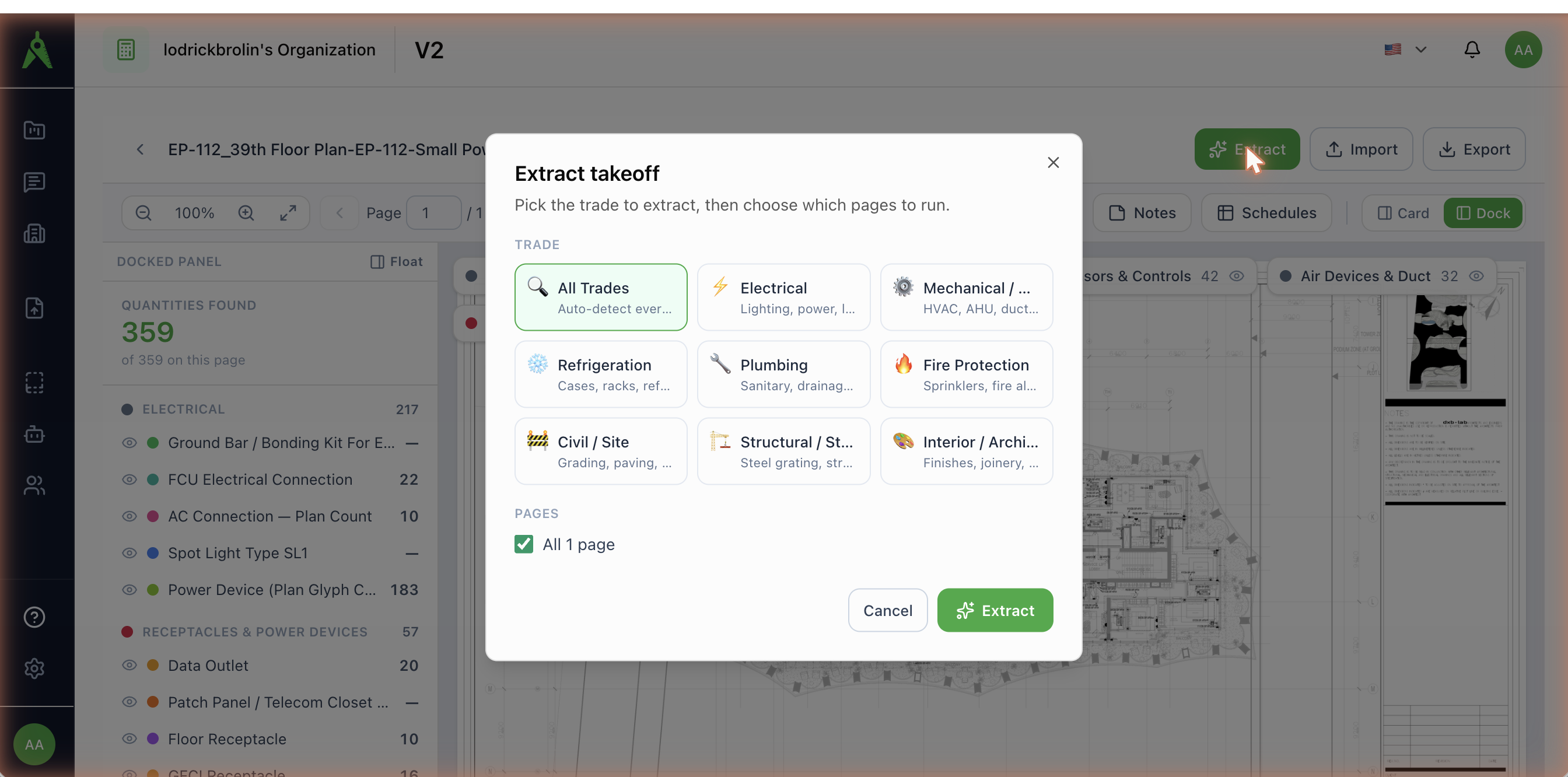
| Trade | What it targets |
|---|---|
| All Trades | Auto-detects every discipline on the sheet |
| Electrical | Lighting, power, load schedules |
| Mechanical / HVAC | HVAC, AHU, ductwork, mechanical piping |
| Refrigeration | Cases, racks, refrigerant piping, hangers |
| Plumbing | Sanitary, drainage, water supply |
| Fire Protection | Sprinklers, fire alarm, suppression |
| Civil / Site | Grading, paving, utilities, drainage |
| Structural / Steel | Steel grating, structural steel, shop drawings |
| Interior / Architectural | Finishes, joinery, FF&E, ceilings |
The trade is pre-selected from the project type you chose when creating the project — change it here for anything else.
Why single-trade beats “extract everything”
Picking one trade scans only the sheets for that trade, which is faster, cheaper, and avoids false positives from cover pages and unrelated sheets. Choosing All Trades adds an opt-in checkbox to run every page without scanning — the slowest option, and not recommended for large sets.
Step 2 — Confirm the pages
After you pick a trade, Aginera scans the document and streams back the pages it found. For each page you'll see:
- A thumbnail (click to expand), the sheet number and title, and a confidence badge.
- A route badge — vision (~40s) for image-based sheets that need AI vision, or text (~3s) for sheets with a usable text layer.
- A PDF profile line: the PDF kind, authoring tool, and how many pages have a text layer.
- A live time estimate: total pages, the vision/text split, and how much time you save versus running the whole set.
You can:
- Re-include excluded pages — anything the scan set aside is listed with a reason and a checkbox to add it back.
- Add pages the scan missed — type page numbers and ranges (for example
15, 20-28).
The run button reads Extract N pages so you always know the scope before you commit.
After extraction
Extracted items land in the takeoff workspace with colour-coded markers on the sheet and a grouped quantities panel. From there, review and correct them.
Re-extracting
Running extraction again on a sheet re-runs AI vision (it doesn't replay a cached result), so recall can genuinely improve — useful after you've fixed a misclassified sheet. If the trade you picked doesn't match the disciplines detected on a sheet, Aginera warns you before running so you don't extract with the wrong schema.
CAD files
For DWG/DXF uploads, the extract dialog asks you to select the discipline to extract from this CAD file and then reads block and entity data. See Editable CAD export for CAD in and out.