Quote a takeoff (distributors & reps)
Turn a contractor's drawing set into a priced material quote from the takeoff screen — one line per product, priced from your price list, AI estimates for the gaps, then download or email it to the contractor.
Purpose
For supply houses, lighting reps and equipment distributors: quote the material on a contractor's drawing set without leaving the takeoff. Quote turns the takeoff into a material-only quote — one line per fixture type or product, with the sheets each line came from — prices it from your price list, and sends it to the contractor.
Quote is not an estimate
An estimate prices the installed job (material + labour + markup) for a contractor's bid to the owner. A quote prices the material only, per product, from your price list, for the contractor. Both start from the same takeoff, so the quantities agree.
Before you start
- Run Extract on the drawing set (see Running an extraction). Quote uses the counted takeoff.
- Signed up as a Distributor? The quote opens on its own when the takeoff finishes, and the free sheets put the fixture schedule or legend first so each fixture type is named.
1. Open Quote
Quote is the solid green button at the right of the takeoff top bar.

On a set with more than one trade, Quote first asks Which trade are you quoting? — pick the trade you supply (or All trades). Chips at the top of the quote switch trades later.
2. Read the quote
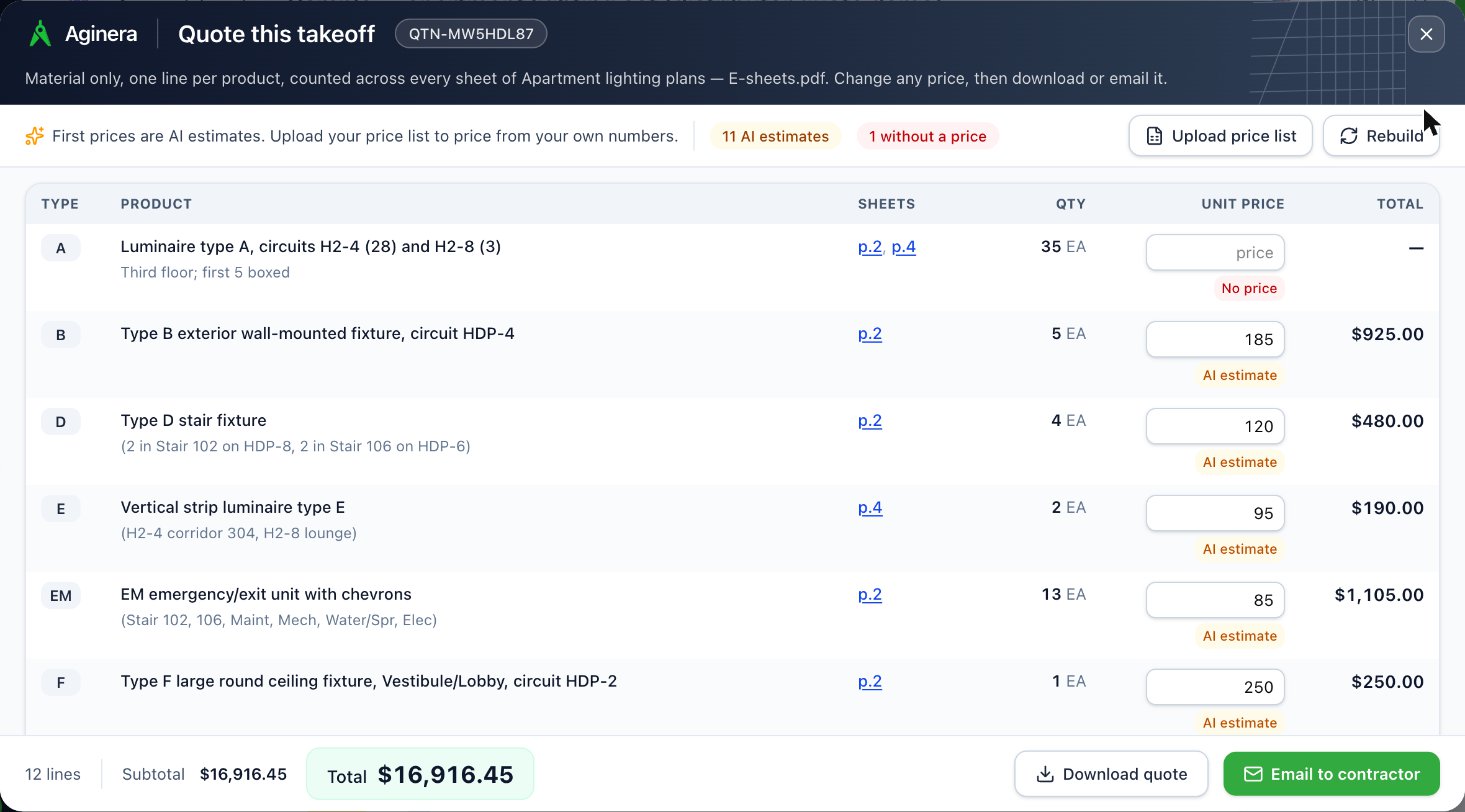
| Column | What it shows |
|---|---|
| Type | The fixture or equipment mark from the drawings (A, B, EM, HG-1…). |
| Product | What the line is. With a fixture schedule in the set, this is the schedule's product text (make, model, lamp, wattage). The grey line under it is the location or circuit detail. |
| Sheets | Every sheet the line was counted on. Click one to jump to that page. |
| Qty | Added up across all sheets. |
| Unit price | Editable. The label under it says where the price came from. |
| Total | Qty × unit price. |
Price labels:
- Your list — matched to your uploaded price list (discount rules applied).
- AI estimate — a typical distributor price for that product, so the first quote is complete. Check these before sending.
- Edited — a price you typed.
- No price — nothing to price yet (for example a bare "Luminaire Type B" with no description). Type a price or leave it as price on request.
The bar above the table counts AI estimates and lines without a price, so you can see at a glance what still needs a look.
3. Price from your own list
Click Upload price list and choose an Excel file with item description, part number and price columns. Every line re-prices from it straight away — by part number first, then by description, keeping only the same product (size, rating, type). Lines your list does not cover keep their AI estimate. Upload once; later quotes use the same list.
To change a single line, type over its unit price and press Enter. Typed prices are kept when the quote re-prices.
Rebuild re-reads the takeoff (after you corrected counts, say). It resets typed prices.
4. Send it
- Download quote — a spreadsheet of every line with type, product, manufacturer, part number, qty, unit price, total, price source and sheets.
- Email to contractor — enter the contractor's email, Preview the message, then Send quote. The email carries the quote number, lines and totals exactly as priced.
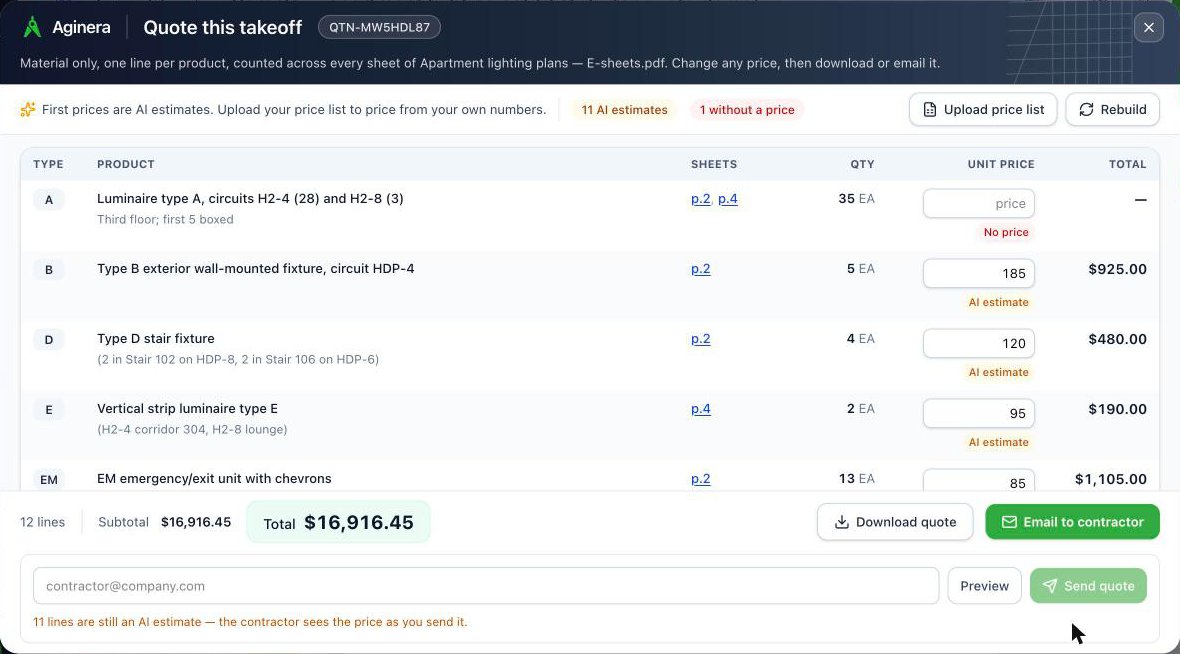
Before you send
The send box warns when lines are still AI estimates — the contractor sees each price exactly as you send it.
Tips
- Counts look off? Click the sheet on the line to check the drawing, fix the takeoff, then Rebuild.
- Currency follows your account's country; your price list should be in the same currency.
- ERP: there is no direct ERP sync yet — download the quote and load the spreadsheet.
Related: Export & import · Takeoff software for distributors