Reading the takeoff screen
A tour of the takeoff workspace — the quantities panel, colour-coded on-plan markers, show/hide and isolate, per-sheet schedules, notes, and export.
Purpose
Learn how to read and drive the takeoff workspace so you can verify every quantity against the drawing quickly.
Layout at a glance
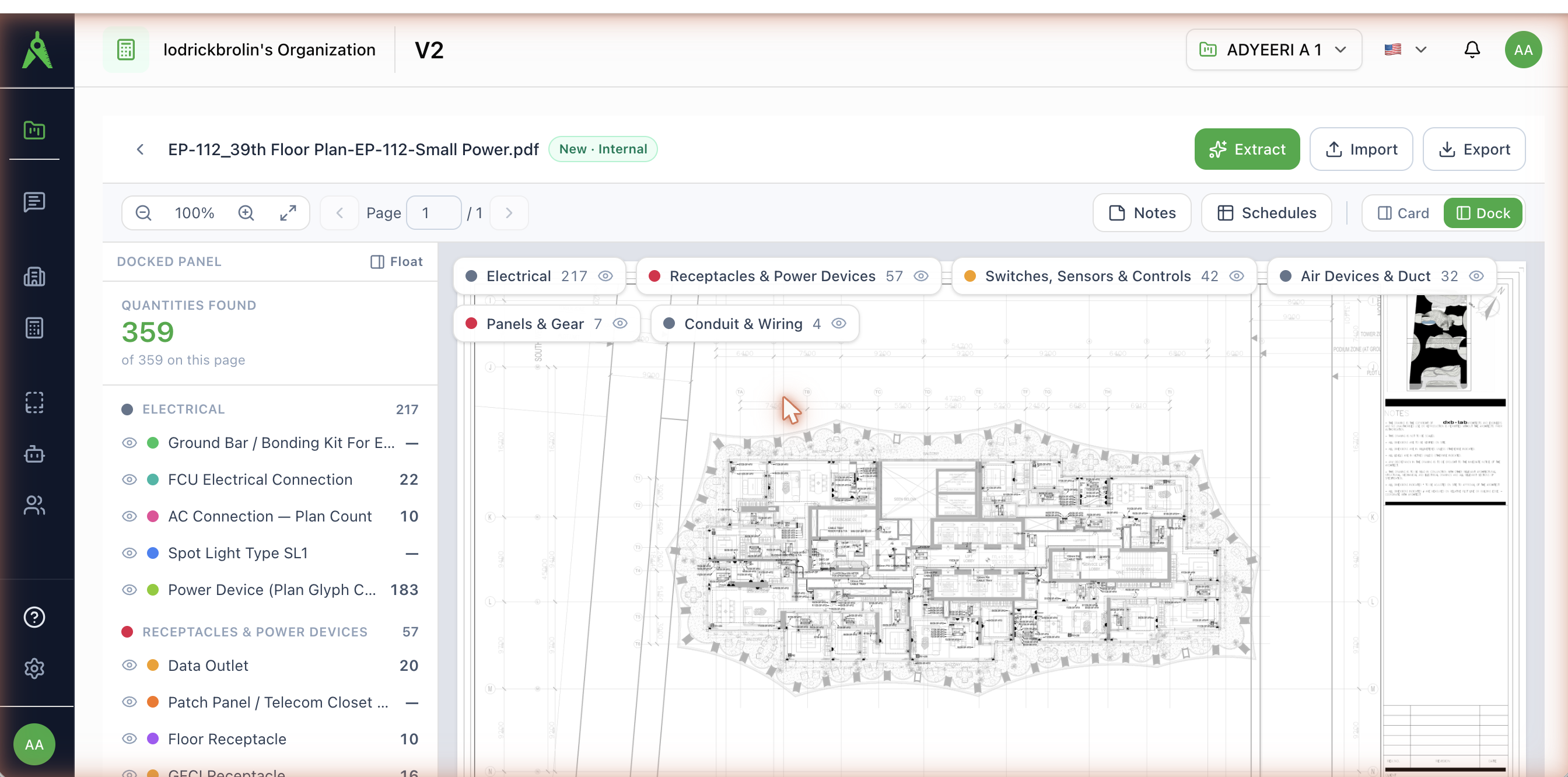
- Drawing canvas — the sheet in view. Use the zoom controls or scroll to zoom; pan by dragging. Move between sheets with the Page control (or the ‹ › arrows).
- Quantities panel — extracted items on the current page, grouped by category with a colour swatch and count per type. Toggle between Dock (left rail) and Card / Float (a panel that floats over the sheet).
- Trade chips — one per category, each with a count and a show/hide toggle.
- Top bar — Extract, Import, Export, Price BOM, Notes, Schedules.
Markers and colour coding
Each quantity type has a colour. That same colour marks every occurrence of the type on the sheet, so the panel and the drawing always agree.
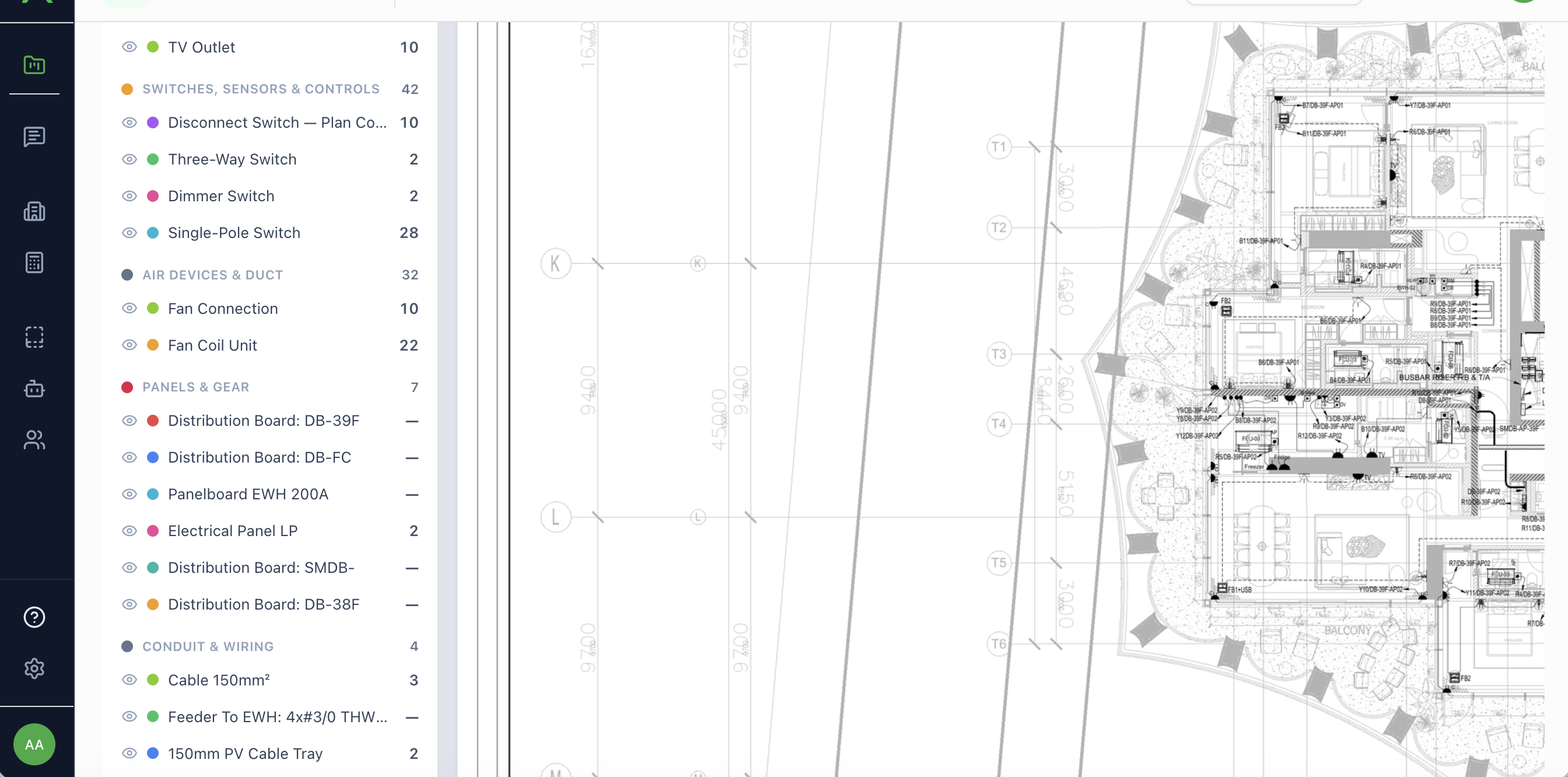
- Show / hide — click the eye on a category chip or a type row to remove it from the sheet. Useful for isolating one system on a dense plan.
- Isolate — select a type to bring just its markers forward.
- Quantities found — the panel header shows the count for the current sheet (for example of 359 on this page).
Schedules
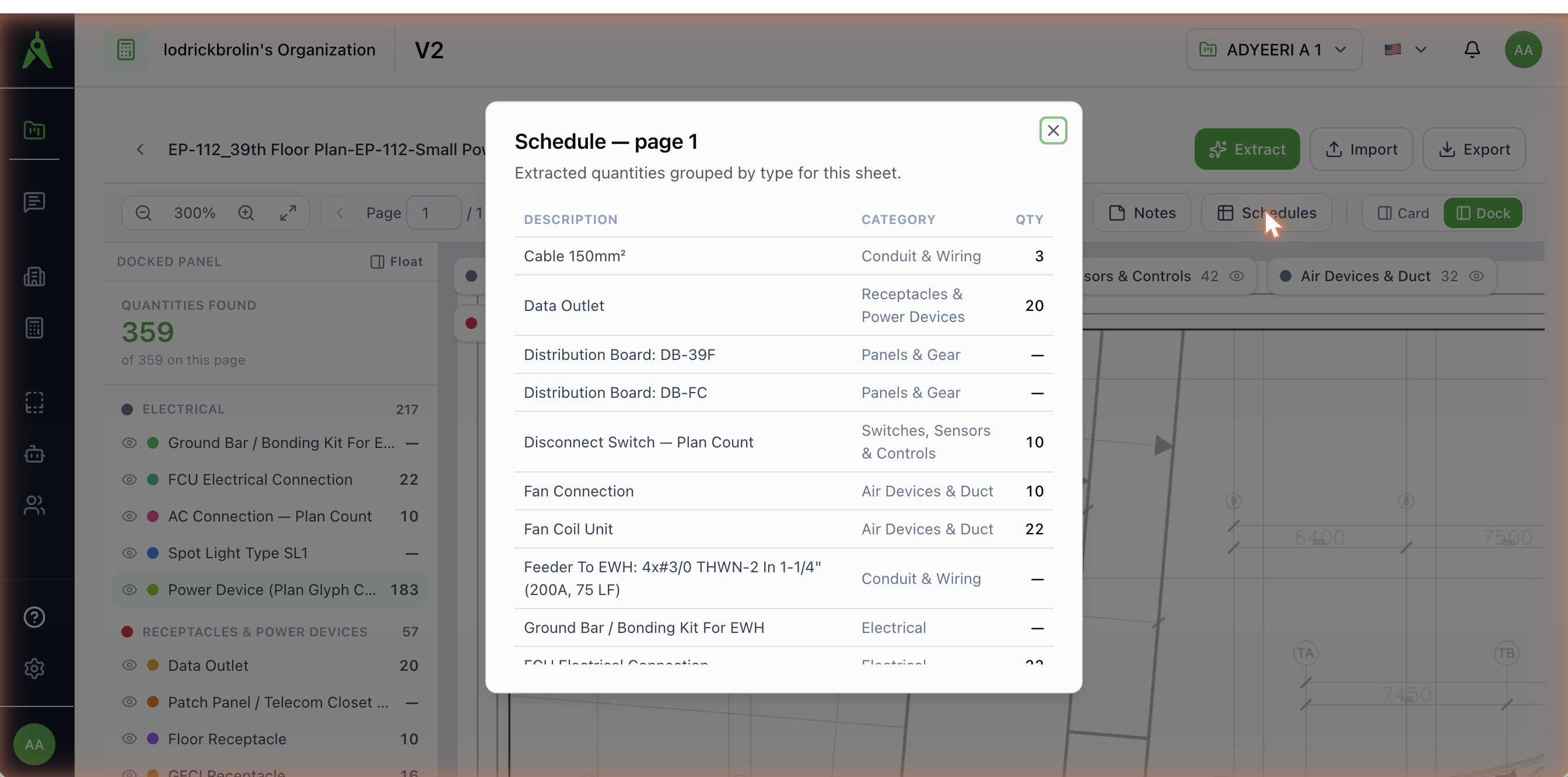
Schedules collapses the current sheet into a grouped table (description, category, quantity). It is the fastest way to sanity-check totals or copy them out.
Notes
Use Notes to leave sheet-level context for reviewers or the estimating team — assumptions, exclusions, or questions for the design team.
Export
- Export to Excel / Quick Export to CSV — the itemised takeoff.
- Export for Estimating System — structured hand-off to estimating tools.
- Print / Export PDF — a report pairing extracted items with annotated sheets.
- Price BOM — push confirmed quantities into pricing.
Troubleshooting
- A count looks high or low. Open the type in the panel and use isolate to check the markers on the sheet; reject false positives in Review Extraction.
- The wrong schema ran on a sheet. Some sheets (indexes, legends, schedules) are not plans — confirm the sheet's classification and re-extract if needed.
- Markers not visible. Make sure the type/category is not hidden (eye toggle) and zoom in — markers scale with the drawing.