Find symbols (assisted takeoff)
Count the symbols the automatic takeoff missed — sample one on the sheet, draw where to look, review the matches with a strictness slider, and confirm the count into your takeoff. Deterministic, no AI credits.
Purpose
Automatic extraction gets most of a sheet, but every estimator knows the feeling of spotting a fixture type it didn't count — a downlight family drawn as a bare glyph, a valve drawn through pipework, a sheet the extraction skipped. Find symbols is the assisted takeoff for exactly that: you show Aginera one example of the symbol, tell it where to look, and it finds every match on the page for you to review and confirm.
It is deterministic template matching on the drawing's own ink — not an AI call. It costs no credits, runs in seconds, and works whether or not you have run an automatic takeoff on the document.
Who this is for
Estimators finishing a takeoff who want to close gaps fast, and anyone who prefers to count a symbol family themselves — on a plan that was never extracted, or on one that was.
Open it
On the takeoff screen, click Find symbols in the toolbar. A four-step panel docks to the right of the sheet. Zoom in first — a tight sample around the glyph is what makes the match precise.
Step 1 — Sample the symbol
Drag a box around one symbol: a placed instance on the plan, or its glyph in the legend. Include the whole glyph and leave out the tag text next to it (the tag varies from instance to instance; the glyph does not). Sample two or three variants if the same fixture is drawn slightly differently — each becomes its own symbol in the same run.
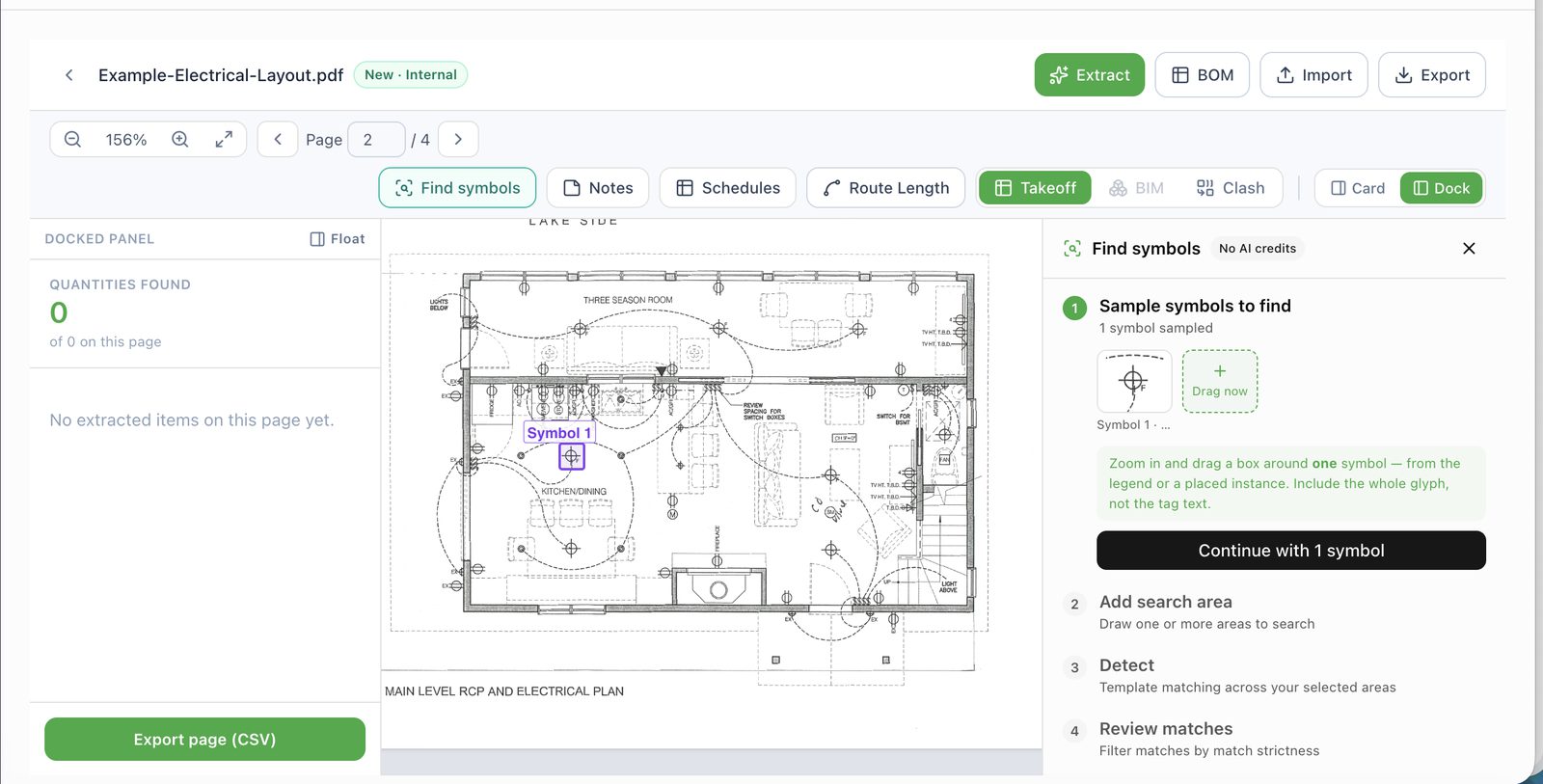
Aginera trims your box to the ink inside it, so it does not need to be exact. If the sample is too small, too large, or looks like a line rather than a symbol, the run tells you and asks for a tighter box.
Step 2 — Add search areas
Drag one or more boxes over the regions to search — a room, a wing, a whole plan — or press Whole page to search the current sheet. Areas can be on different pages: page through the document and draw as you go, and every area is listed in the panel.
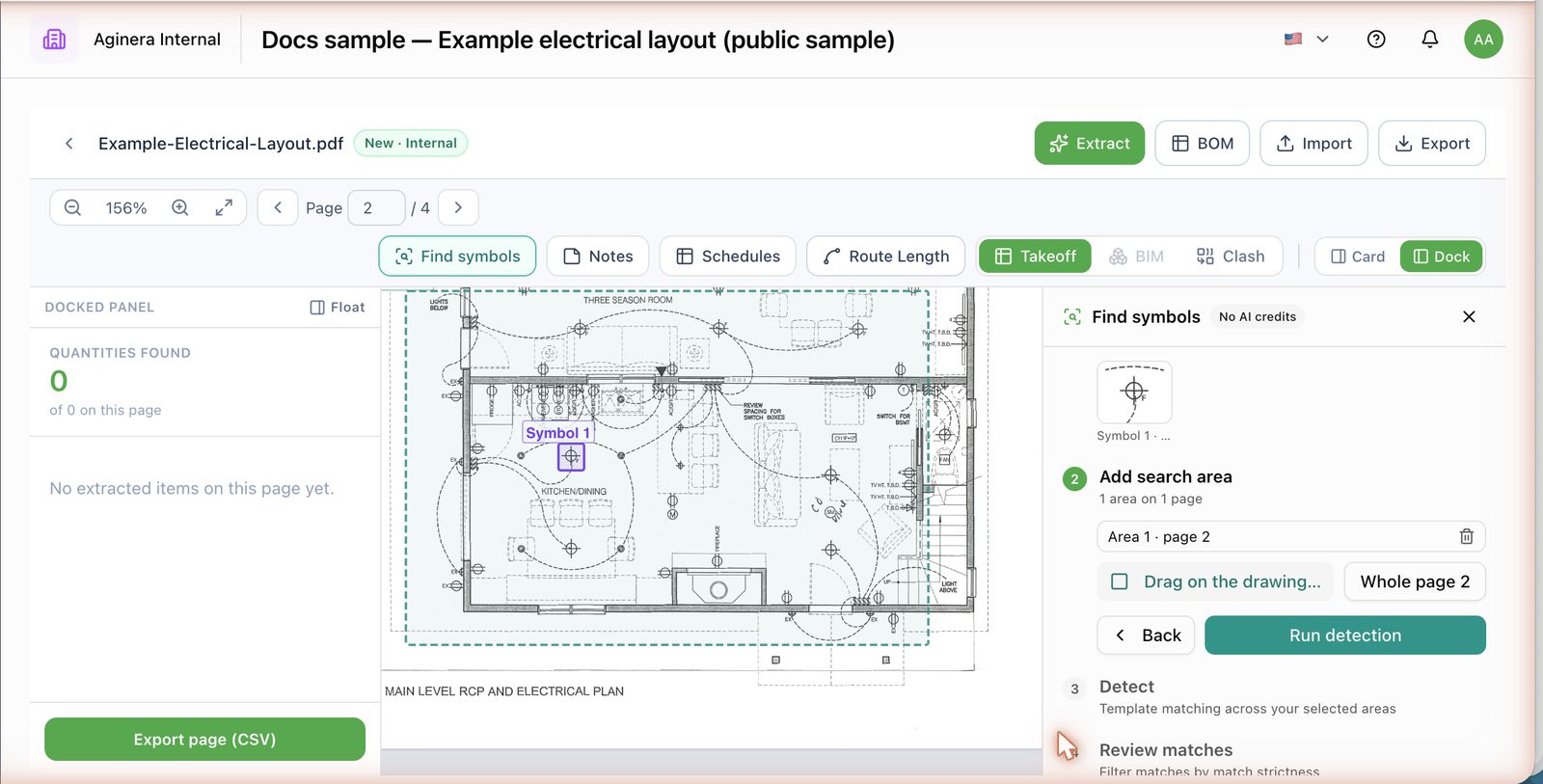
Step 3 — Detect
Run detection rasterises the searched pages and matches your sample at every rotation. Everything that scores above a low floor comes back at once, so the next step never needs a re-run.
Step 4 — Review and confirm
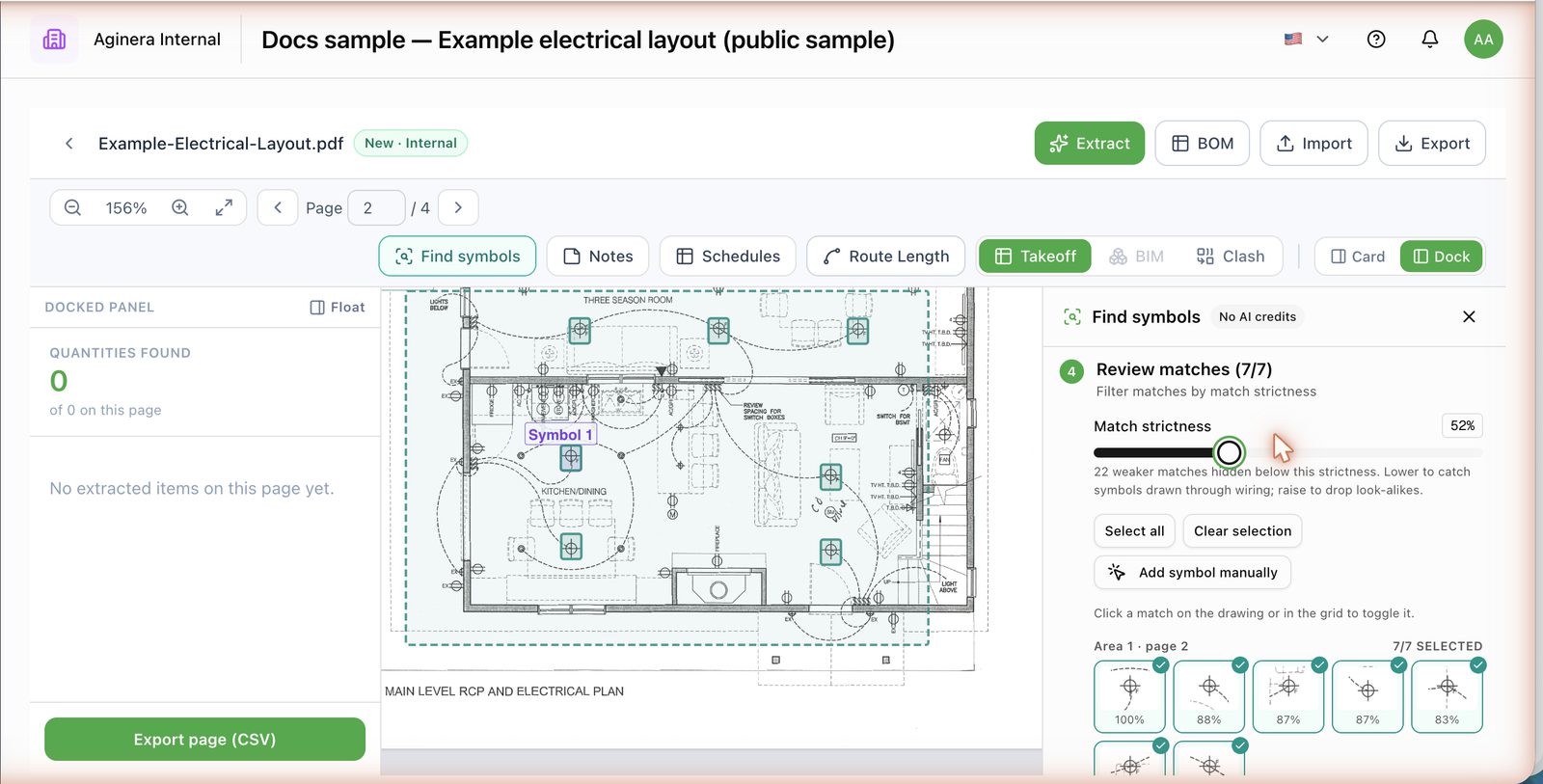
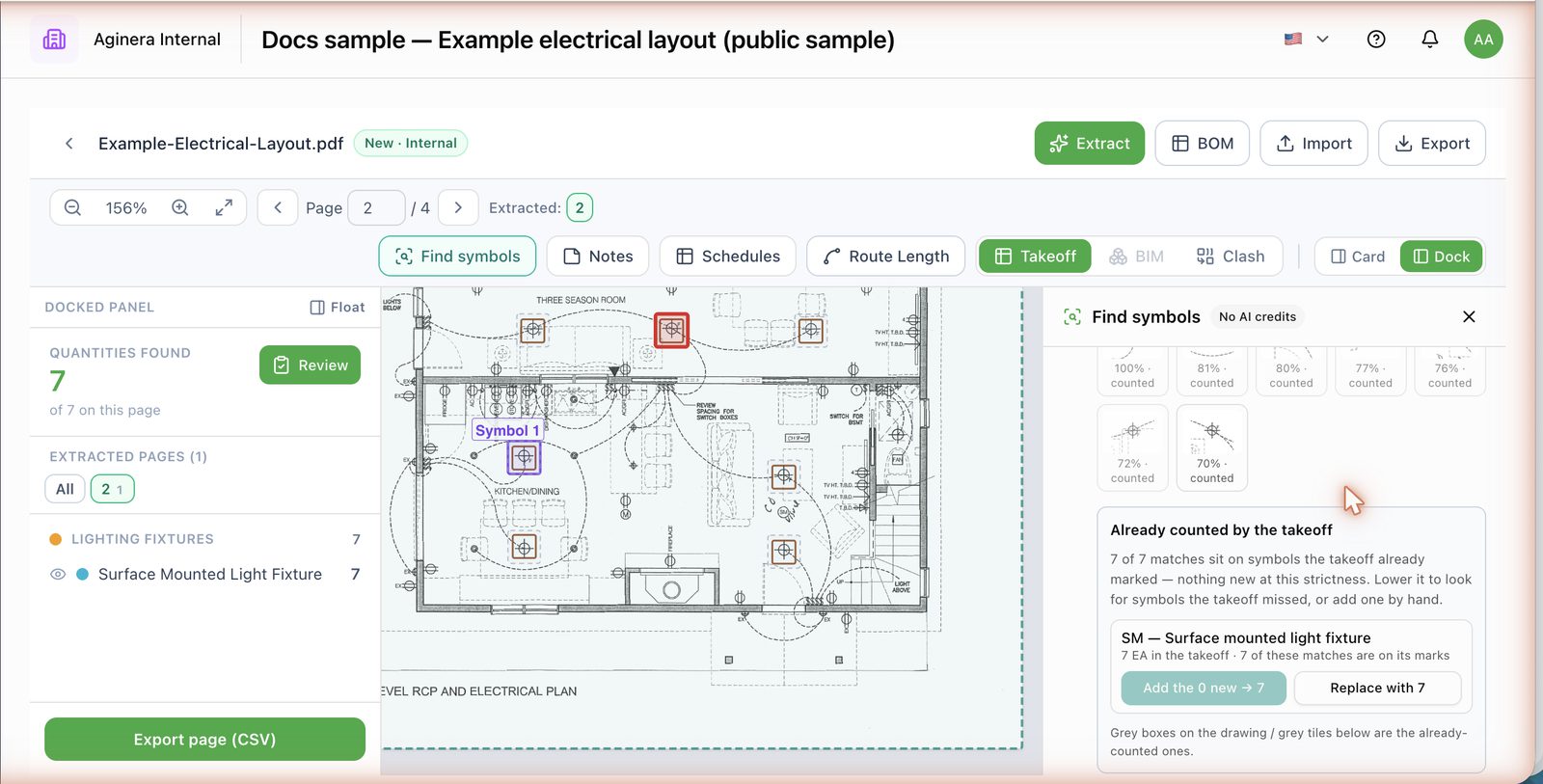
Every match is boxed on the sheet and tiled in the panel with its match score. The Match strictness slider filters them instantly:
- Lower it to catch symbols drawn through wiring, hatching or text, which score lower.
- Raise it to drop look-alikes — a similar glyph of another fixture type, or letterforms that resemble the symbol.
Click a tile or a box on the sheet to toggle a single match. Add symbol manually lets you click any symbol the matcher missed and it joins the count as a hand-placed mark.
Then decide where the count goes:
- New item — creates a takeoff row (type/tag and description) with the confirmed quantity in EA.
- Existing item — attach the count to a row the takeoff already has, either replacing its quantity or adding to it.
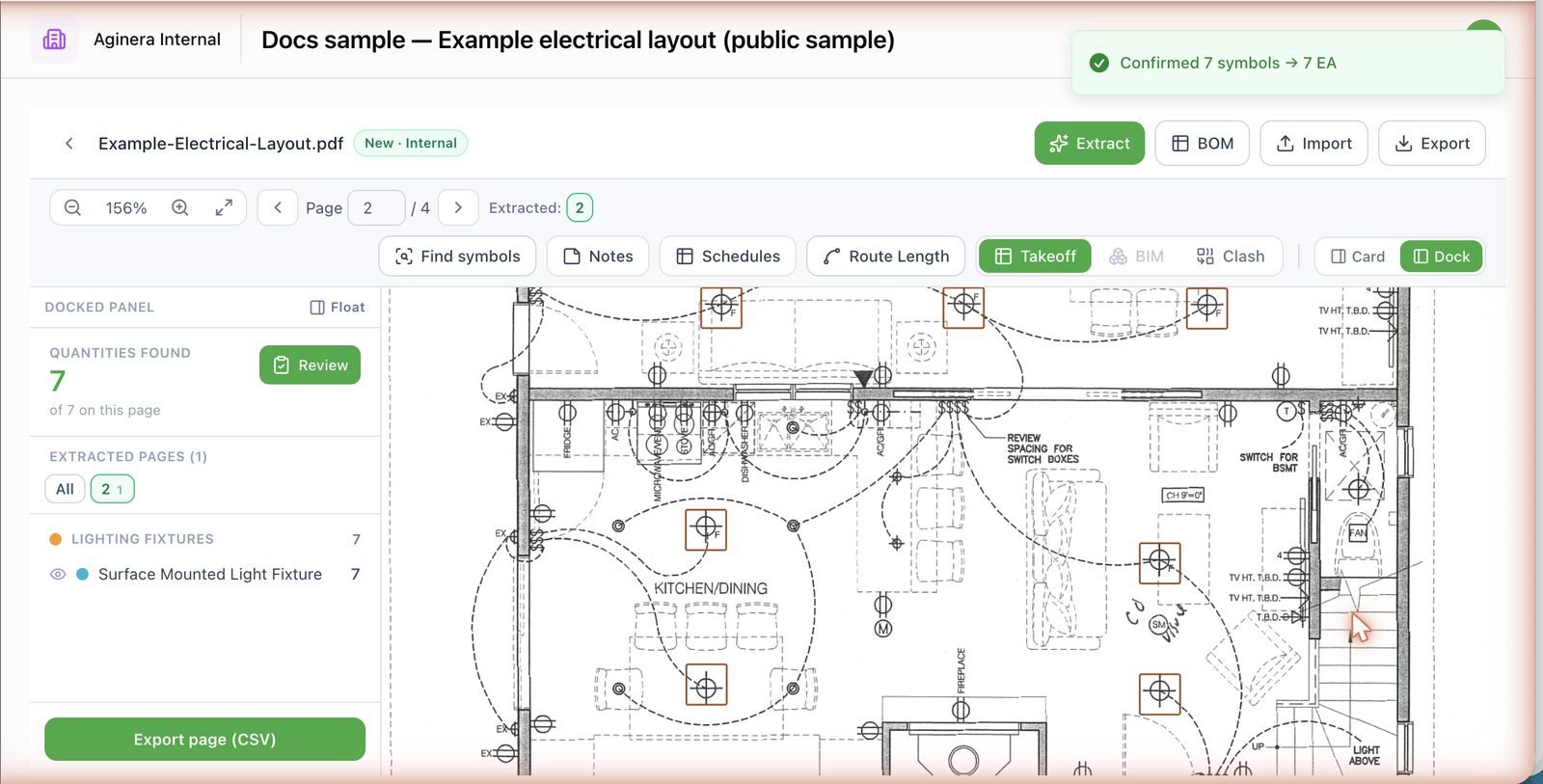
Confirm writes the quantity and one mark per confirmed symbol, so every number stays traceable to the exact spot on the sheet. The row shows up in the quantities panel immediately, tagged as estimator-counted.
How it reconciles with the automatic takeoff
Find symbols is aware of what the takeoff already counted. Every match that sits on an existing takeoff mark is flagged counted, drawn in grey, and summarised under Already counted by the takeoff with the row it belongs to:
- Add the N new attaches only the matches the takeoff missed to that row (the already-counted ones are left out), so the row goes from, say, 24 to 27 without double-counting.
- Replace with N makes your reviewed set the row's count and marks.
- Choosing New item while counted matches are selected shows a warning, because that would count the same fixtures twice — deselect them or attach to the existing row instead.
When you add to an existing row, the server re-checks each mark against the row's own marks and skips any that are already there, whatever the panel showed.
Rows without marks
Reconciliation is spatial: it compares your matches to the marks the takeoff placed on the sheet. A row that was counted from a schedule or a text tag and carries no marks cannot be matched this way — pick it under Existing item yourself.
Tips
- Sample at high zoom; a 12-pixel glyph with the tag text inside the box will still match, but it drags look-alike tags into the low-score band.
- Symbols that share a glyph and differ only by a tag (D1 vs D2 downlights) come back as one family — count the family, then split by tag from the schedule if you price them differently.
- On dense sheets, start at 60% strictness and step down until a wrong match appears, then step back up one notch.
- The first run after a quiet period takes a few extra seconds while the matching service starts.
Related
- Symbol detection — how the automatic takeoff finds and counts symbols
- Running extraction
- Export & import