PDF to bill of materials (BOM)
Turn a drawing PDF into a bill of materials — read the BOM and parts-list tables printed on the sheets, or render the takeoff as a BOM by shape, part, or tag — and export it to Excel or CSV.
Purpose
A bill of materials is what a fabrication shop, a piping contractor, or a skid vendor actually orders against. Aginera gives you two ways to get one out of a drawing set, and you can use either — or both — on the same document:
| Drawing tables | Takeoff BOM | |
|---|---|---|
| What it reads | The BOM / parts-list / schedule tables printed on the sheets — a spool sheet's bill of material, a nozzle schedule, a fabrication parts list | The takeoff — every item the extraction counted on the drawings — regrouped as a BOM |
| How it runs | Its own Read BOM tables button in the BOM dialog | Needs Extract to have run first |
| Best for | Pipe spools, shop drawings, vendor packages, any sheet with a material list box | P&IDs, structural framing, MEP plans — anything without a printed BOM |
| Cost | Free on text-layer sheets; one AI-vision read per scanned page | The extraction itself |
You do not need Extract to read the drawing tables
Read BOM tables is a separate, lighter pass. It transcribes only the tabular BOM boxes on the pages you pick and never touches the takeoff. If your sheets carry a bill of material, that is the fastest route from PDF to BOM.
Where the BOM lives
Open a document in the takeoff workspace. The BOM button sits in the top bar next to Extract; once tables or takeoff rows exist it shows a count badge.

The Bill of Materials dialog has two tabs: Drawing tables and Takeoff BOM (labelled Steel BOM, Grating BOM, Sheet Metal BOM or Fabrication BOM when the takeoff is of that kind).
Read the BOM tables off the sheets
The example below is a 19-sheet pipe spool fabrication package — every sheet is a scanned spool assembly with its own BILL OF MATERIAL box (pipe, elbows, flanges, nipples with size, schedule and rating).
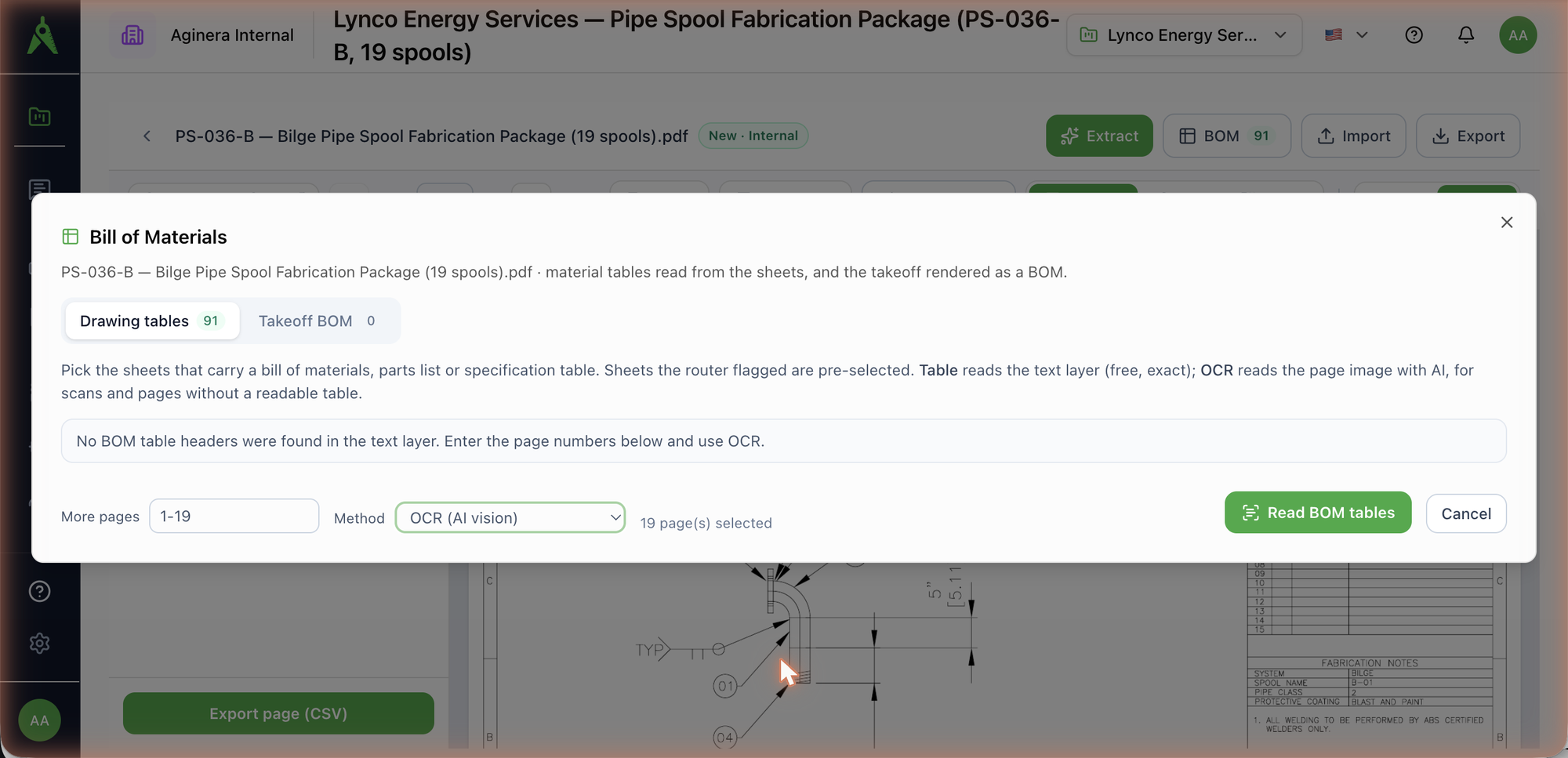
- Click BOM → Drawing tables. If nothing has been read yet you land on the page picker; otherwise click Re-read to get back to it.
- Tick the sheets that carry a table. Sheets the router flagged as BOM or schedule pages are pre-selected; on a scanned set with no text layer the list is empty — type the pages into More pages (
1-19, or3, 7-9). - Choose the Method:
- Auto — reads the text layer, falls back to OCR when a page yields fewer than two rows.
- Table (text layer only) — free and exact; for CAD-exported PDFs with live text.
- OCR (AI vision) — for scans and flattened prints. One vision call per page.
- Click Read BOM tables.
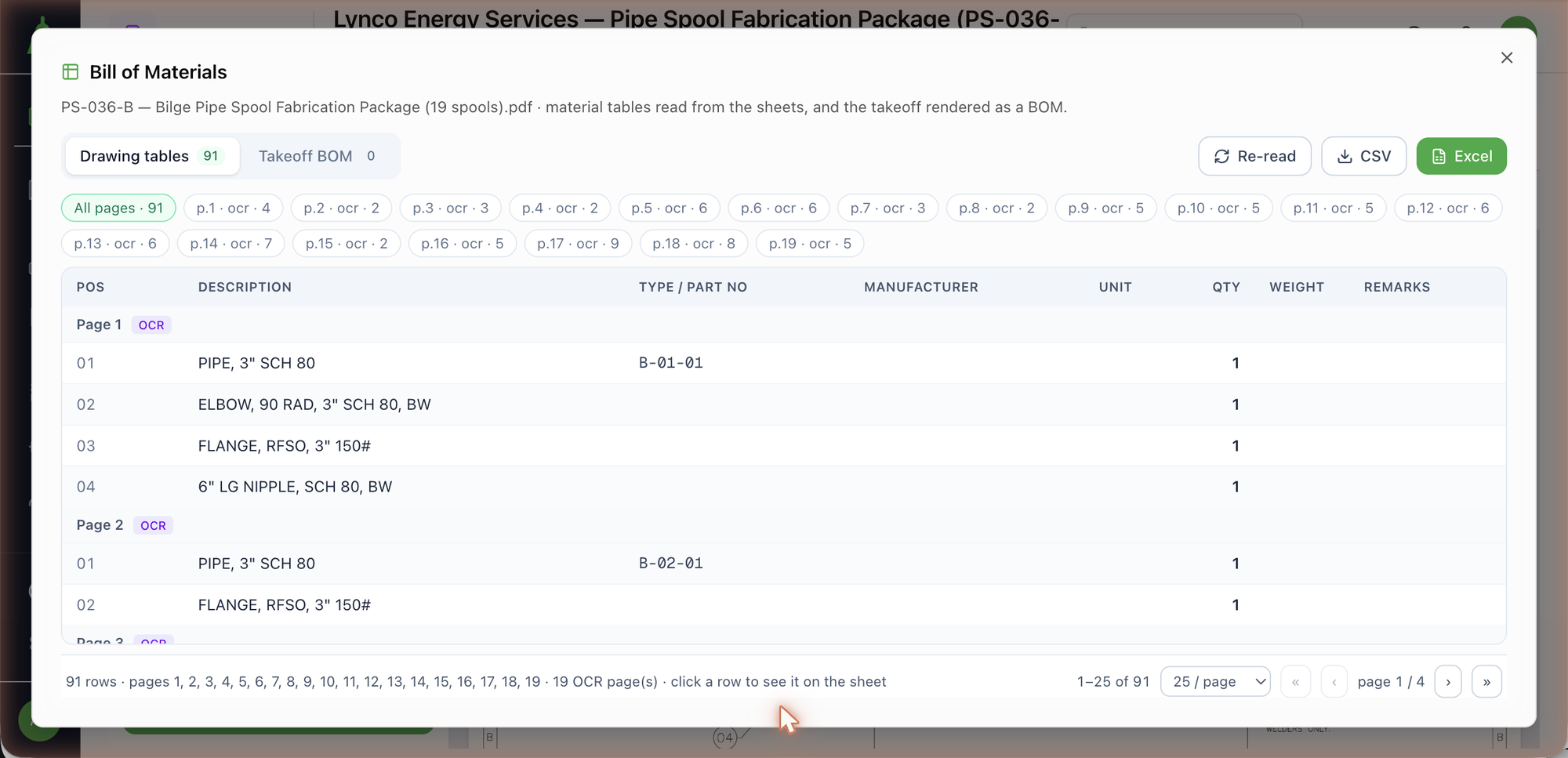
Rows come back grouped by page, with the columns the table actually had — position, description, type / part number, manufacturer, unit, quantity, weight, remarks — and a TABLE or OCR badge on each page group. Page chips across the top filter to a single sheet.
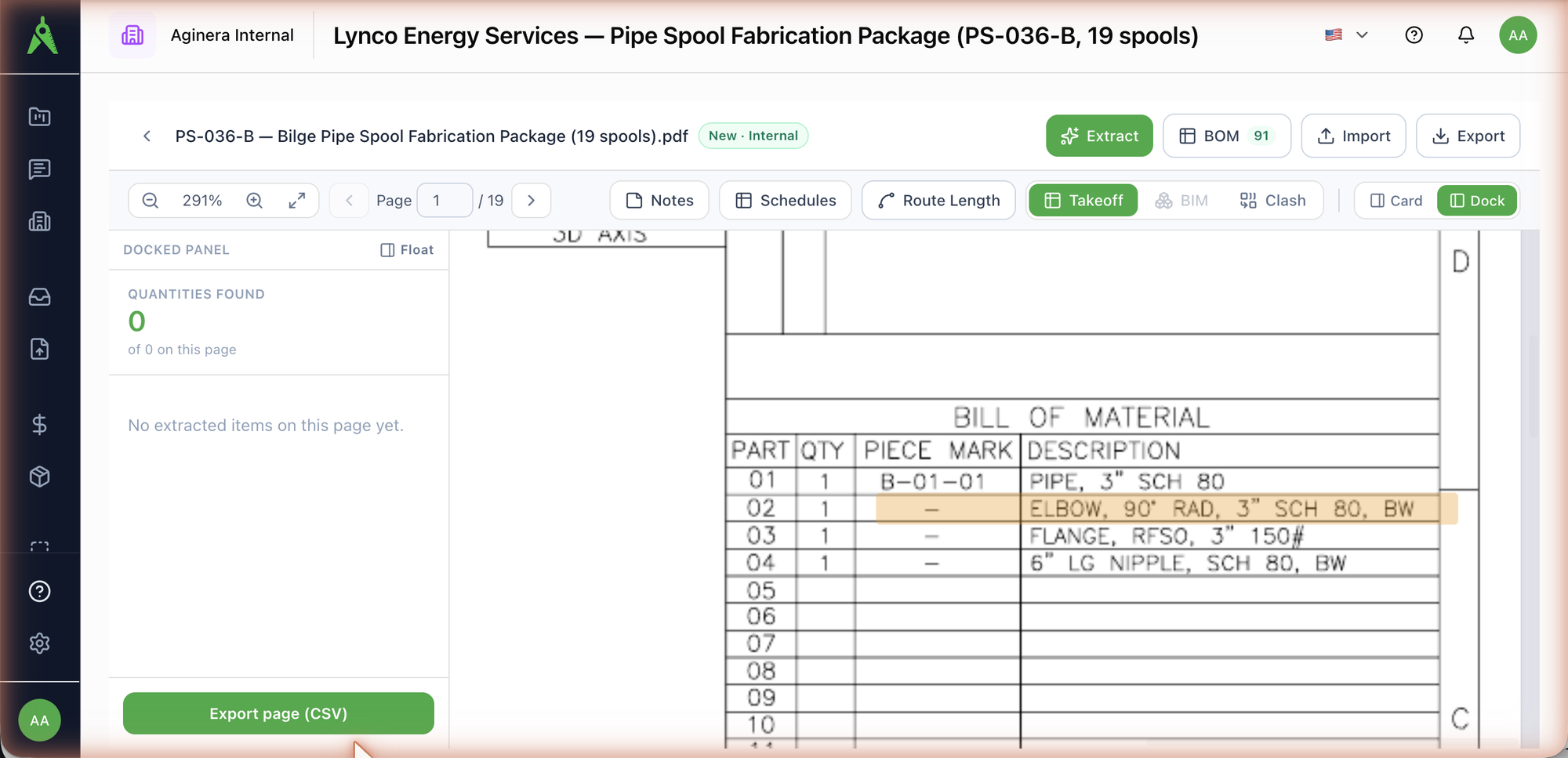
See the row on the sheet
Every row knows where it came from. Click a row and the viewer jumps to that sheet, zooms in, and highlights the printed line in the BOM box — so a quantity is never a number you have to take on trust.
Re-reading replaces the previous result for the document; the takeoff is untouched either way.
Spool register — what the sheet says about itself
The same read also captures the sheet's own identity from the title block, fabrication notes and design-data box: spool number, line number, system, pipe class, coating, drawing number, revision, sheet, design code, design / test pressure, NDE, work package, client, project — only what is actually printed. Each page heading in the dialog shows them as chips (Spool B-01 · System BILGE · Class 2 · Coating BLAST AND PAINT · Dwg PS-036-B-01 · Rev 0).
When the document contains spool or isometric sheets, the export adds them too:
- every BOM row in the CSV / Excel carries Spool · Line no · System · Pipe class · Coating · Drawing no · Rev, so a 19-spool package sorts and filters by spool;
- the workbook gets a Spools tab — one row per spool sheet with its design data, BOM line count, and empty Work package / Price class columns for the planner to fill (those are not printed on the drawing).
A sheet counts as a spool sheet when it names a spool, a line, a pipe class, or carries piping design data. A machine drawing or a building schedule never gets the register — its export is unchanged.
The takeoff as a BOM
For drawings that have no printed material list — a P&ID, a structural framing plan, a mechanical layout — run Extract for the matching trade, then open BOM → Takeoff BOM. The same rows you see in the takeoff panel are regrouped into a BOM, and the table shape follows what was extracted:
- Steel BOM — one line per AISC shape: Shape · Mark · EA · Length (LF) · lb/ft · Weight (lb) · Sheet, with member and tonnage totals. Shapes resolve against the AISC v16 database (W, HSS, L, 2L, C, PIPE…) and EN / AS/NZS tables.
- Grating BOM — panels by mark with span, width, bar depth, area and weight, plus accessories.
- Sheet Metal / Fabrication BOM — parts and assemblies from shop drawings or STEP models, with material, gauge, blank and weight.
- Takeoff BOM — everything else: Sheet · Mark / Type · Description · Qty · Unit, one row per counted item or tag.
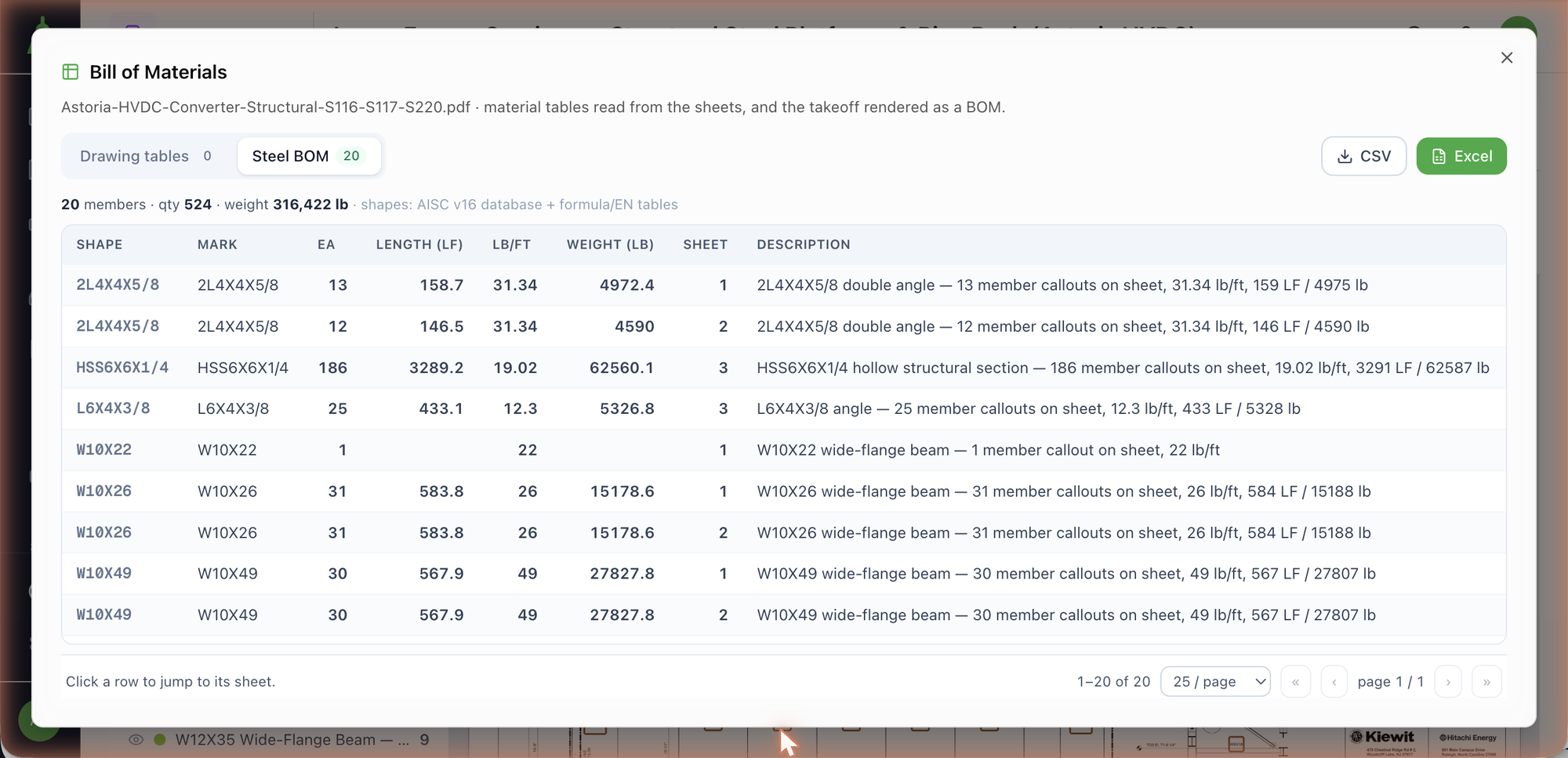
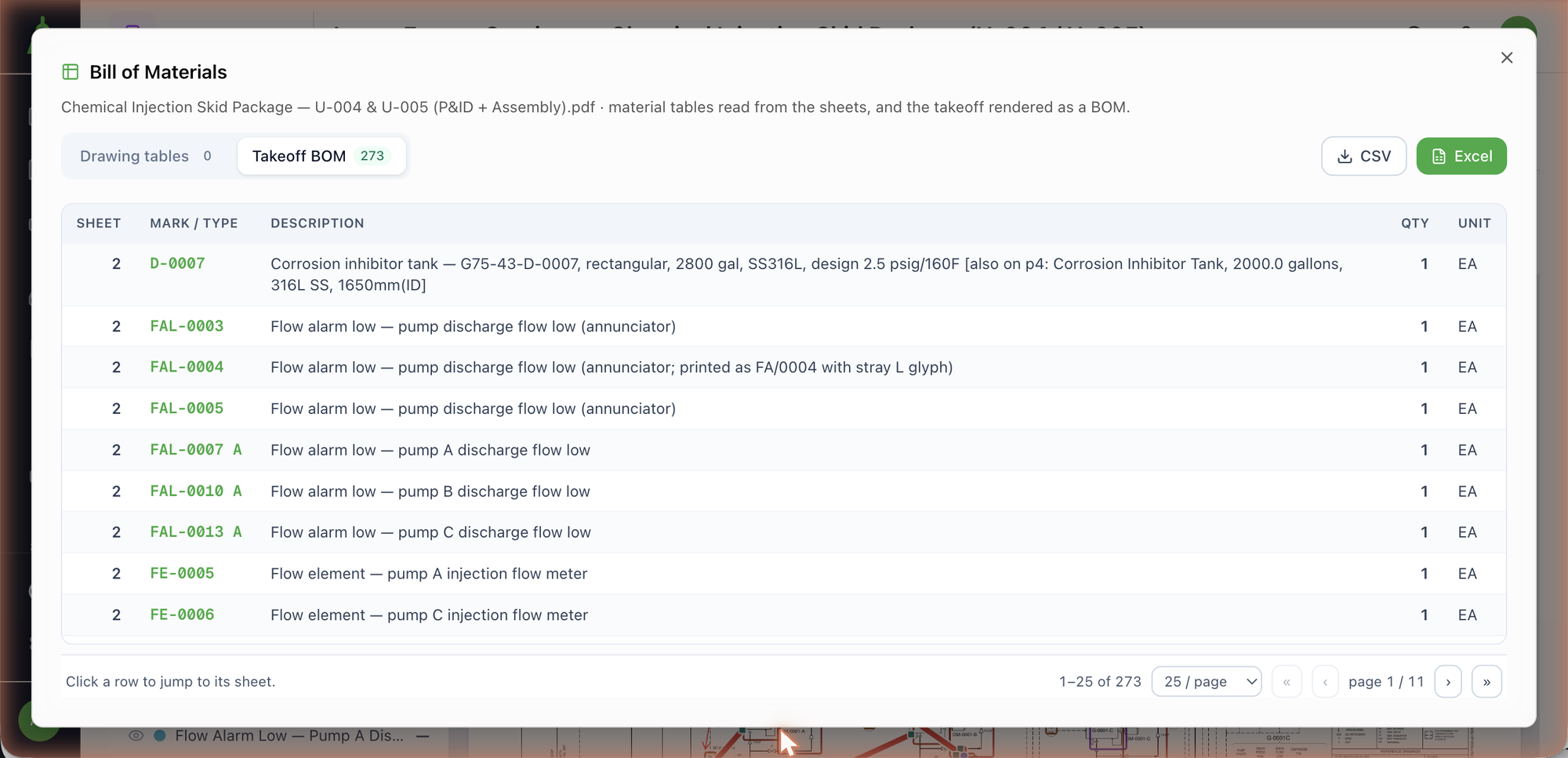
Clicking a row here jumps to its sheet as well.
Pick the trade that matches the set
For a P&ID or vendor skid package choose Process / P&ID; for framing plans Structural / Steel; for shop drawings and parts lists Sheet Metal / Fabrication. A trade-scoped extraction only shows that trade's rows — running Structural on a piping package would hide the pipe and fitting rows. See Running extraction.
Export
Both tabs export with the CSV and Excel buttons in the dialog header. The Excel workbook carries the BOM as its own tab; the project-level Export menu in the top bar adds the estimating-system profiles described in Export & import.
Limits
- Up to 40 pages per read; OCR pages are capped per plan (3 on the free plan).
- Tables are read from PDFs. Convert TIF or DWG shop drawings to PDF first, or upload the STEP model for a geometry-based fabrication BOM.
- A quantity printed as a length (
6',24.9 M) is kept as that number with its unit; a note line without a quantity or an item number is not a part and is left out, and drawing-index pages are skipped even when the router flags them. - An isometric without a printed material list is not yet a BOM source: the takeoff reads its instruments and pipe runs, but fittings, gaskets and bolt sets are not derived from the drawing geometry.