Creating estimates
Generate a client-ready estimate from your takeoff — choose Trade Estimate or GC Budget, price from the rate card or with AI, review line by line, run the AI completeness check, and send.
Purpose
Produce a priced, client-ready estimate from a reviewed takeoff — fast from the rate card, or with AI for the gaps.
Open the Estimates tab on any project. If the project has no estimate yet, you'll land on Create New Estimate.
Review the takeoff first
Estimates inherit whatever is in the takeoff. Reviewing and correcting extraction items before you generate gives the most accurate estimate — Aginera reminds you of this on the create screen.
Create a new estimate
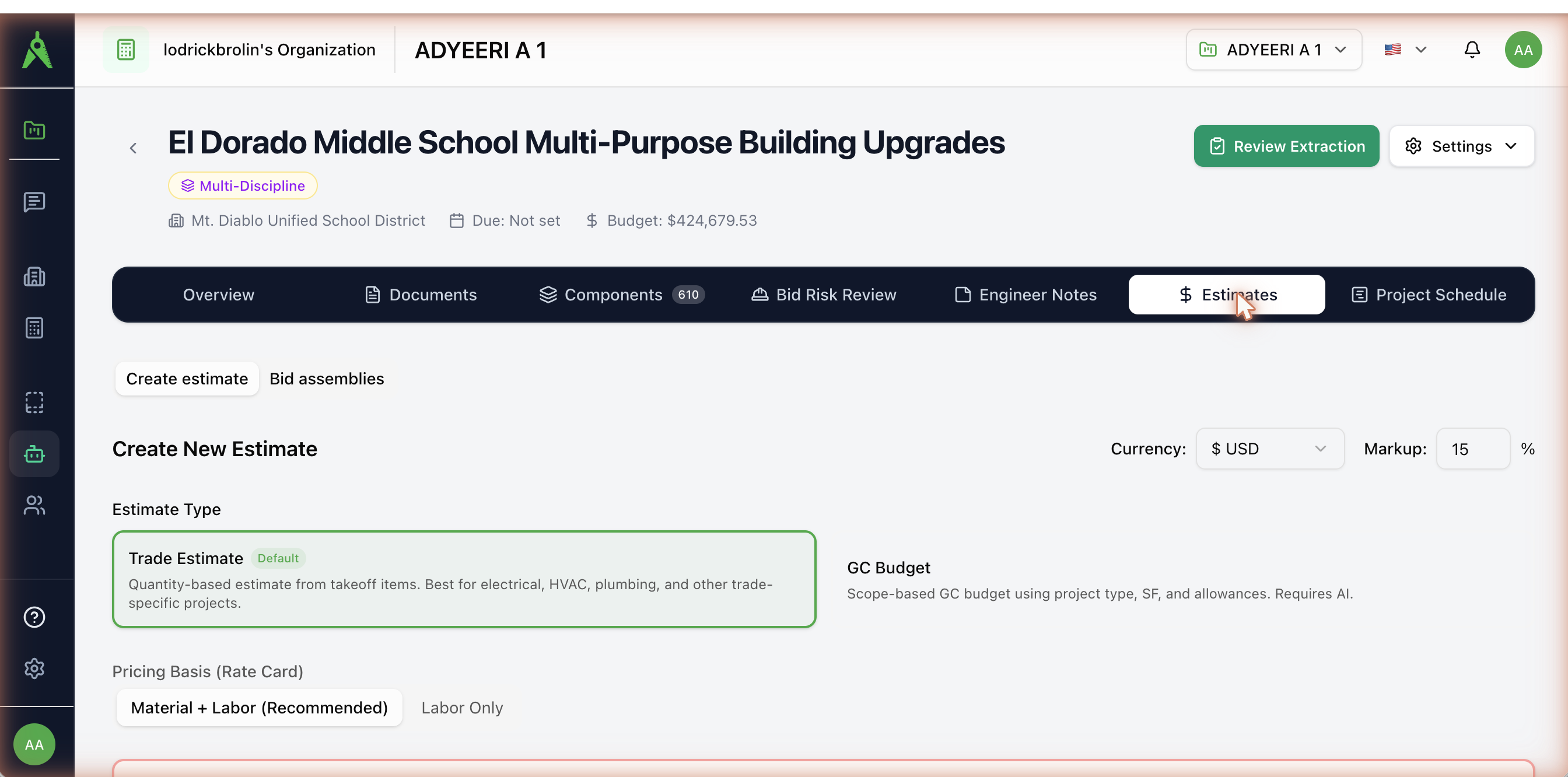
Set the basics, then choose an estimate type:
- Currency and Markup (%) — applied to the generated estimate.
- Estimate Type:
- Trade Estimate (default) — a quantity-based estimate from takeoff items. Best for electrical, HVAC, plumbing, and other trade-specific work.
- GC Budget — a scope-based general-contractor budget from project type, square footage, and allowances (uses AI).
- Pricing Basis (Rate Card): Material + Labor (recommended) or Labor Only.
How the estimate is generated
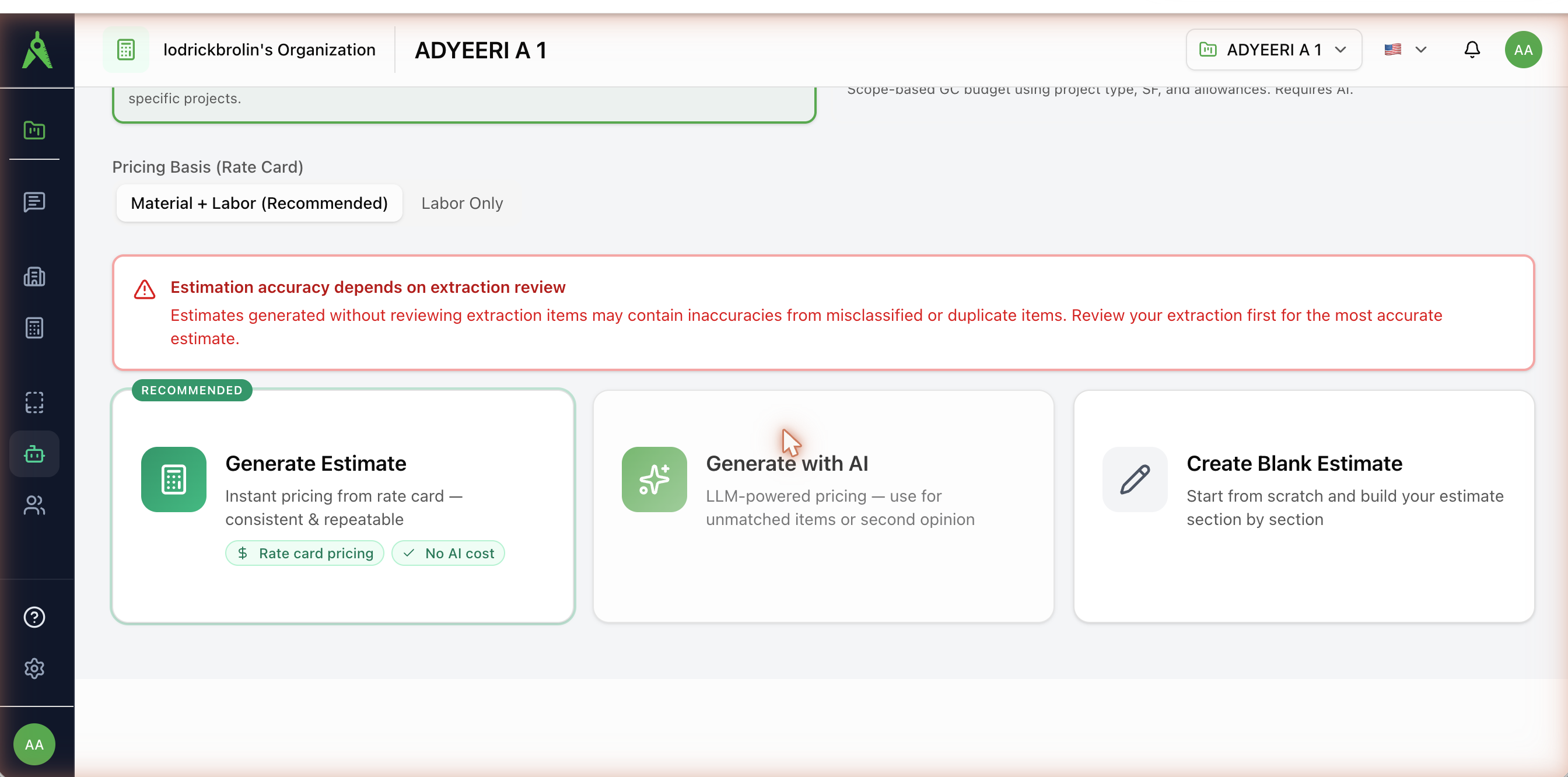
- Generate Estimate (recommended) — instant pricing from your rate card. Consistent, repeatable, and no AI cost.
- Generate with AI — LLM-powered pricing for items the rate card doesn't match, or as a second opinion.
- Create Blank Estimate — start from scratch and build section by section.
For AI-generated estimates, Aginera injects closed-bid comparables for similar scope as sanity-check benchmarks, and infers the market from the currency (AED → UAE, USD → US, GBP → UK, CAD → Canada).
The estimate document
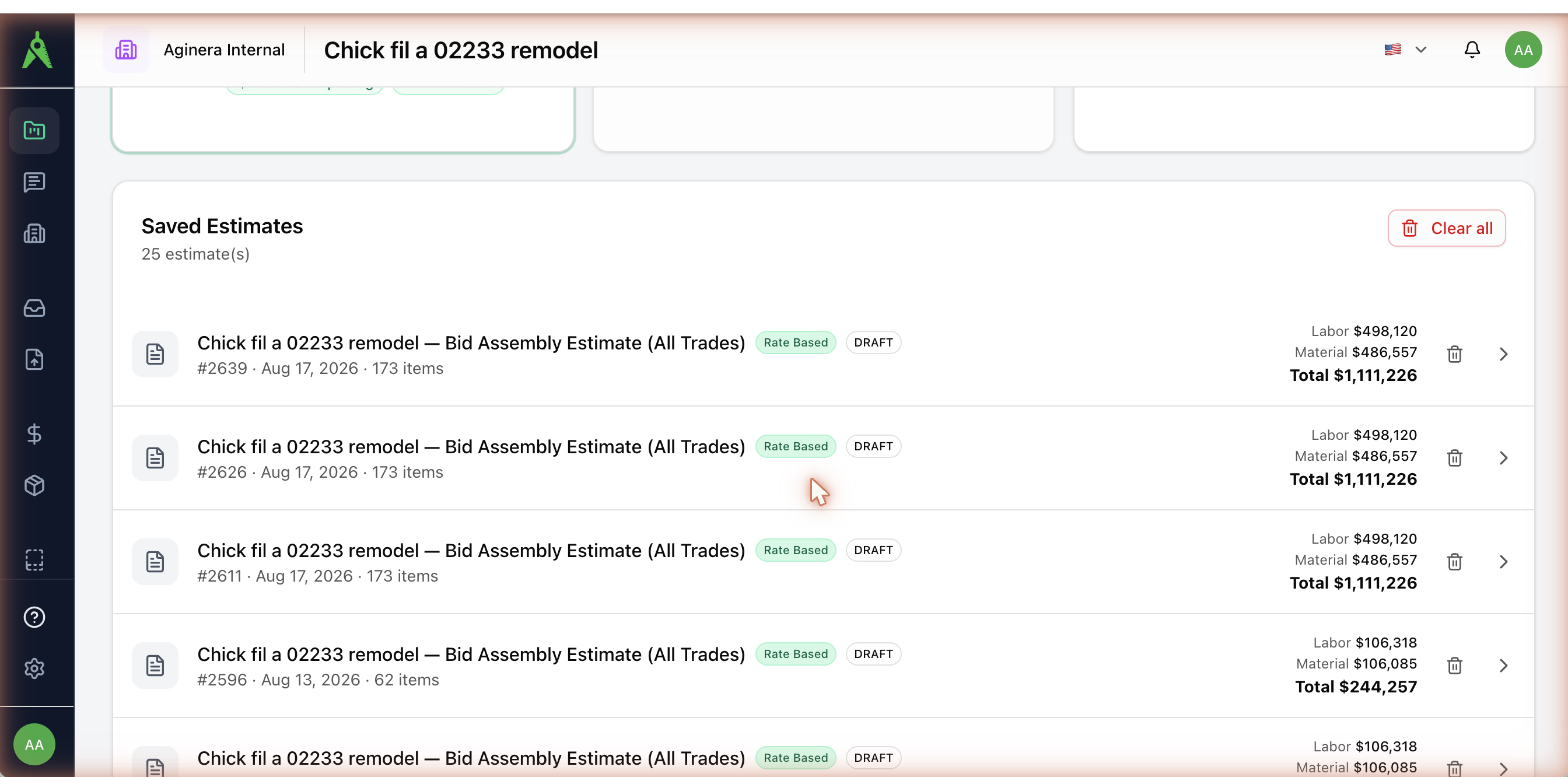
Generated estimates appear under Saved Estimates, each with an ID, item count, and labor/material/total.
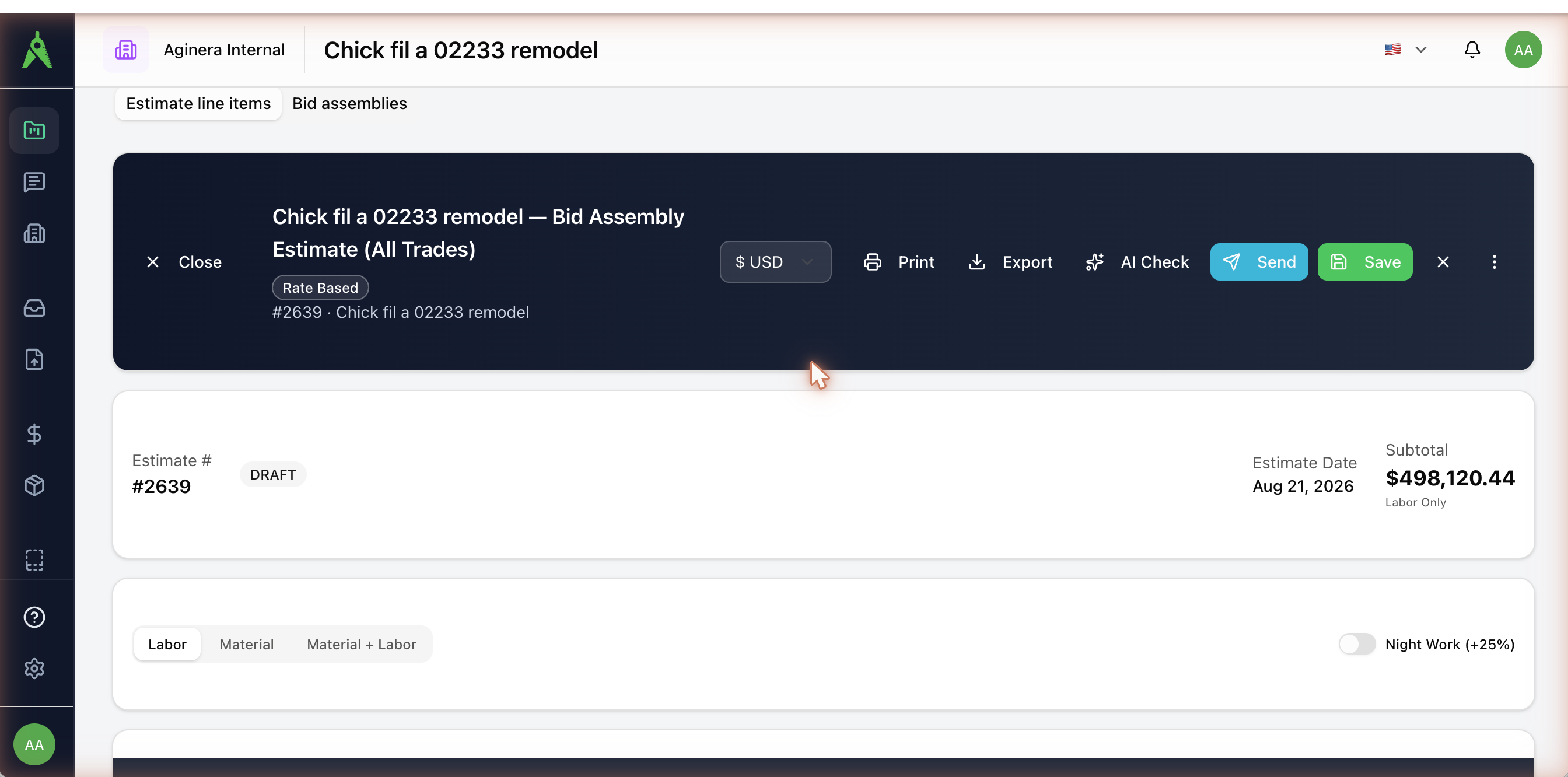
Open one to edit it. The header carries the estimate number, status, date, and subtotal, with actions to Print, Export, AI Check, Send, and Save.
Line items are grouped into sections (e.g. Electrical — Bid Assemblies). Each line shows quantity, cost/unit, line total, and markup, with per-line toggles: Visible to customer, Qty Visible, and Taxable. Toggle the whole estimate between Labor, Material, and Material + Labor, and add a Night Work (+25%) premium.
Statuses
An estimate moves through: Draft → Sent → Pending approval → Approved / Rejected (and Expired). New estimates start as Draft.
AI Check before you send
AI Check runs a completeness and pricing audit and returns a 0–100 score with pass/warn/fail checks.
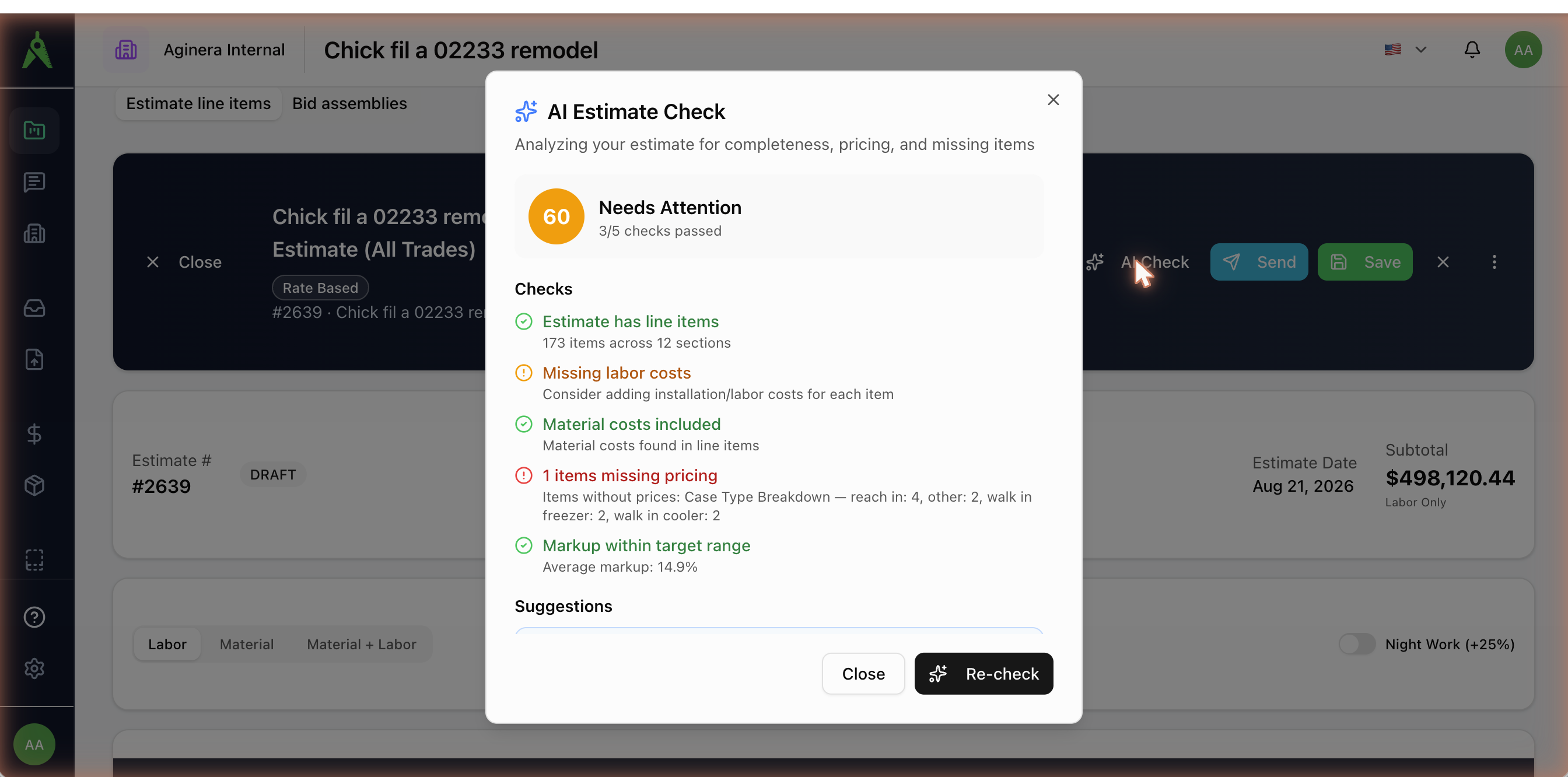
It verifies the estimate has line items, includes labor and material costs, that every item is priced, and that the average markup is in a sensible range (typically 15–25%) — and flags common missing sections (overhead/PM, testing & commissioning, permits, contingency, mobilization) and any extracted components not yet in the estimate. Fix the flagged items and Re-check.
Send to the customer
Preview shows the client-facing estimate; Send emails it (with an optional message and total confirmation); Export produces a file or pushes to an integration. See Export & import for formats.