Request for quote (RFQ)
Build an RFQ pack from extracted components, assign vendors, send RFQs, collect vendor pricing, compare quotes, and export bundles.
Purpose
After Components are in good shape, RFQ is where you assemble a vendor-facing pack: line lists by category, drawing references, exceptions, and comparison templates; assign vendors (from your directory or by trade); preview and send RFQs; vendors respond by email and portal; you review, accept quotes, and use Quote comparison and Export pack when you need a full bundle.
Who this is for
- Estimators / procurement: inviting trades to price scoped line items before or alongside internal pricing.
- Project leads: tracking who was quoted, what came back, and accepted totals.
Prerequisites
- A project with documents uploaded and components / extractions available so line items exist. See Components.
- RFQ is optional in many workflows; if your organisation skips vendor RFQs, go straight to Pricing schedule.
Steps
1. From the project overview
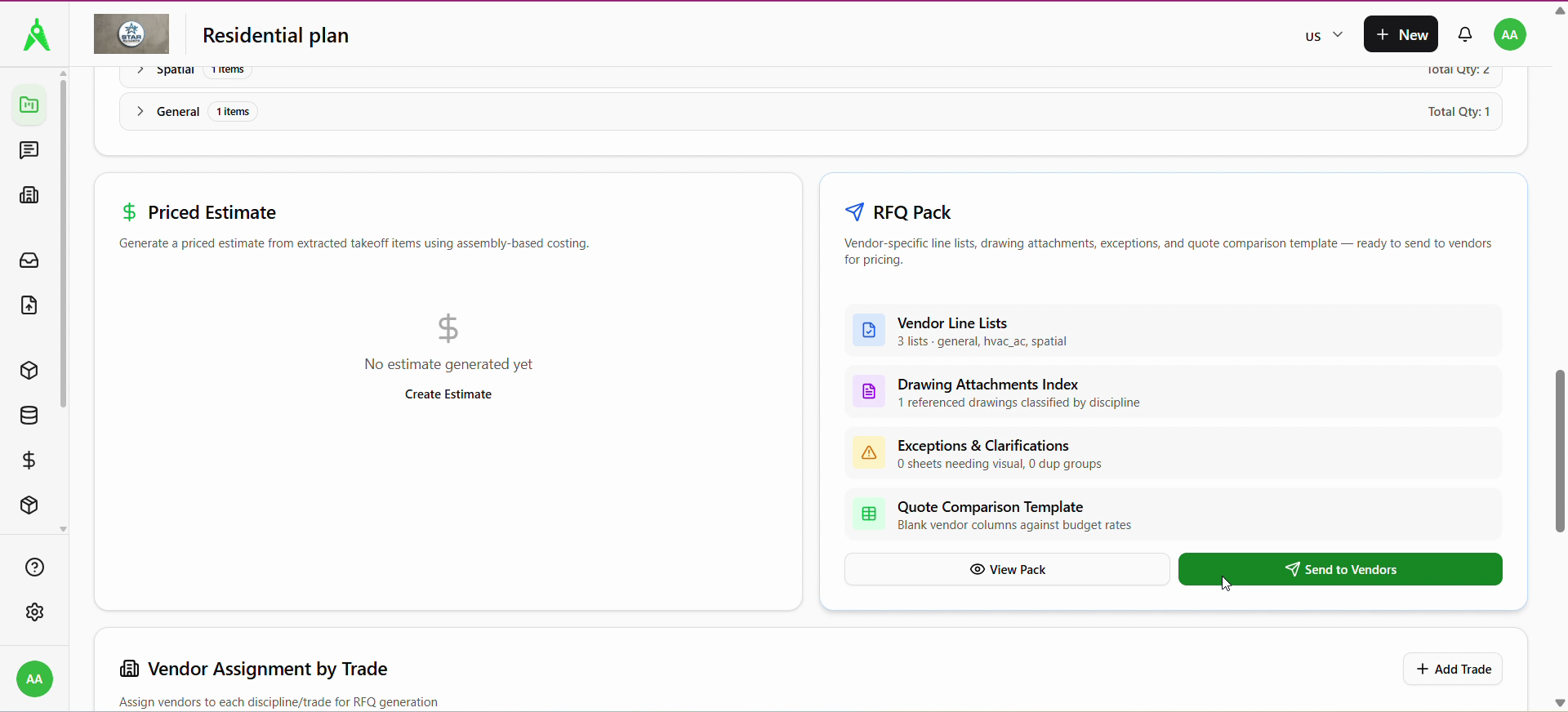
On the project home, locate the RFQ Pack card (vendor line lists, drawing attachments, exceptions, quote comparison template) and Vendor assignment by trade to align disciplines with vendors before you send.
Use View Pack or Send to Vendors when you are ready to work in the RFQ area.
2. Open the RFQ Pack and add vendors
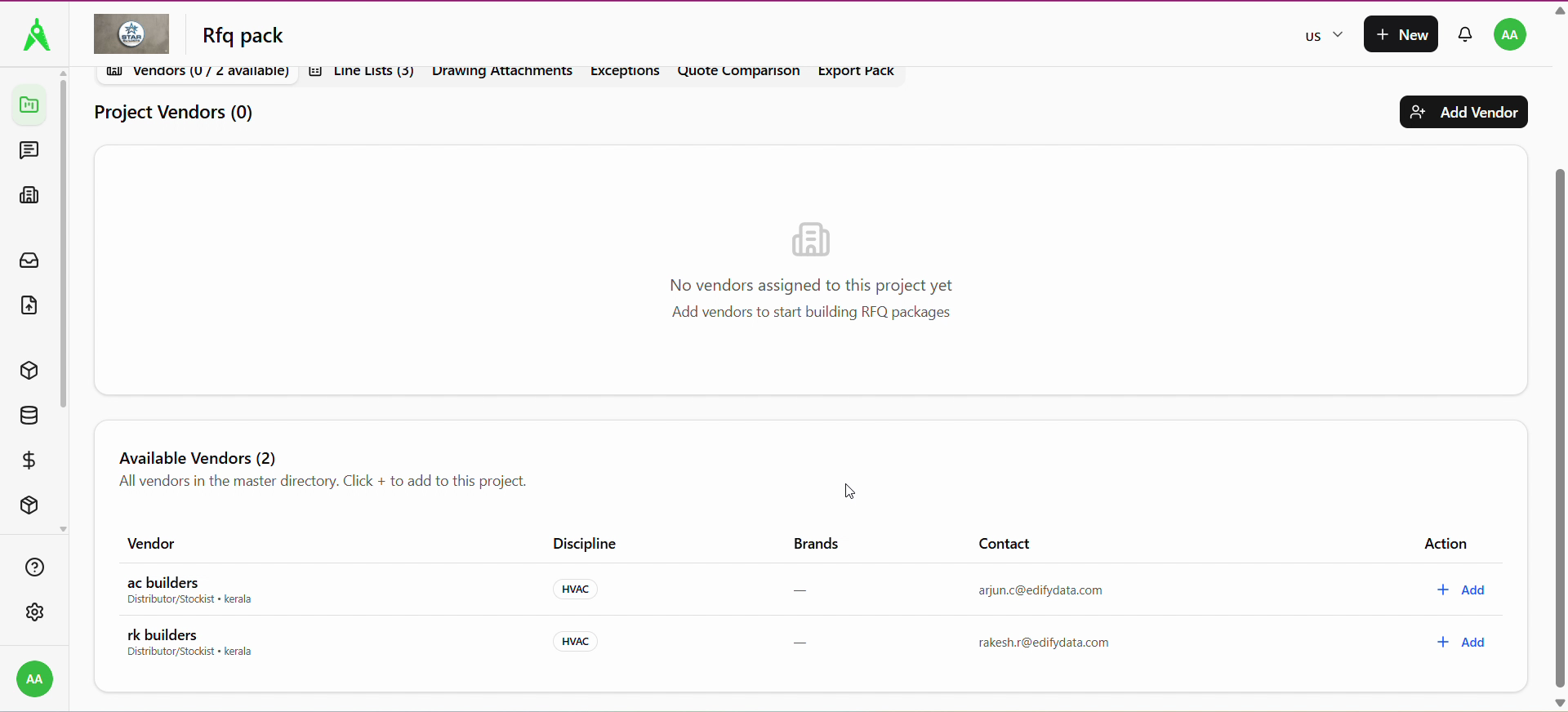
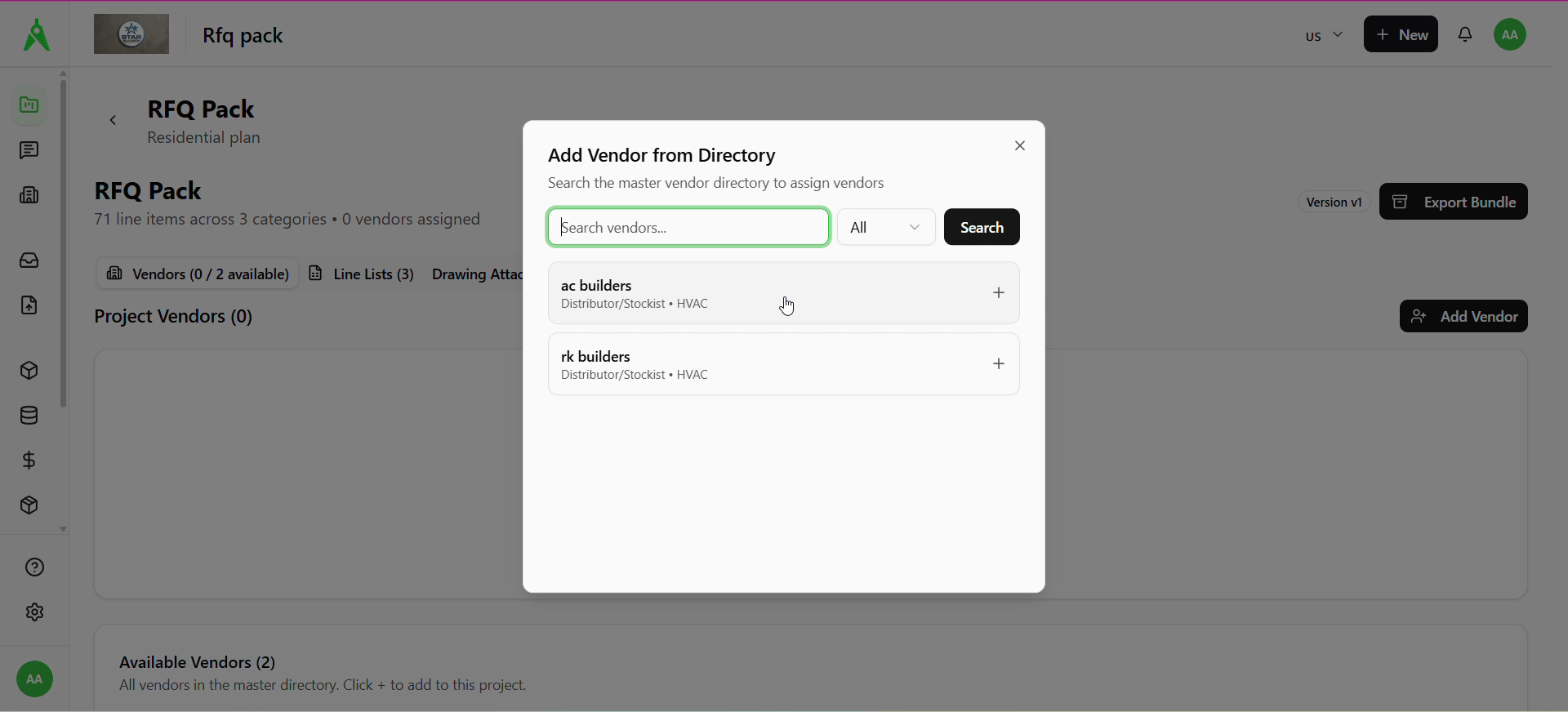
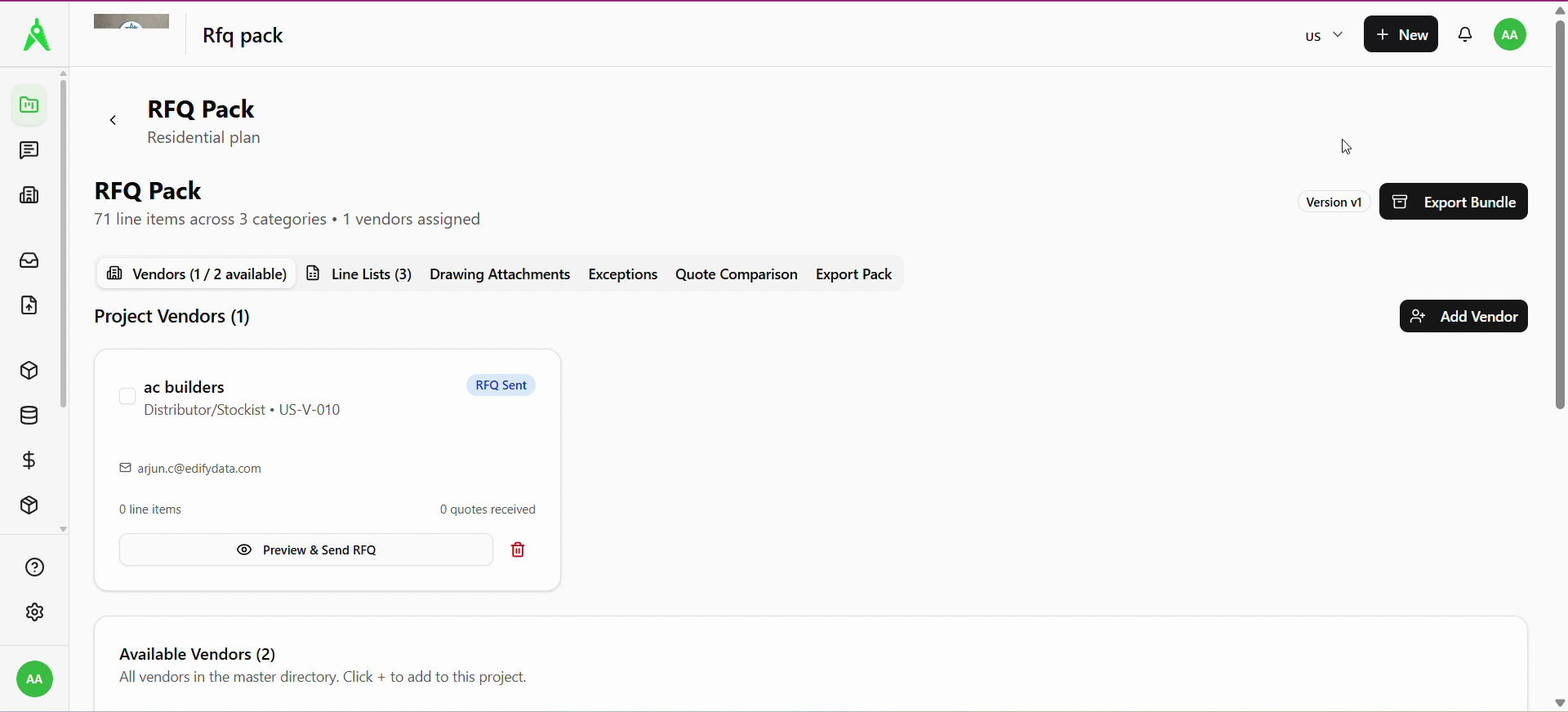
Open RFQ Pack for the project. On the Vendors tab, if no one is assigned yet, use + Add Vendor and search the master vendor directory to attach vendors to this pack.
3. Preview and send
When a vendor shows Not Sent, use Preview & Send RFQ to open the send flow.
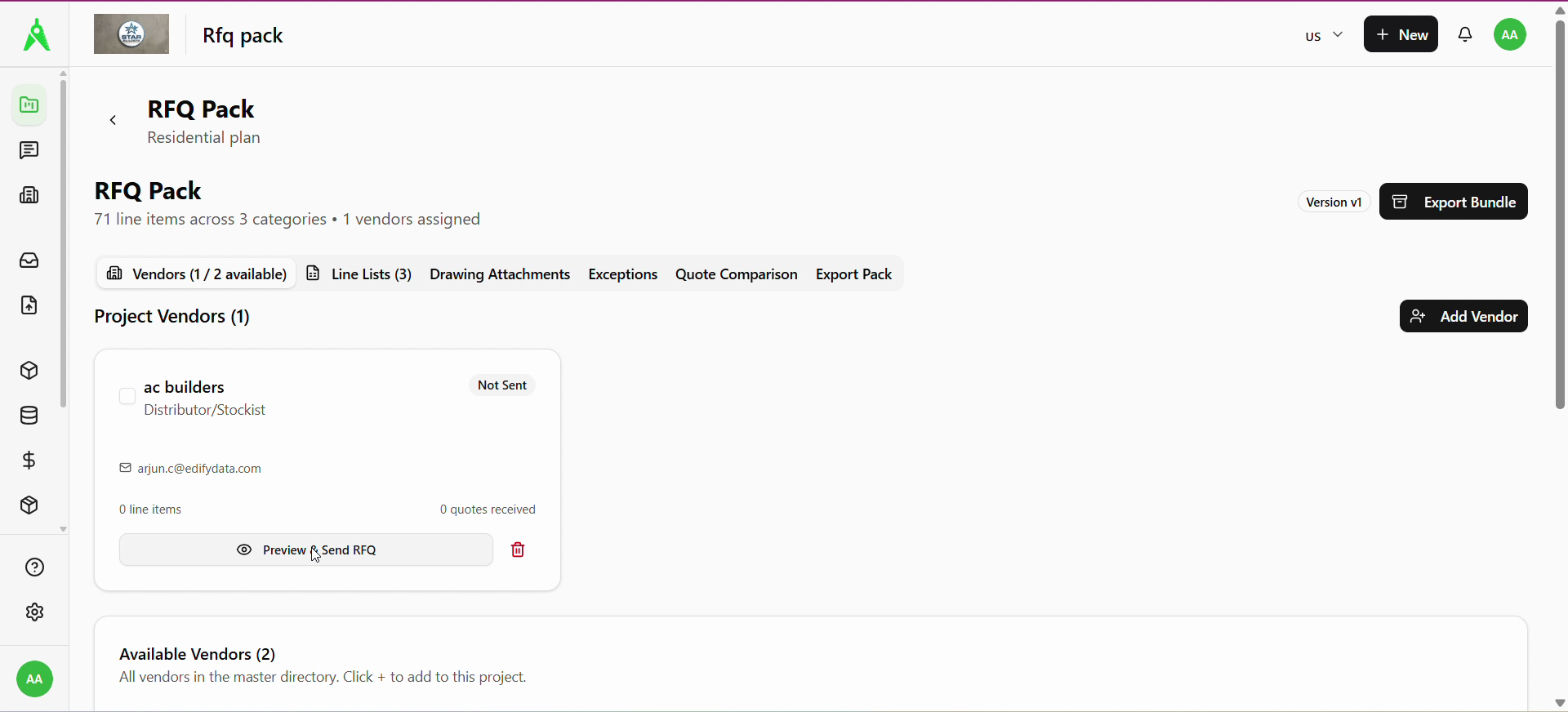
After you send, the vendor card can show RFQ Sent until a quote returns.
4. Configure the send — deadline, notes, and line items
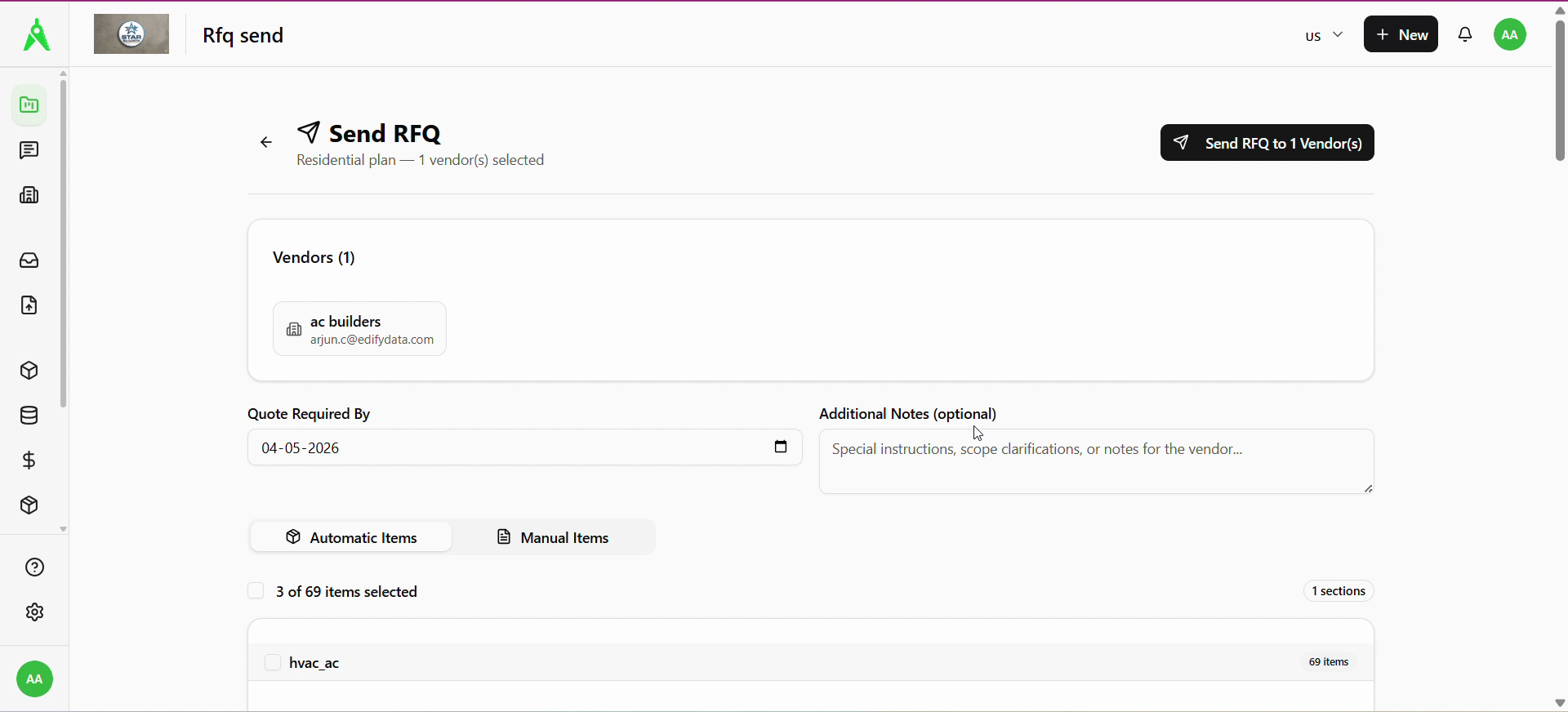
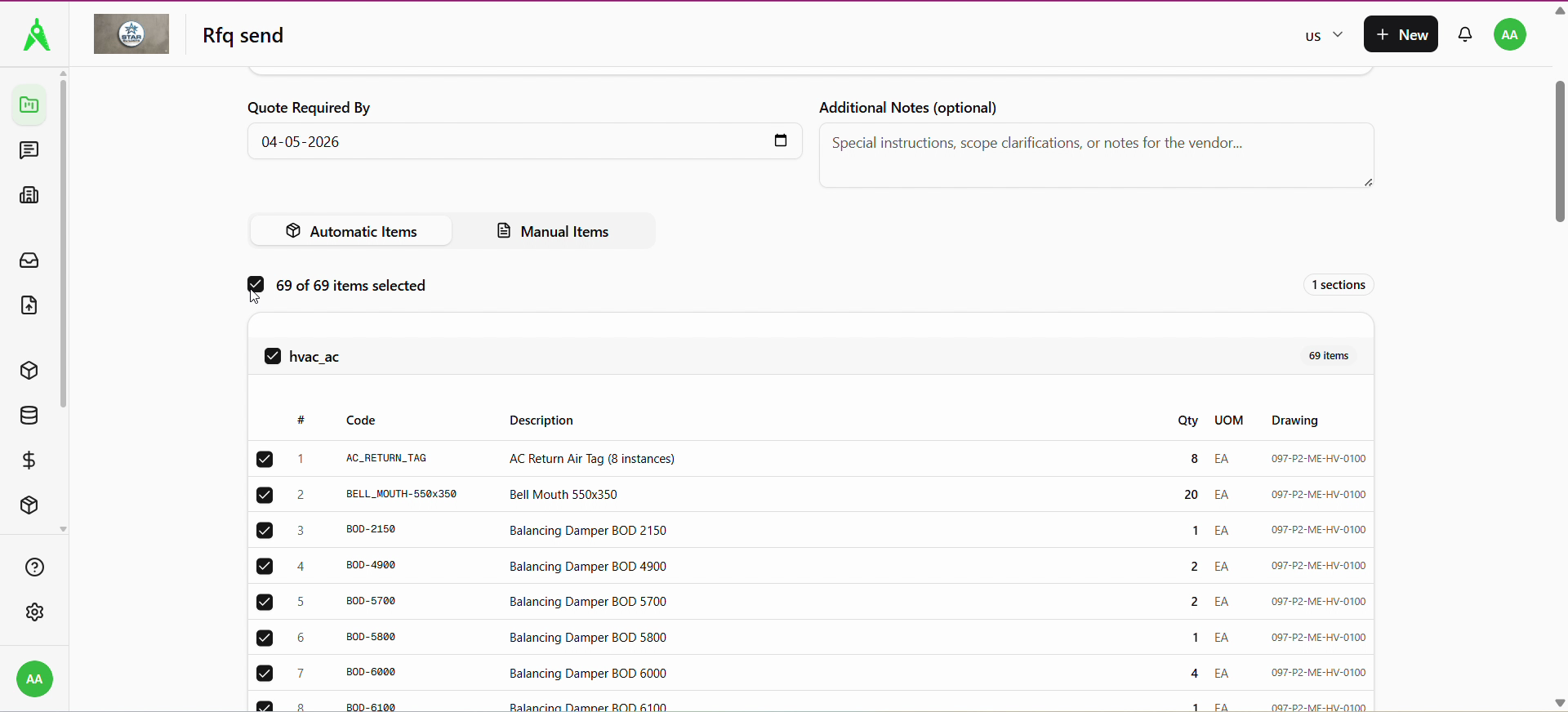
Set Quote required by, optional Additional notes, and choose Automatic items or Manual items. Select sections or rows to include, then use Send RFQ to … Vendor(s) when the selection matches what you want priced.
5. Vendor notification and portal
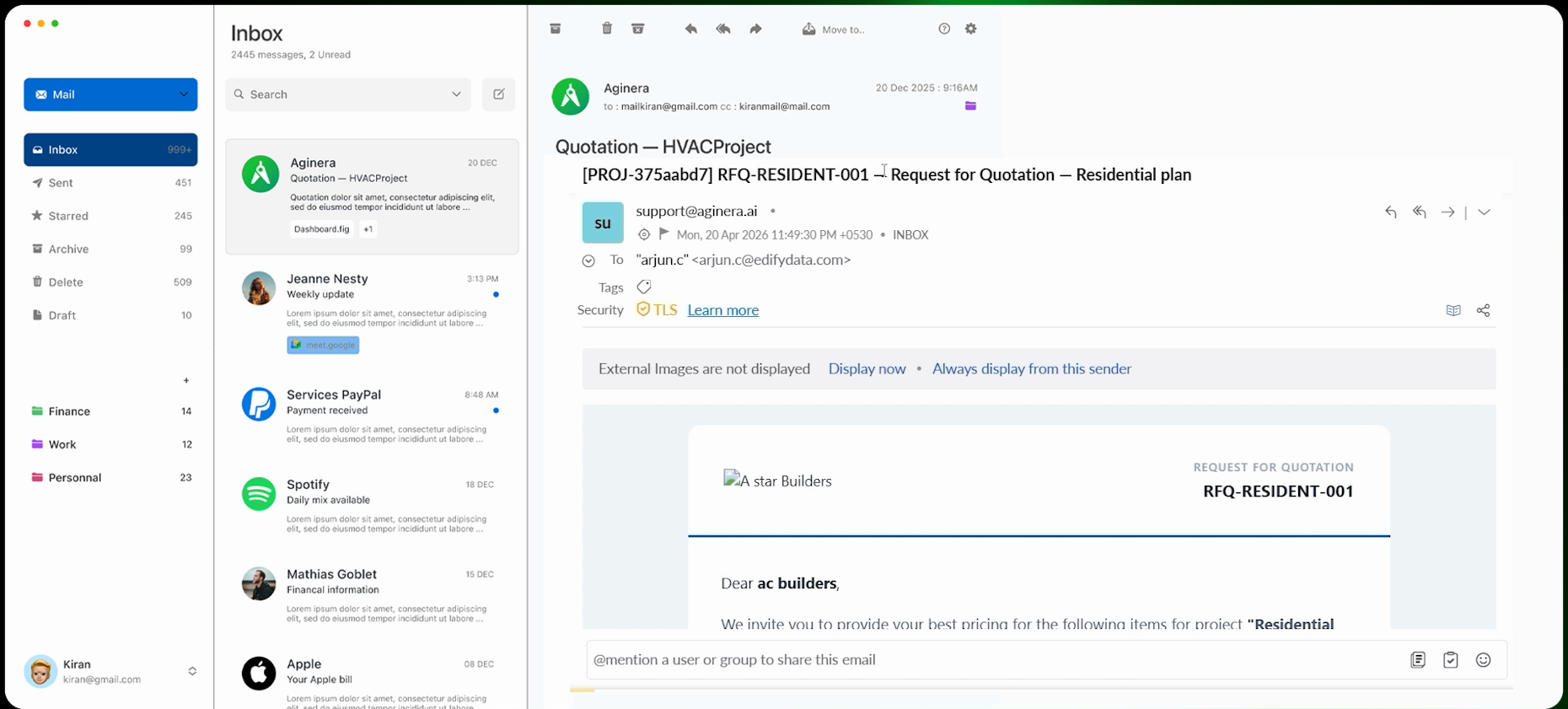
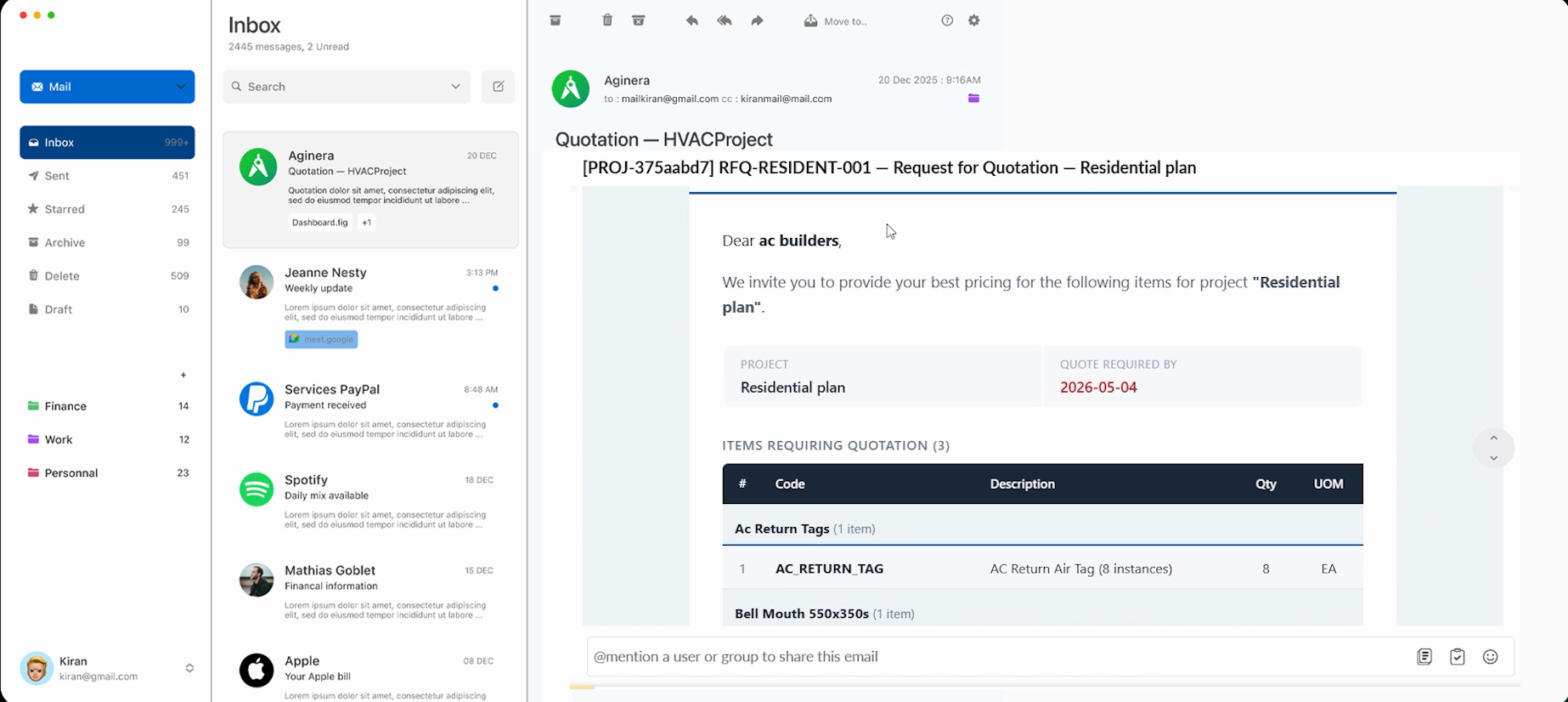
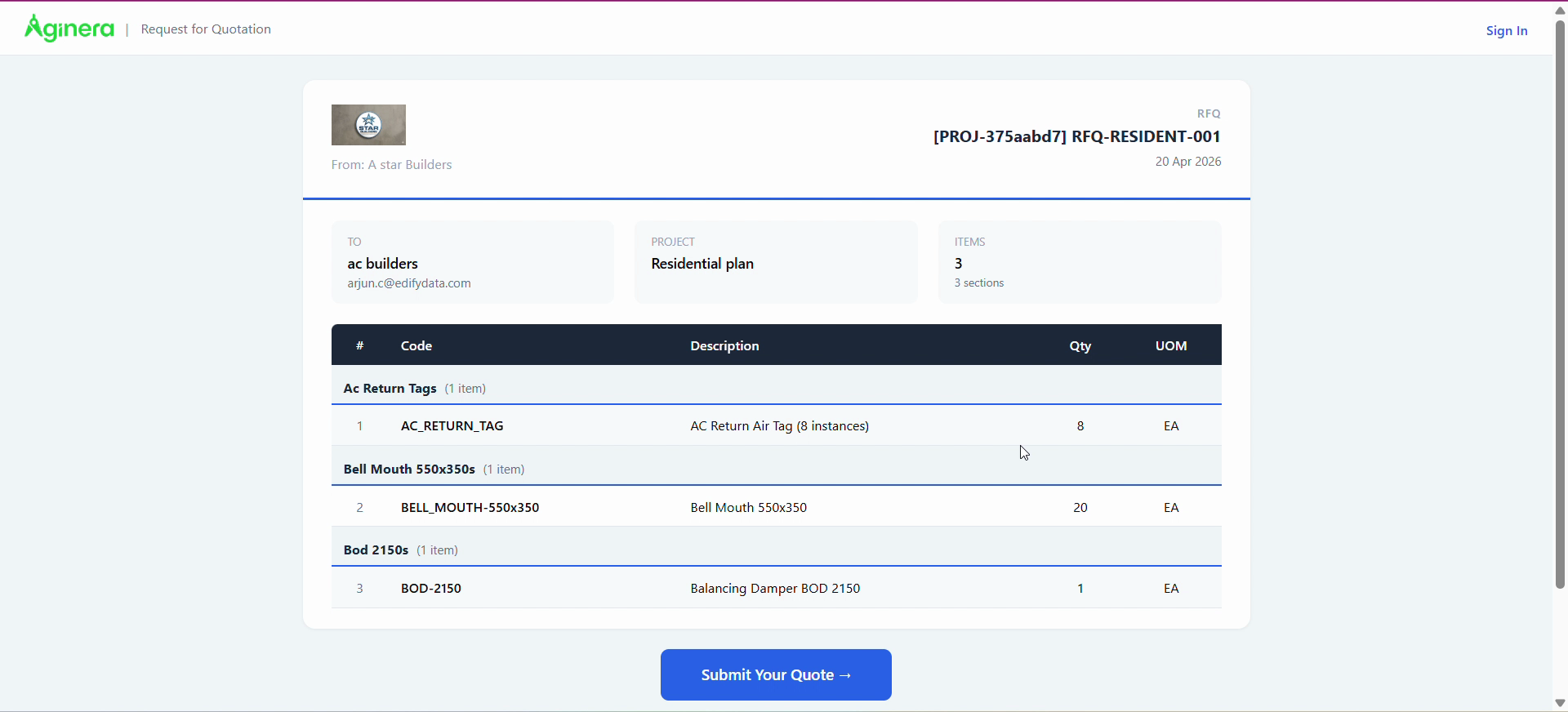
Vendors receive email (for example from your workspace sender) with the RFQ reference, project name, and item list. They follow links to the Request for Quotation portal.
6. Vendor quote response
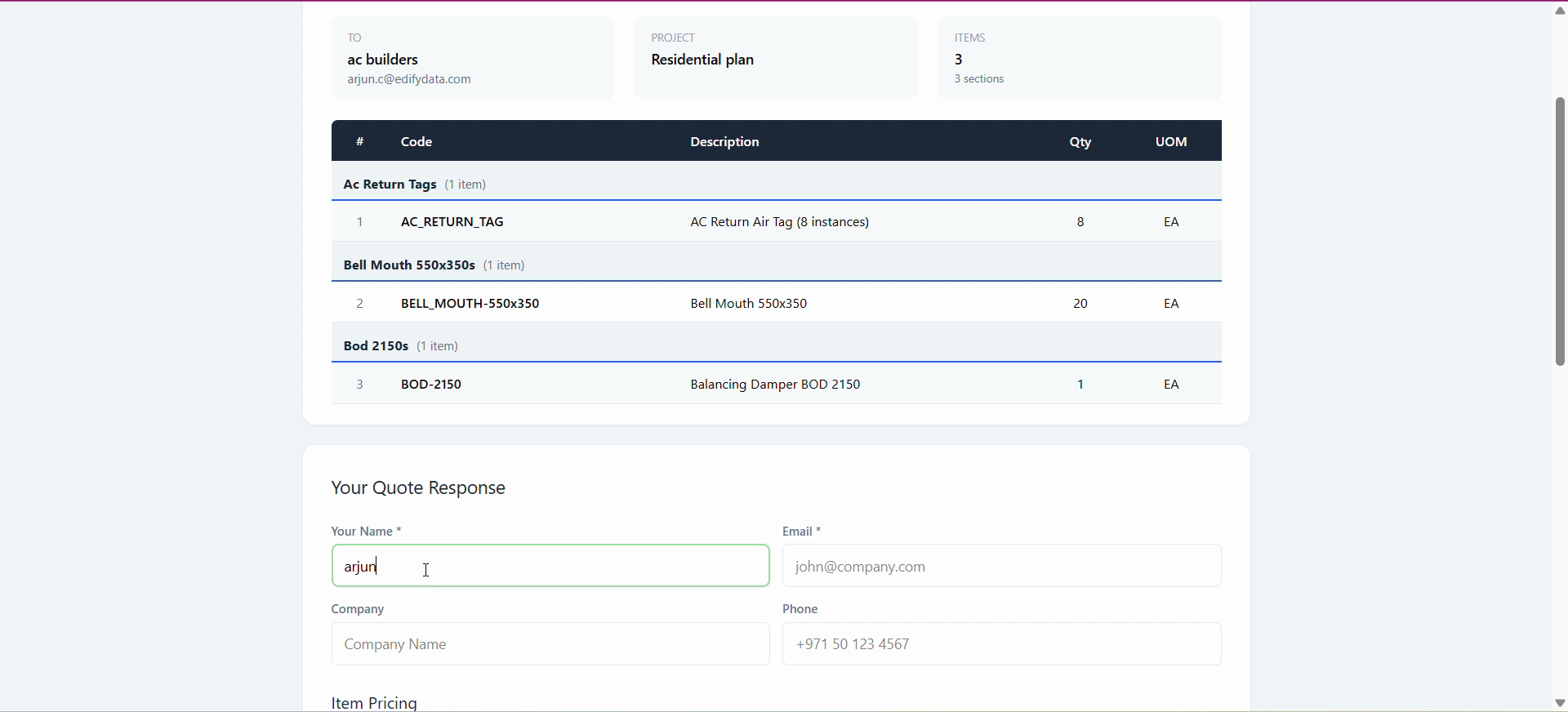
On the portal, the vendor completes Your quote response (name, email, company, phone) and fills Item pricing (unit prices, compliance, totals), plus lead time, validity, payment terms, and notes.
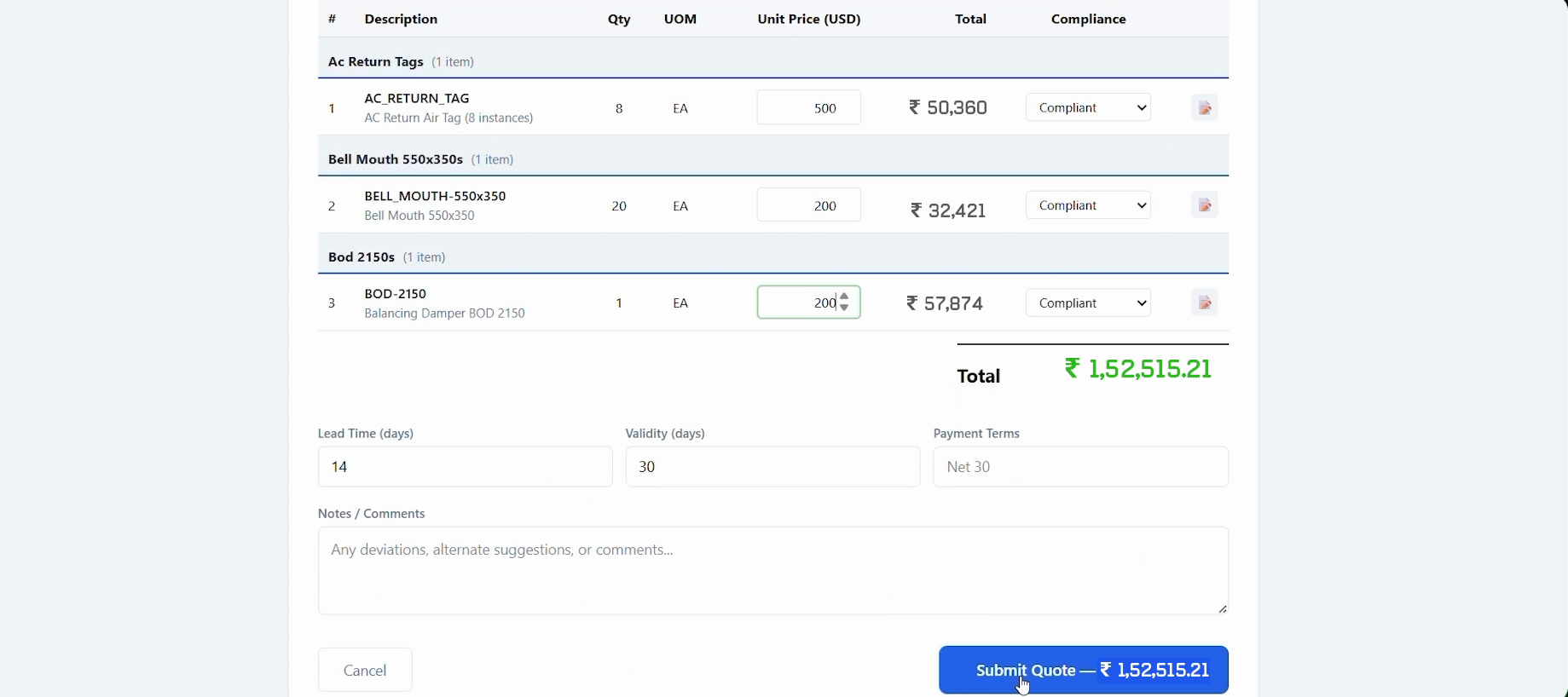
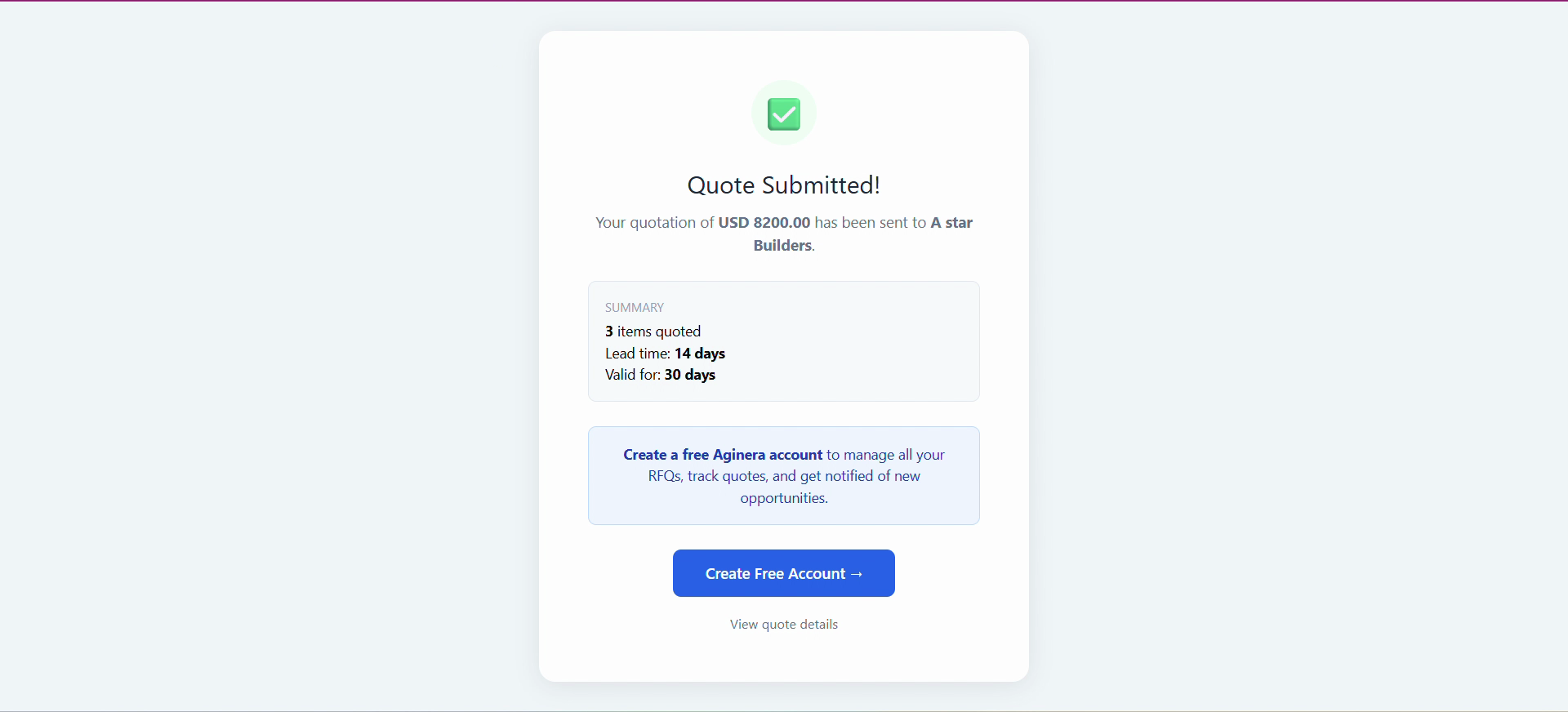
After submission they see a Quote submitted confirmation with a summary.
7. Review quotes in the RFQ Pack
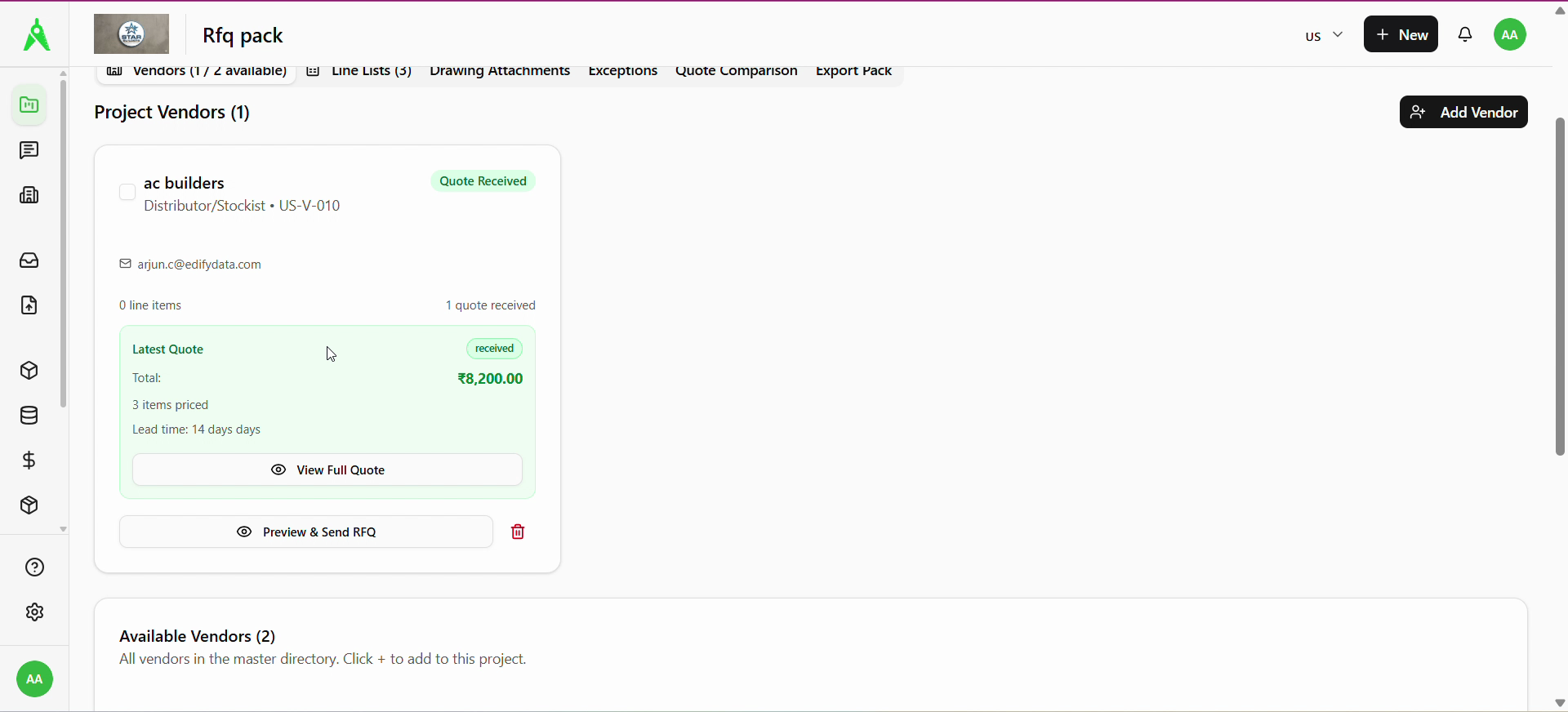
Back in RFQ Pack on Vendors, a returned quote appears on the vendor card (Quote received, latest total, View full quote).
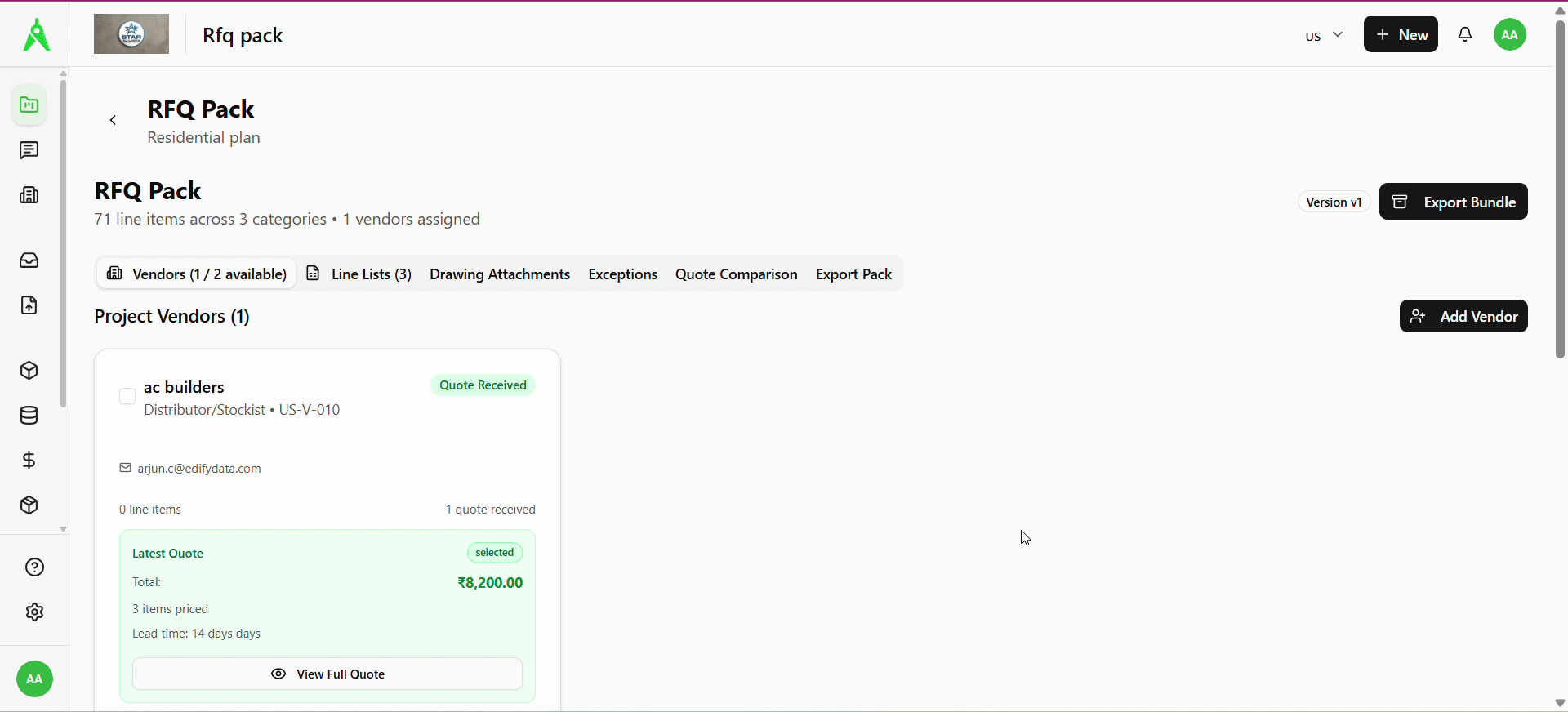
After you accept a quote, the vendor card can show the accepted line on the latest quote summary.
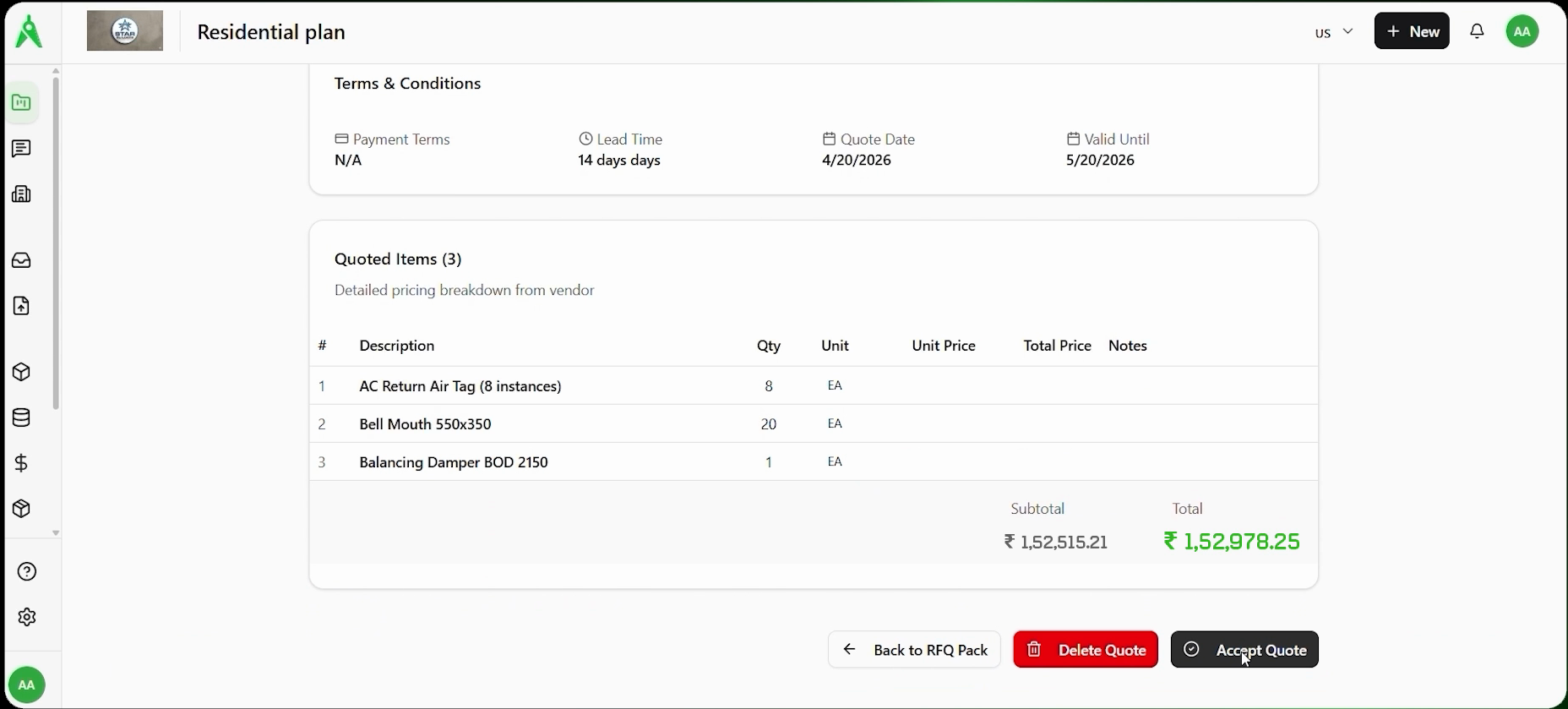
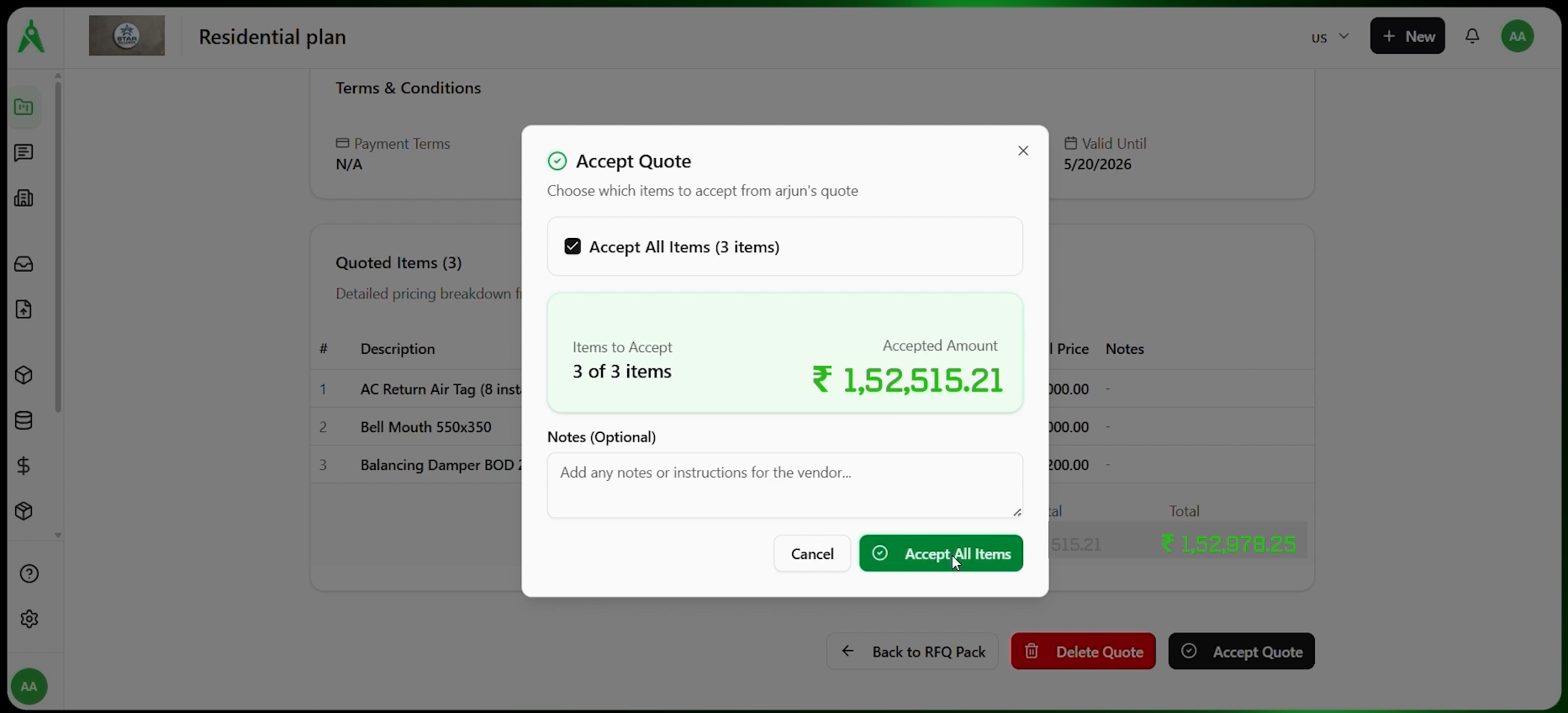
Open the full quote to check Terms & conditions, Quoted items, totals, then Accept quote or Delete quote as appropriate.
Use Accept quote to choose which items to accept and add optional notes for the vendor.
8. Line lists, drawings, comparison, and export
Use the other tabs as needed:
- Line lists — category-level lists feeding the pack (counts align with your components).
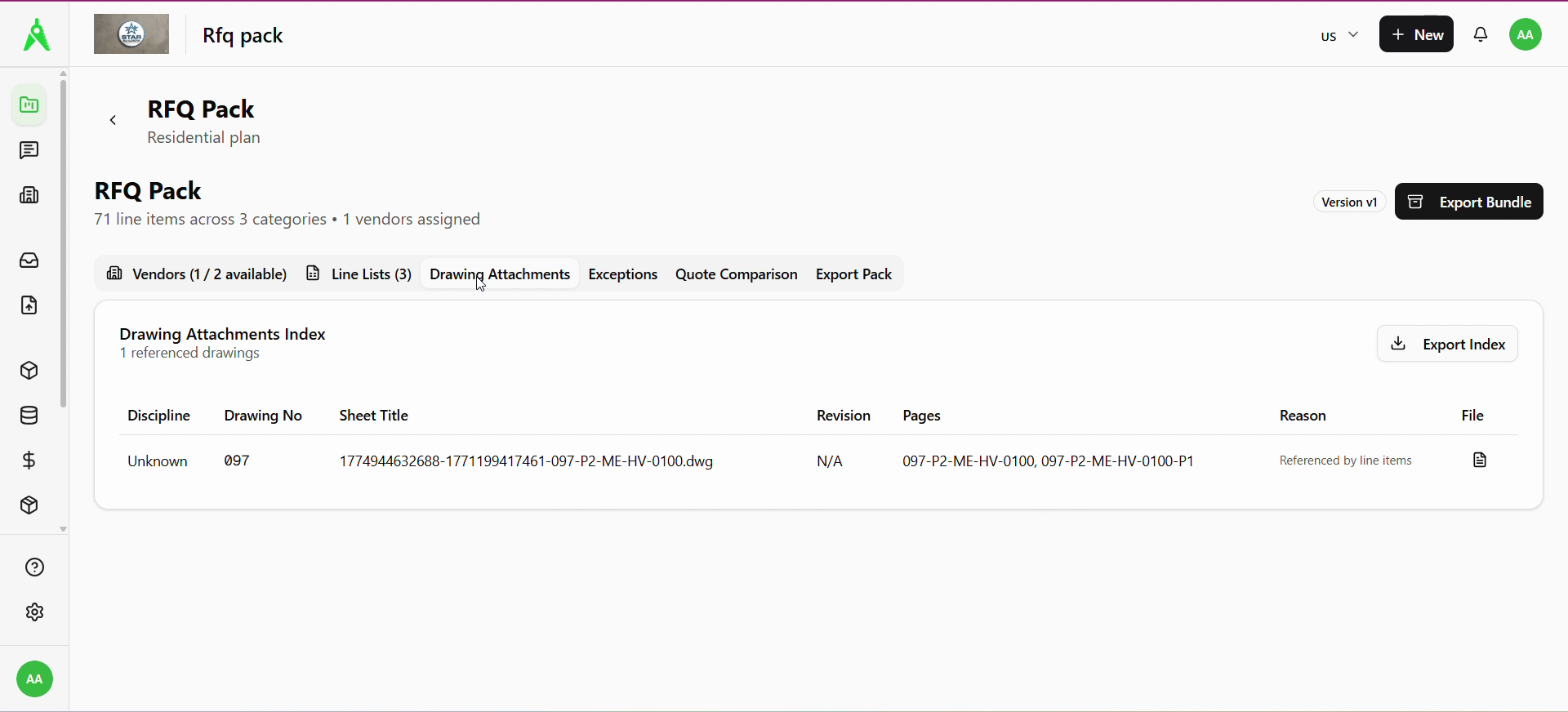
- Drawing attachments — index of drawings referenced by line items, with export where available.
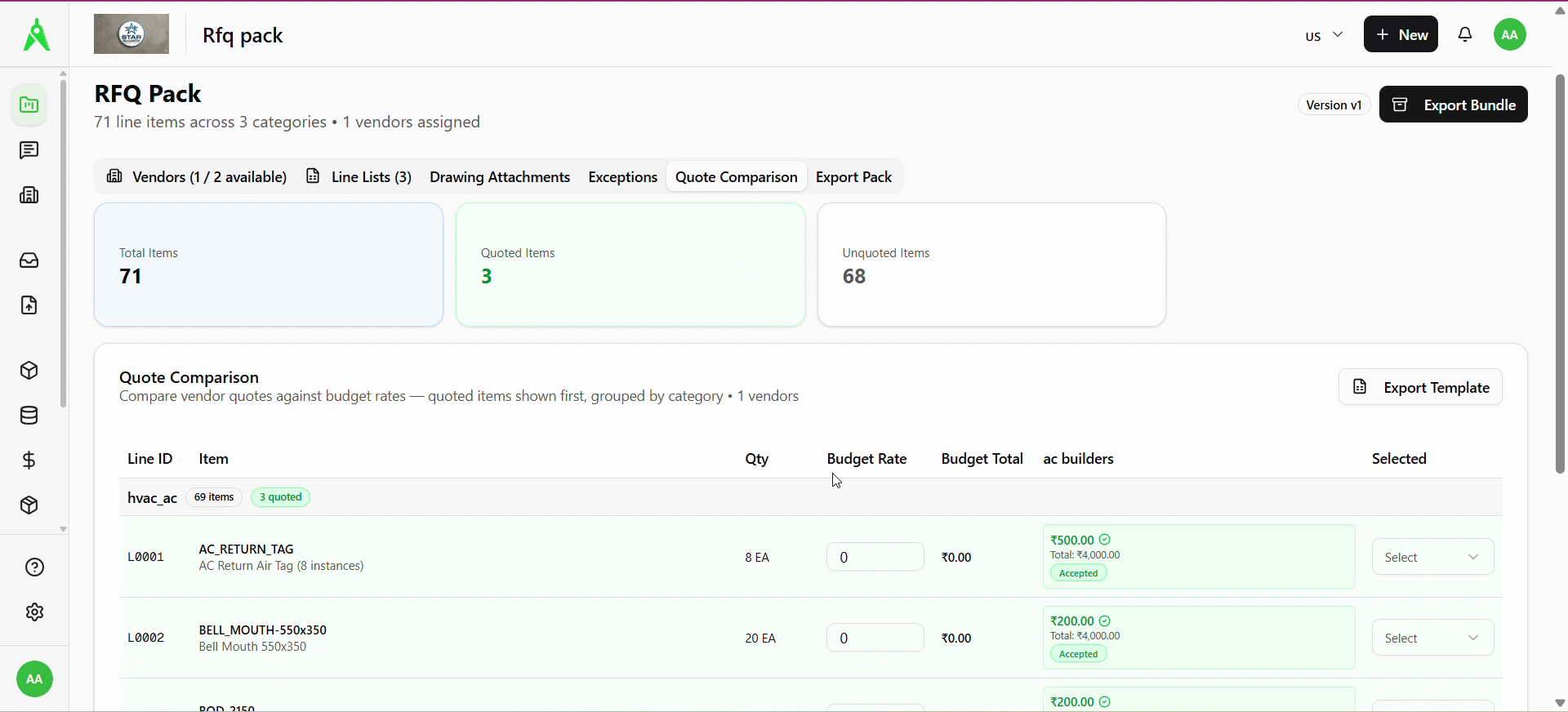
- Quote comparison — quoted vs unquoted counts, budget columns vs vendor columns, and selection per line.
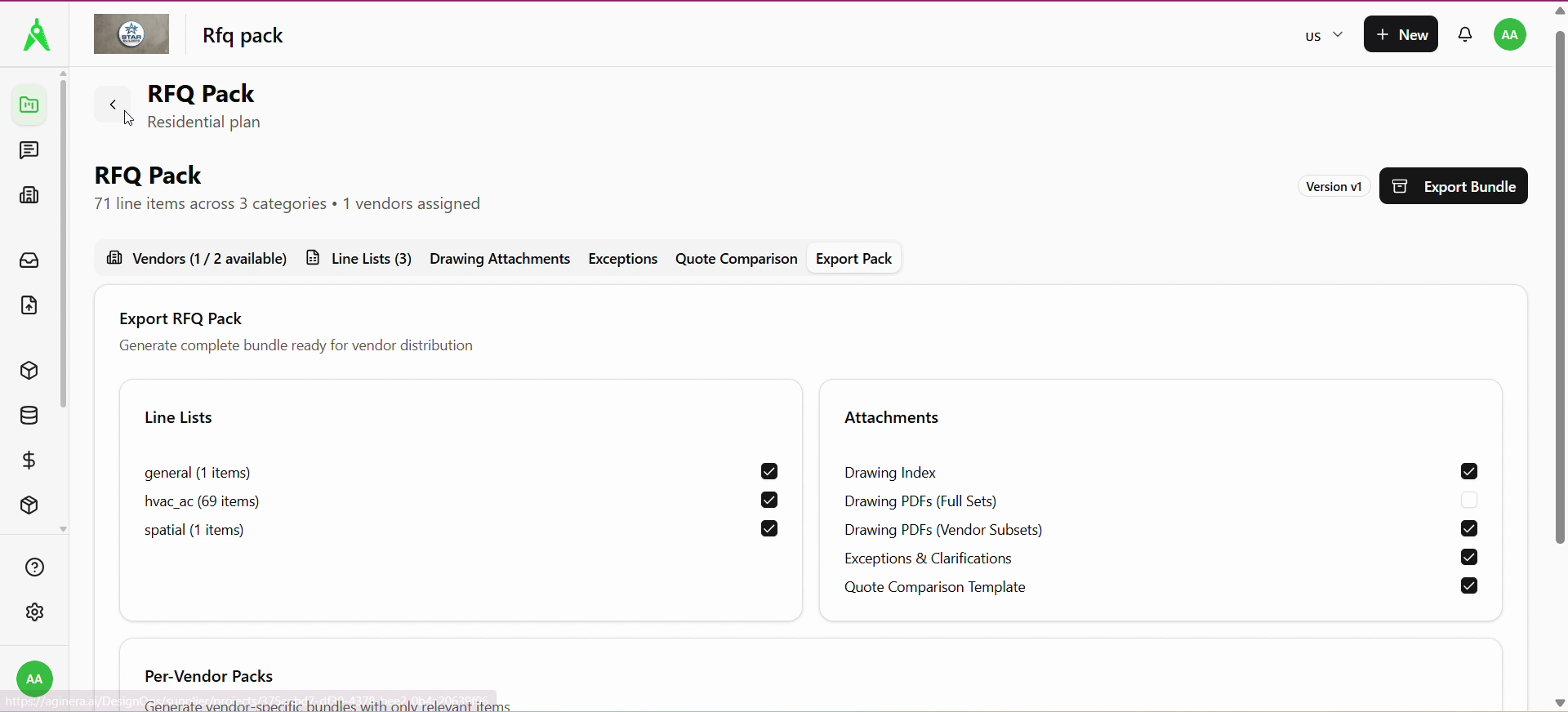
- Export pack — choose which line lists and attachment bundles to include, then Export bundle (or use the header Export bundle from any tab).
Expected result
- Vendors are assigned, RFQs are sent with the right line scope and dates, and responses appear on vendor cards.
- You can review full quotes, accept where appropriate, compare against budget columns, and export a complete RFQ bundle when needed.
- You can continue to Pricing schedule with your own cost build-up, with or without vendor quotes depending on process.
Troubleshooting
- No vendors to add: confirm vendors exist in the master directory and match the trade or filters you use.
- Send disabled or empty selection: switch Automatic / Manual items, re-select sections, and ensure at least one vendor is selected.
- Quote not updating on the card: refresh the RFQ Pack or re-open View full quote; confirm the vendor completed submission on the portal.
Related
- Previous: Components
- Next: Pricing schedule