Document upload
Upload drawings and project files to a package, classify them, and run extraction when ready.
Purpose
Upload drawings, CAD plans, specifications, and BOQs to your project so they can be organized, previewed, and used for AI extraction and downstream takeoff/estimate workflows.
Who this is for
- Estimators / QS: adding plans and specs before takeoff.
- Project admins: organizing files by RFQ package and discipline where your workspace uses packages.
Prerequisites
- A project exists. If not, start with Create project.
- Files ready in supported formats (see upload modal).
Steps
1. Open Project Documents
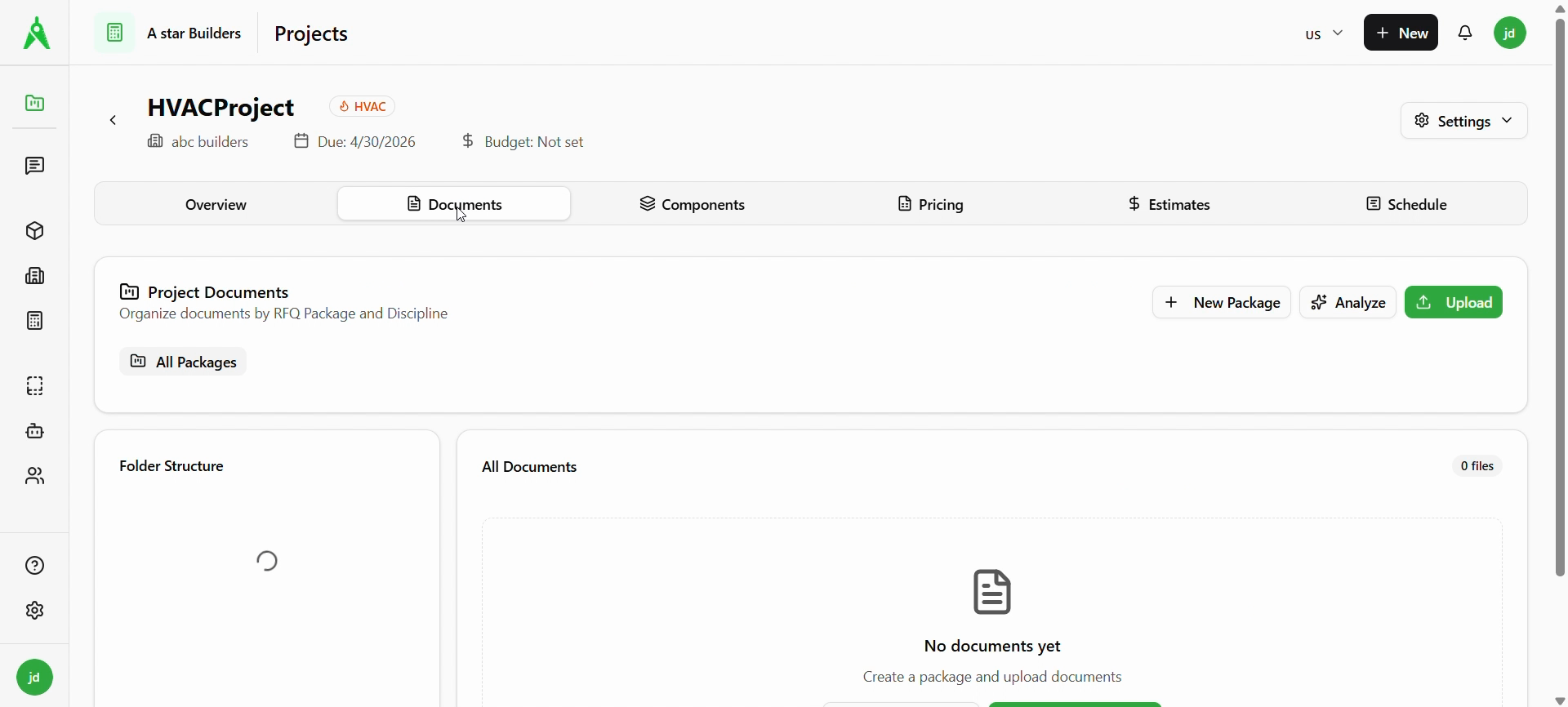
Open your project and select the Documents tab. You’ll see Project Documents with a short description of organizing by RFQ package and discipline.
Use Upload (green) to add files. You can also use + New Package to create groups first, and Analyze when your workflow supports it.
2. Pick file types in the upload modal
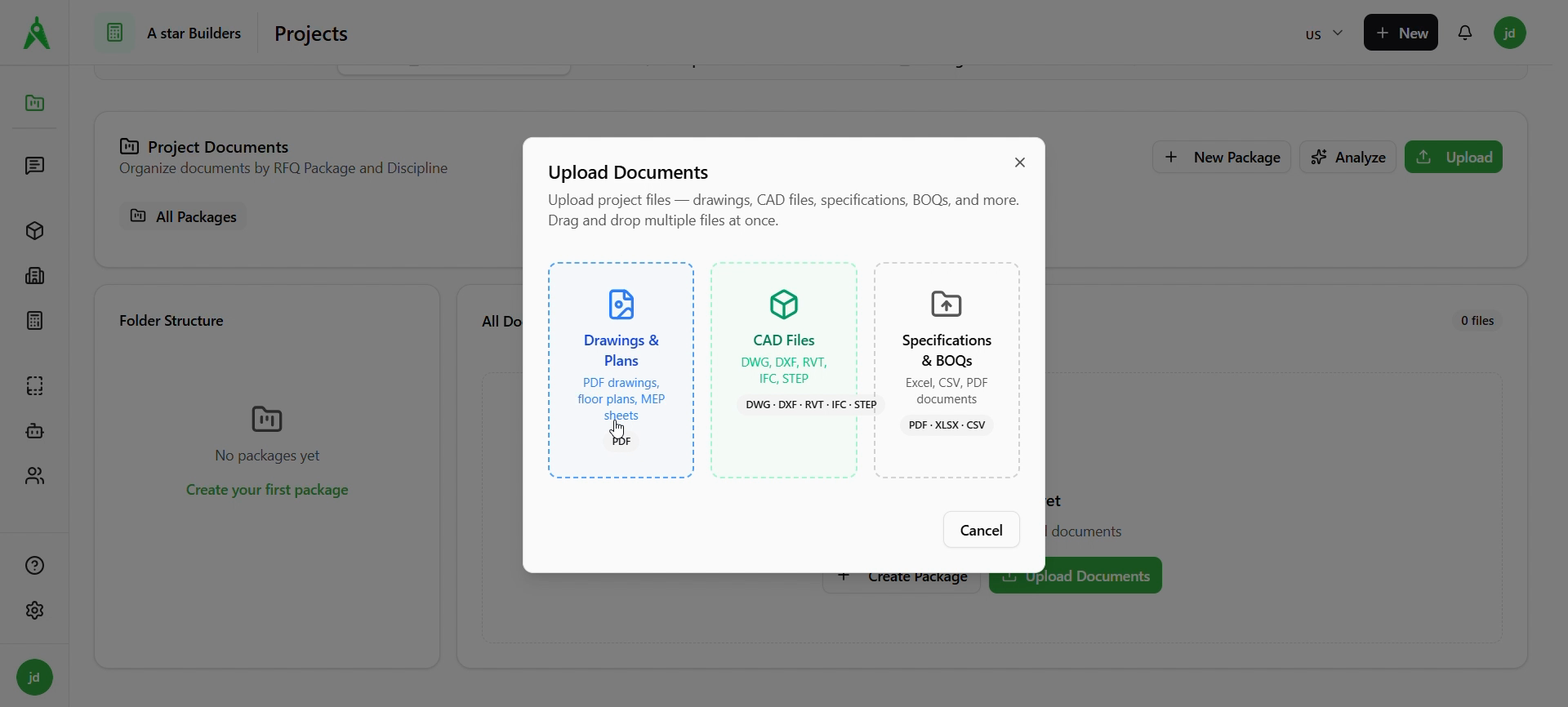
Choose Upload to open the Upload Documents modal. Drag and drop or browse files. Pick the category that matches what you’re adding:
- Drawings & Plans — PDF floor plans, MEP sheets, etc.
- CAD Files — DWG, DXF, RVT, IFC, STEP (as supported).
- Specifications & BOQs — Excel, CSV, PDF.
Cancel closes without uploading.
3. Classify and finish upload
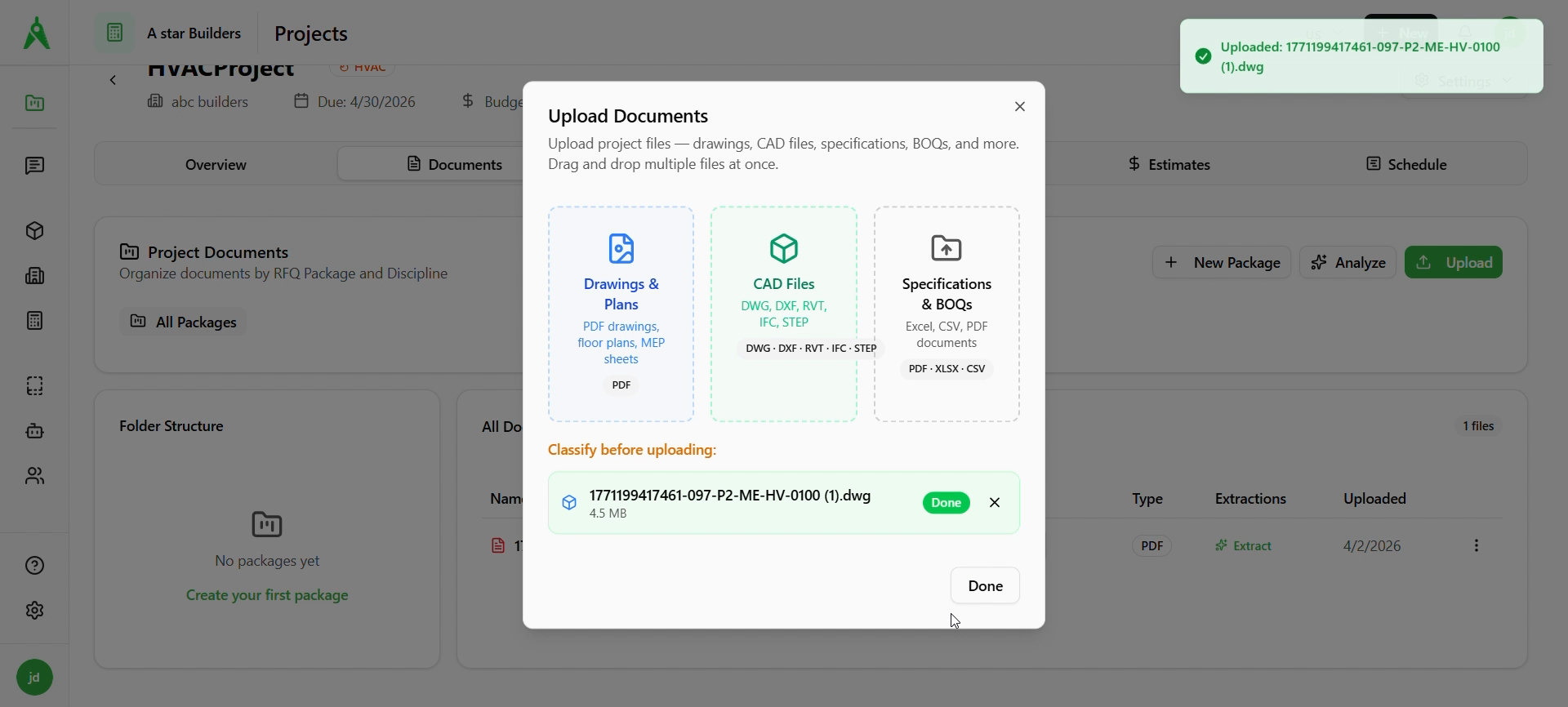
After files are selected, classify them to the right category if prompted (see Classify before uploading). When each file shows Done, confirm with Done on the modal. A toast may confirm the upload (e.g. uploaded DWG filename).
4. Verify the document list
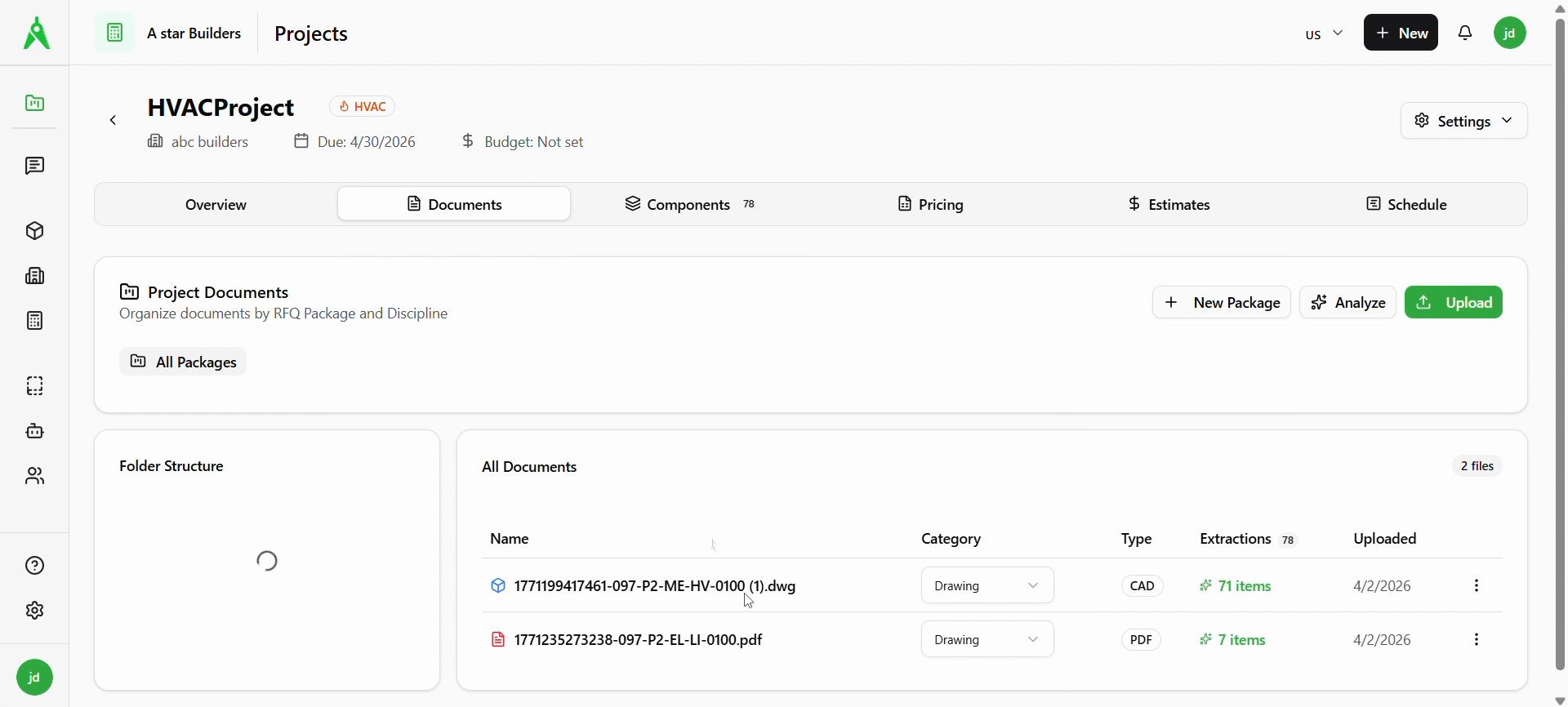
All Documents lists your files with Name, Category (dropdown, e.g. Drawing), Type (CAD, PDF), Extractions (status or count after processing), Uploaded date, and row actions.
Use Folder Structure and + New Package / All Packages when you organize by package.
5. Run extraction or open in takeoff (then review in Components)
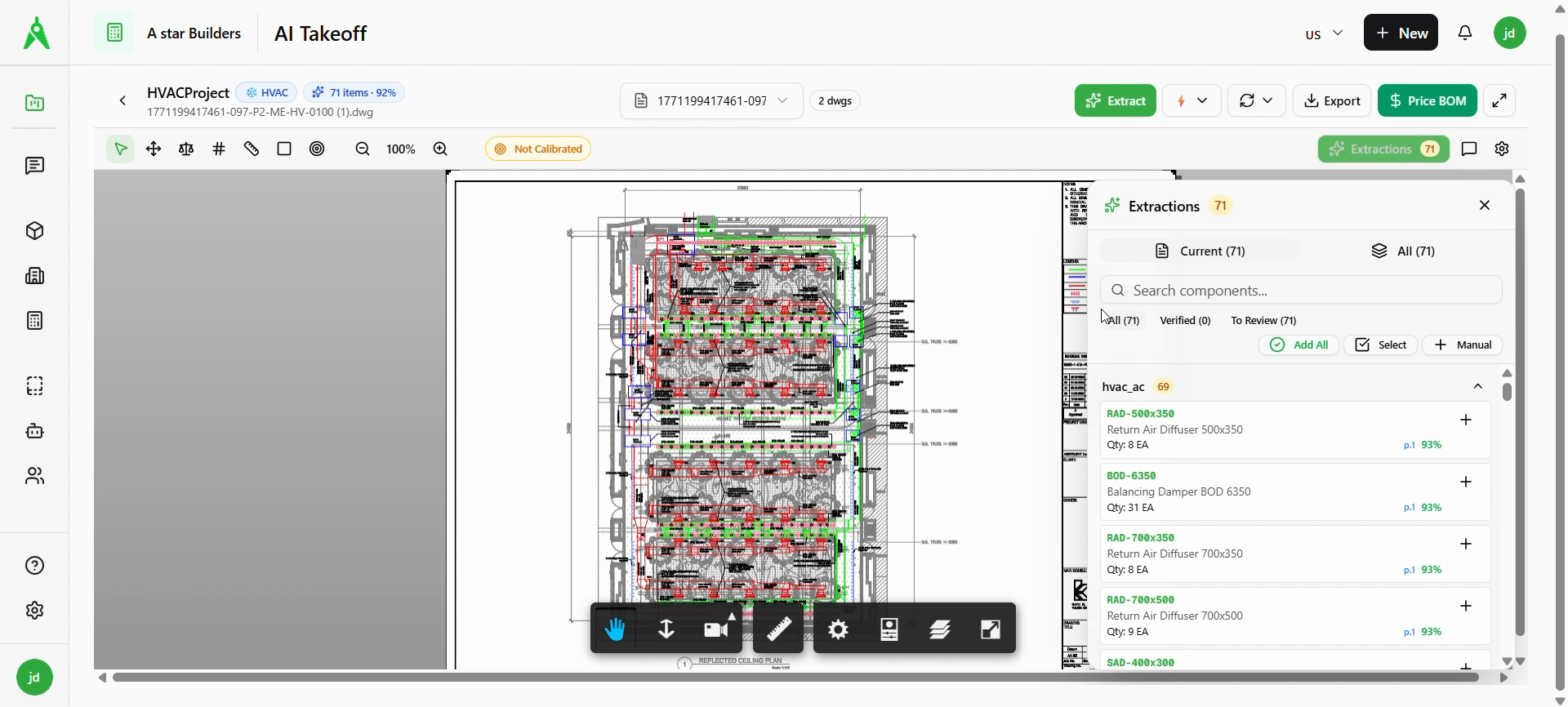
When a drawing is ready, use Extract on the row or open the file in AI Takeoff to view the sheet, run Extract, and review extractions in the side panel (counts, items to verify). Next in the manual: open the Components tab for trade-level extraction review and pricing prep.
Expected result
- Files appear under All Documents with correct type and category.
- Extraction/takeoff can run without upload errors.
Troubleshooting
- Upload fails: Check file size and format; retry on a stable network; try smaller files.
- Blank or wrong preview: Re-upload; ensure the file is not password-protected or corrupted.
- Wrong category: Change the Category dropdown on the row; re-run extraction if your process requires it.
Related
- Previous: Create project
- Next: Components
- Guides: Documents