Organisation settings
Company info, organization preferences, business documents, and branding for your workspace.
Purpose
Under Settings → Company Settings, you configure how your organization appears and behaves: default currency, contact details, which organization is active/default, shipping and accounting business documents, and branding (colors and email styling).
Who this is for
- Admins (e.g. TenantAdmin): full access to these pages.
- Estimators / QS: understanding defaults (currency, org context) that affect quotes and estimates.
Prerequisites
- Admin access to Settings for your tenant.
- If you use multiple organizations, know which tenant you should edit.
Steps
1. Open Settings
From DesignOps, open Settings (gear in the sidebar). The left menu groups Company Settings, Team & Permissions, Personal, Account, and Integrations.
2. Company Info
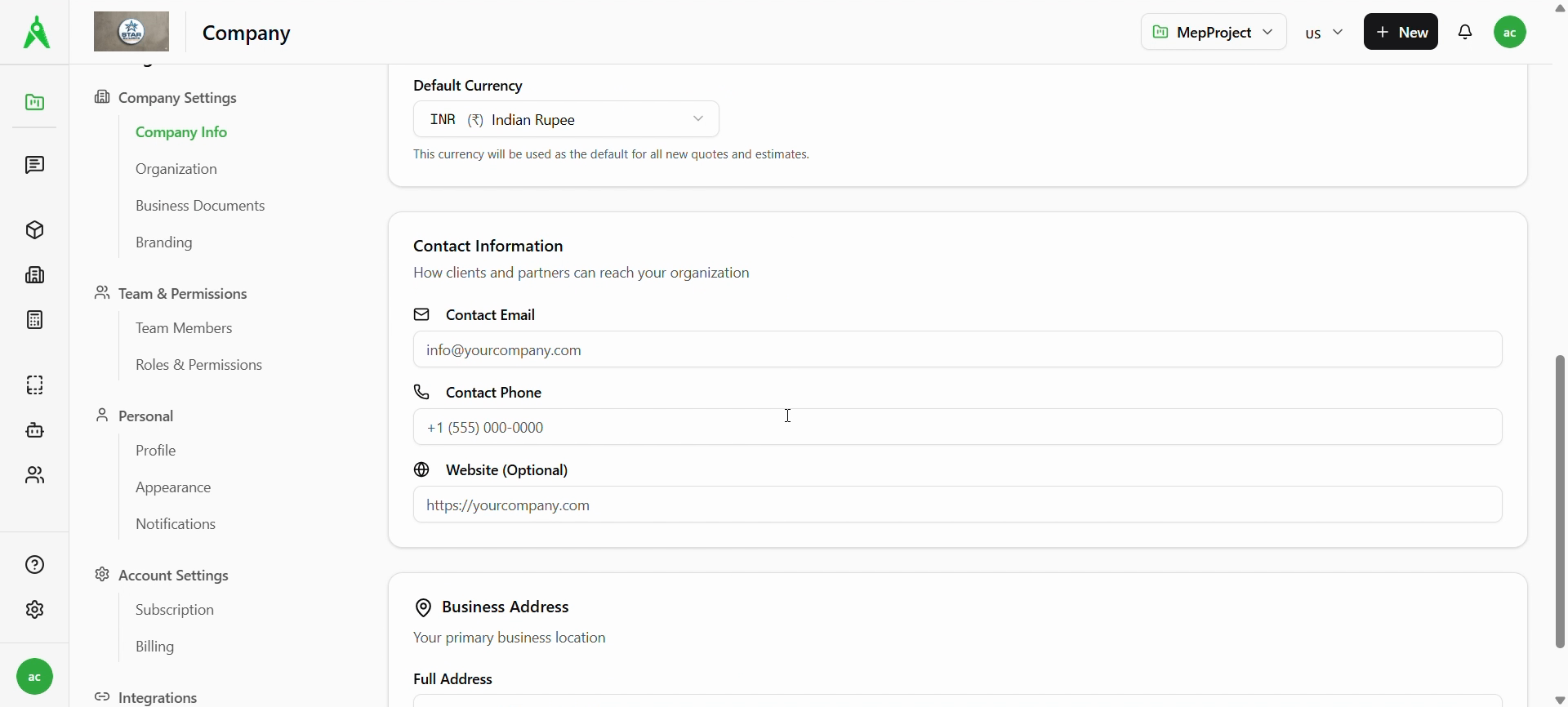
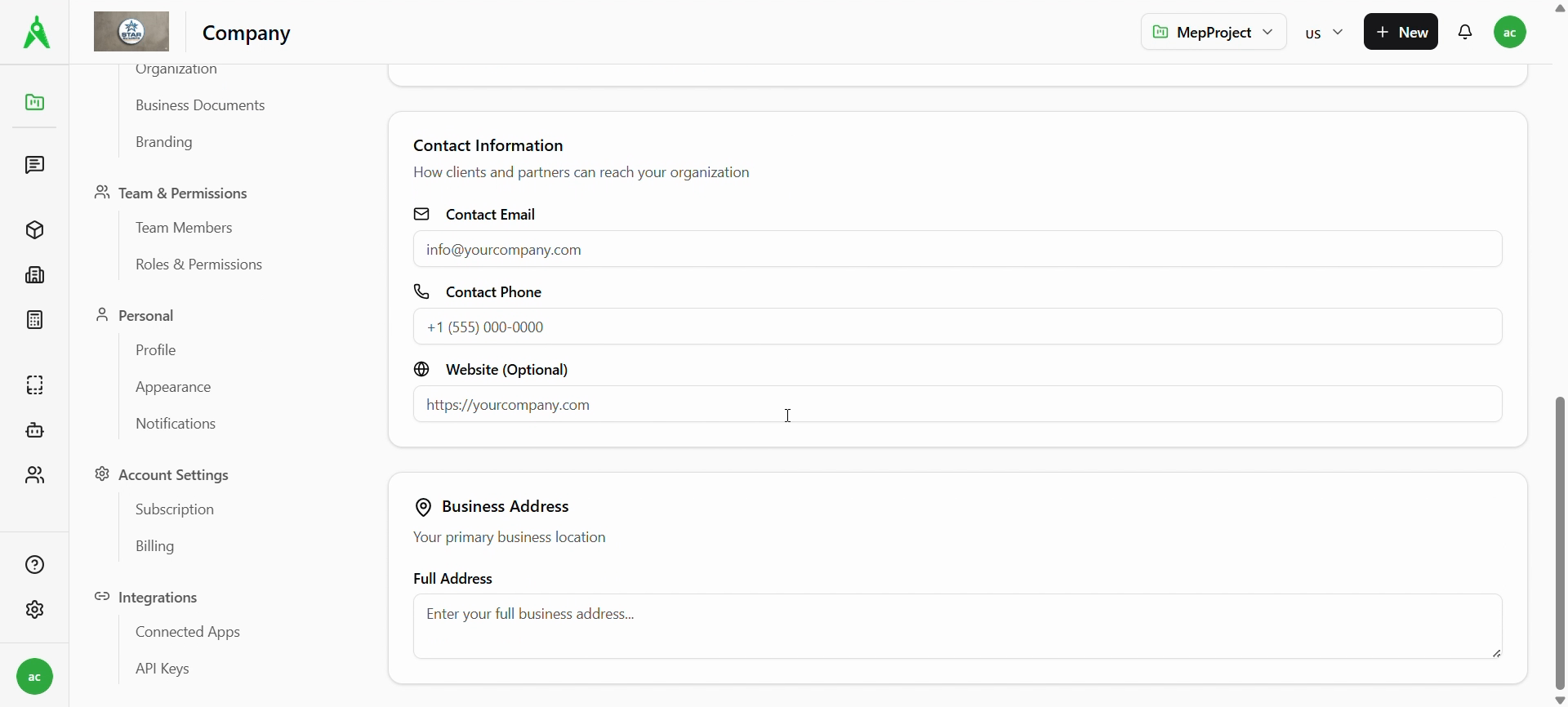
Choose Company Info to set:
- Default currency — used for new quotes and estimates (dropdown, e.g. INR, USD).
- Contact information — email, phone, and optional website shown to clients and partners.
- Business address — primary location (full address field).
3. Organization (preferences)
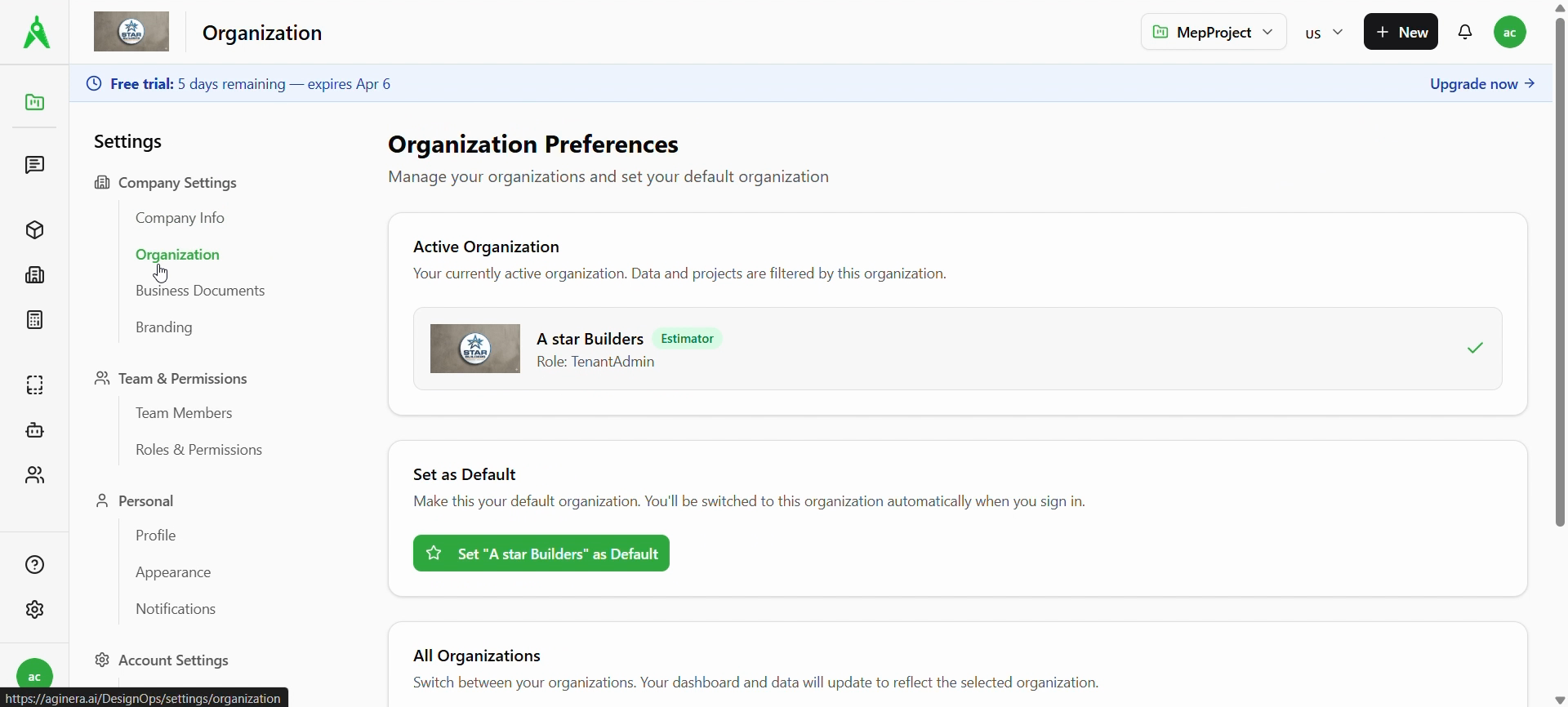
Choose Organization to open Organization Preferences:
- See your active organization (name, role, e.g. TenantAdmin) and confirm it is the one you intend.
- Set as default so you land in this org when you sign in.
- Switch between all organizations if your account has more than one.
Paths are under DesignOps settings, e.g. /DesignOps/settings/organization.
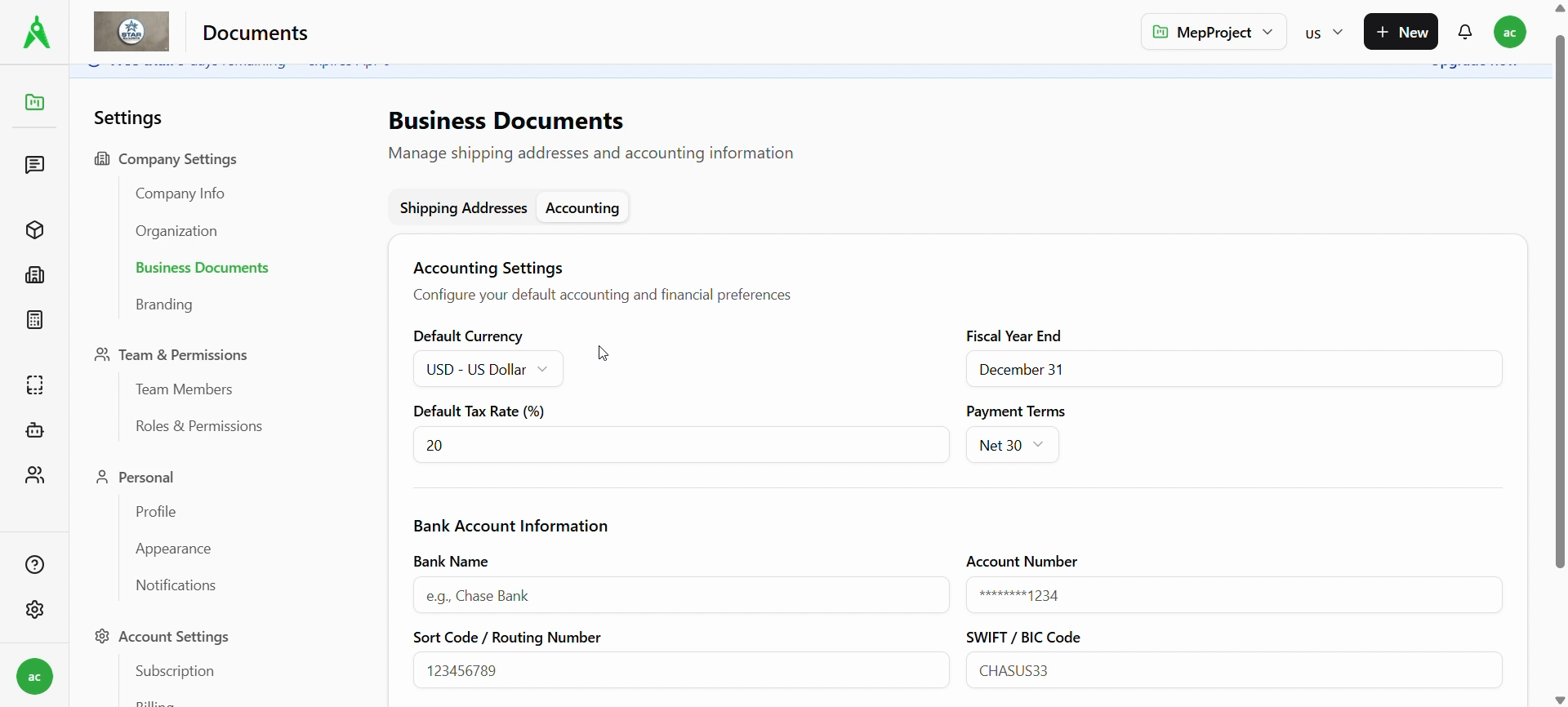
4. Business Documents
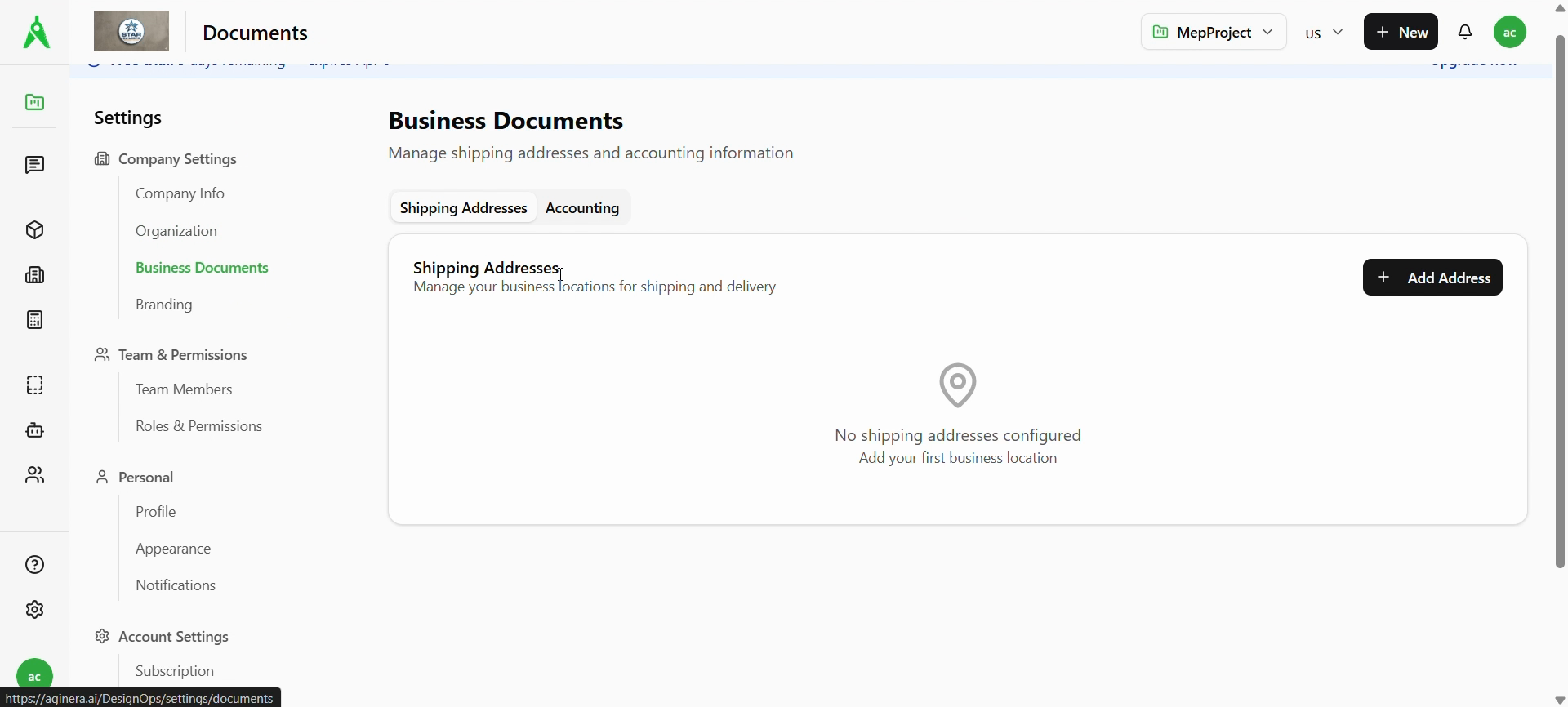
Choose Business Documents to manage:
- Shipping Addresses — add locations for shipping/delivery; use + Add Address when empty.
- Accounting — defaults such as Default currency, Fiscal year end, Default tax rate, Payment terms, and Bank account fields (where your workspace collects them).
5. Branding
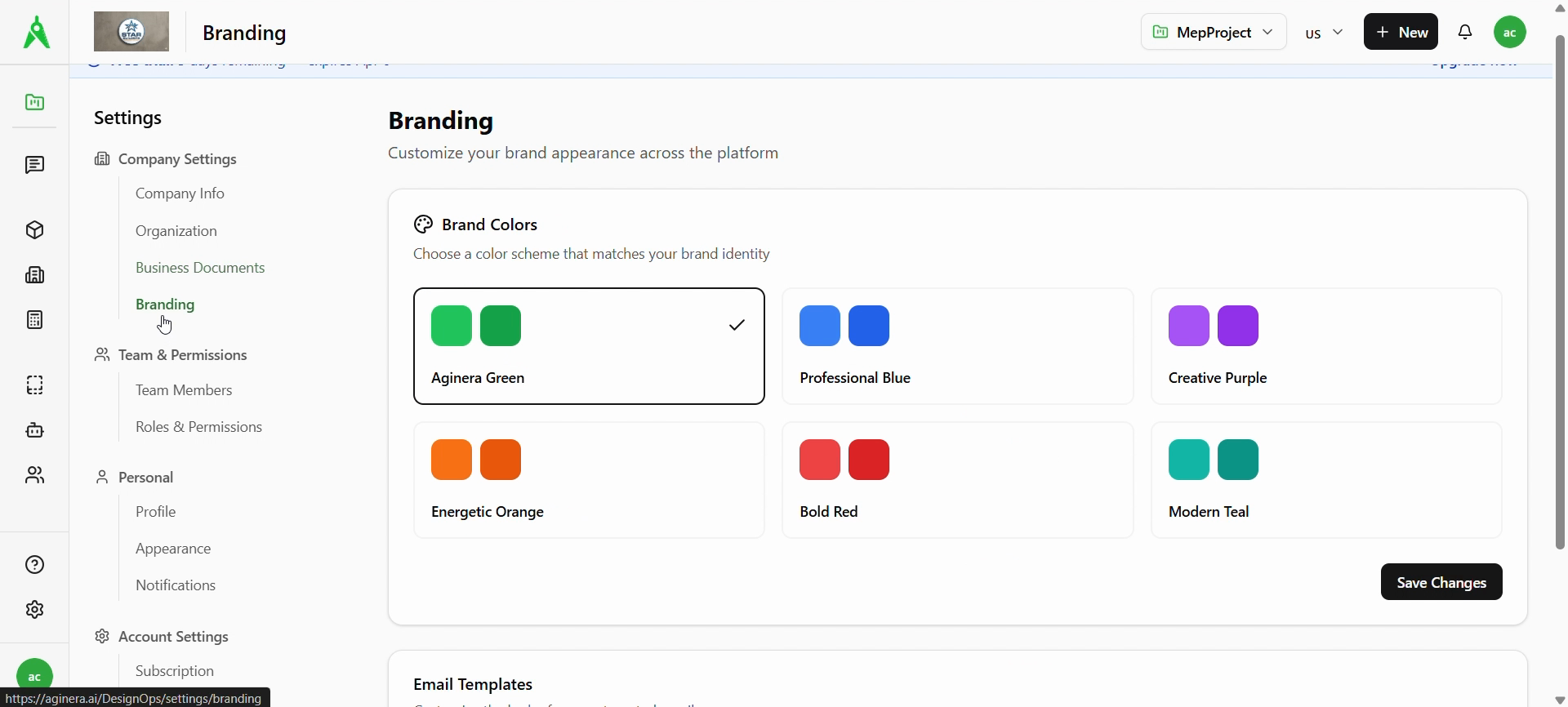
Choose Branding to pick a brand color preset (e.g. Aginera Green, Professional Blue) and save. Configure email templates when that section is available.
Expected result
- Currency, contact, and org context match how your team sells and delivers work.
- Business document and branding choices apply across the workspace for your organization.
Troubleshooting
- Wrong org or data: Confirm the active organization on the Organization page; switch org if needed.
- Changes not visible: save each section; refresh or sign out/in; verify you edited the correct tenant.
- Sensitive fields (bank accounts): restrict access to admins; follow your company’s security policy.
Related
- Previous: Team settings
- Next: Profile settings
- Admin & Settings