Profile settings
Personal Profile, Appearance, and Notifications — name, photo, locale, theme, and alerts.
Purpose
Under Settings → Personal, you manage your own account: profile (name, photo, phone, formats), appearance (theme, accent, font, density), and notifications (email test mode, channels, quiet hours). You can also open Profile from the header avatar menu.
Who this is for
- All users: updating their own profile and preferences.
- Admins: optional Email test mode on Notifications (redirects outbound mail for testing).
Prerequisites
- You are signed in to DesignOps.
- For profile edits, use Edit Profile when fields are read-only in view mode.
Steps
1. Open Profile
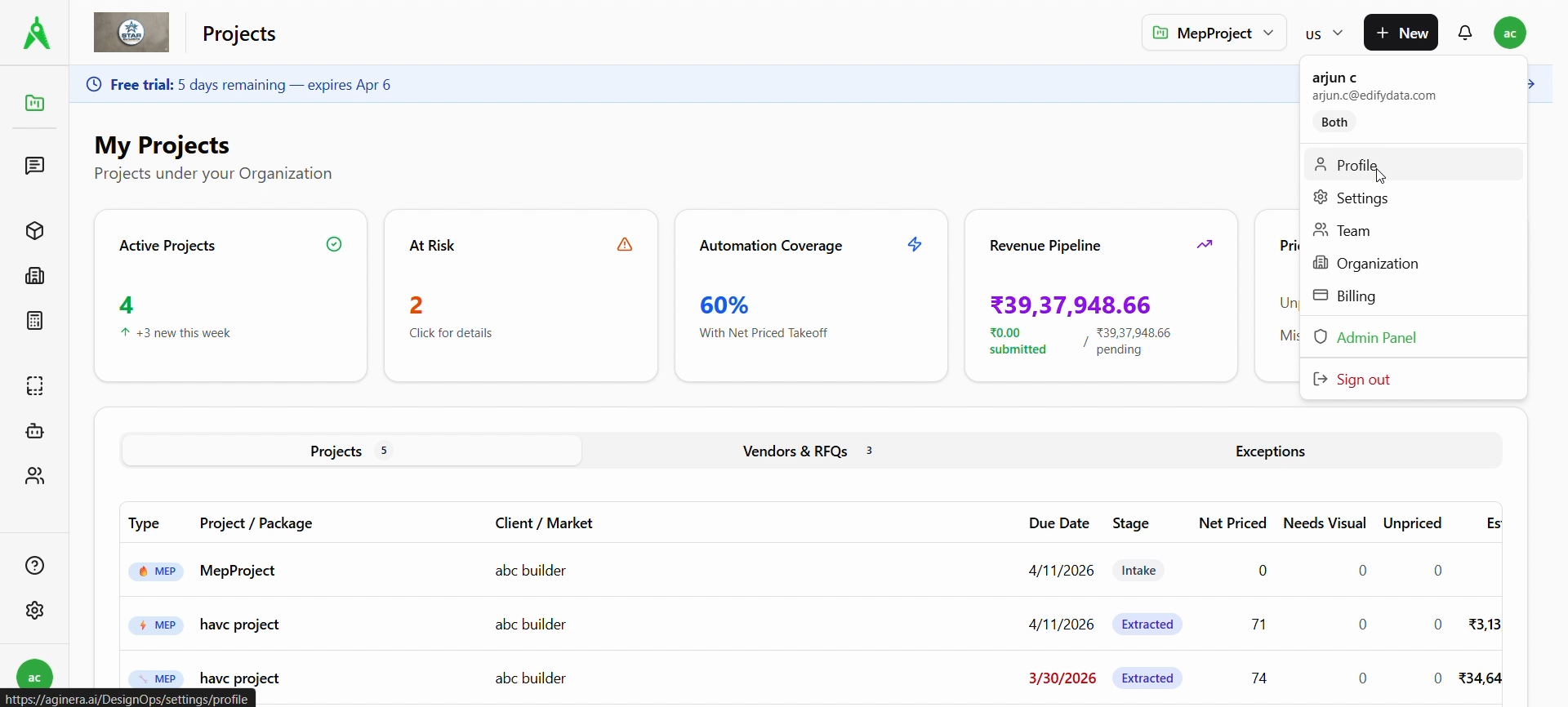
Option A — Avatar menu: Click your avatar (top right), then choose Profile. The link goes to DesignOps profile settings (e.g. /DesignOps/settings/profile).
Option B — Settings: Open Settings (gear in the sidebar), then under Personal choose Profile.
2. Profile Settings (overview)
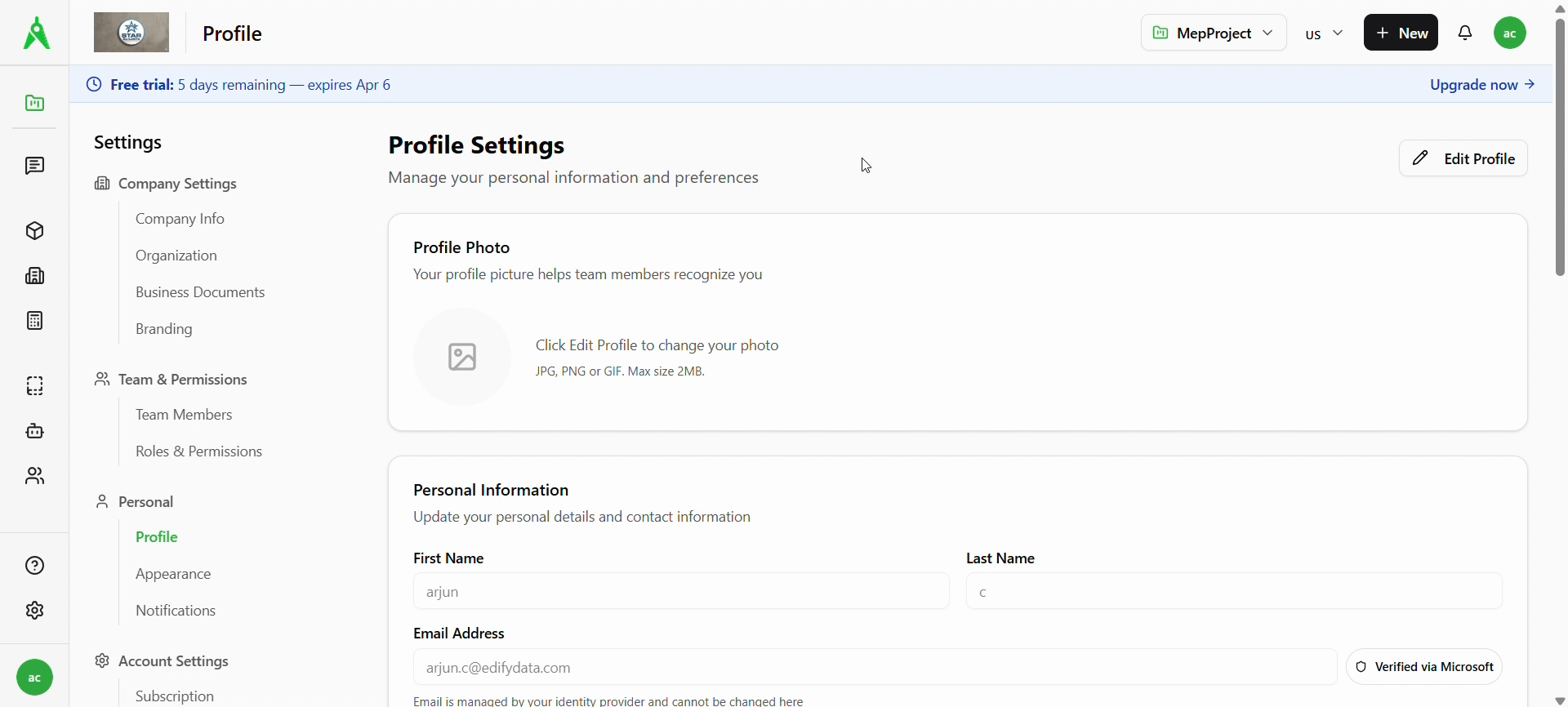
The Profile Settings page summarizes your personal information. Use Edit Profile (top right) to change your photo or editable fields.
3. Personal information and account
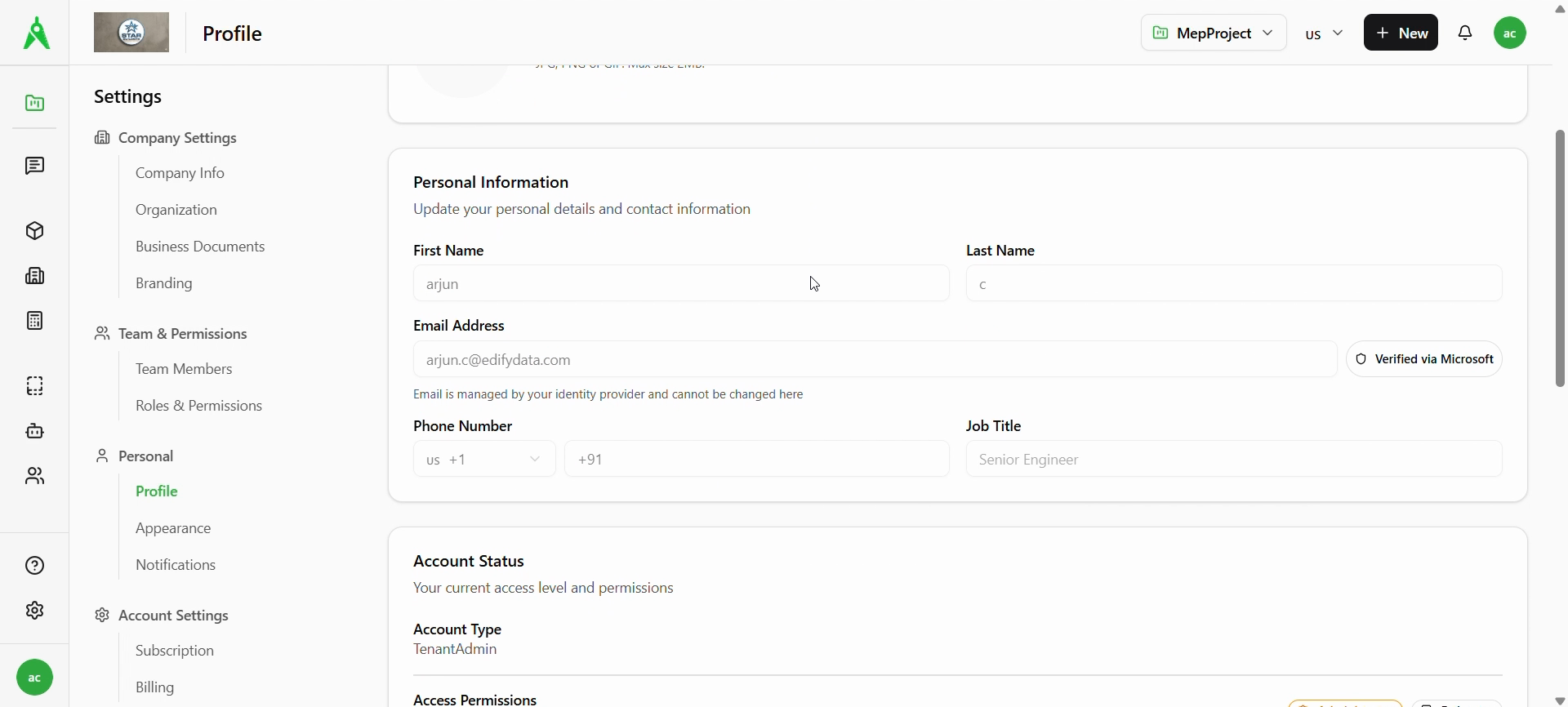
When editing, update First name, Last name, Phone, and Job title as needed. Email is often read-only when managed by your identity provider (e.g. Verified via Microsoft). Account Status shows your role (e.g. TenantAdmin).
4. Regional, language, and notification preferences (Profile)
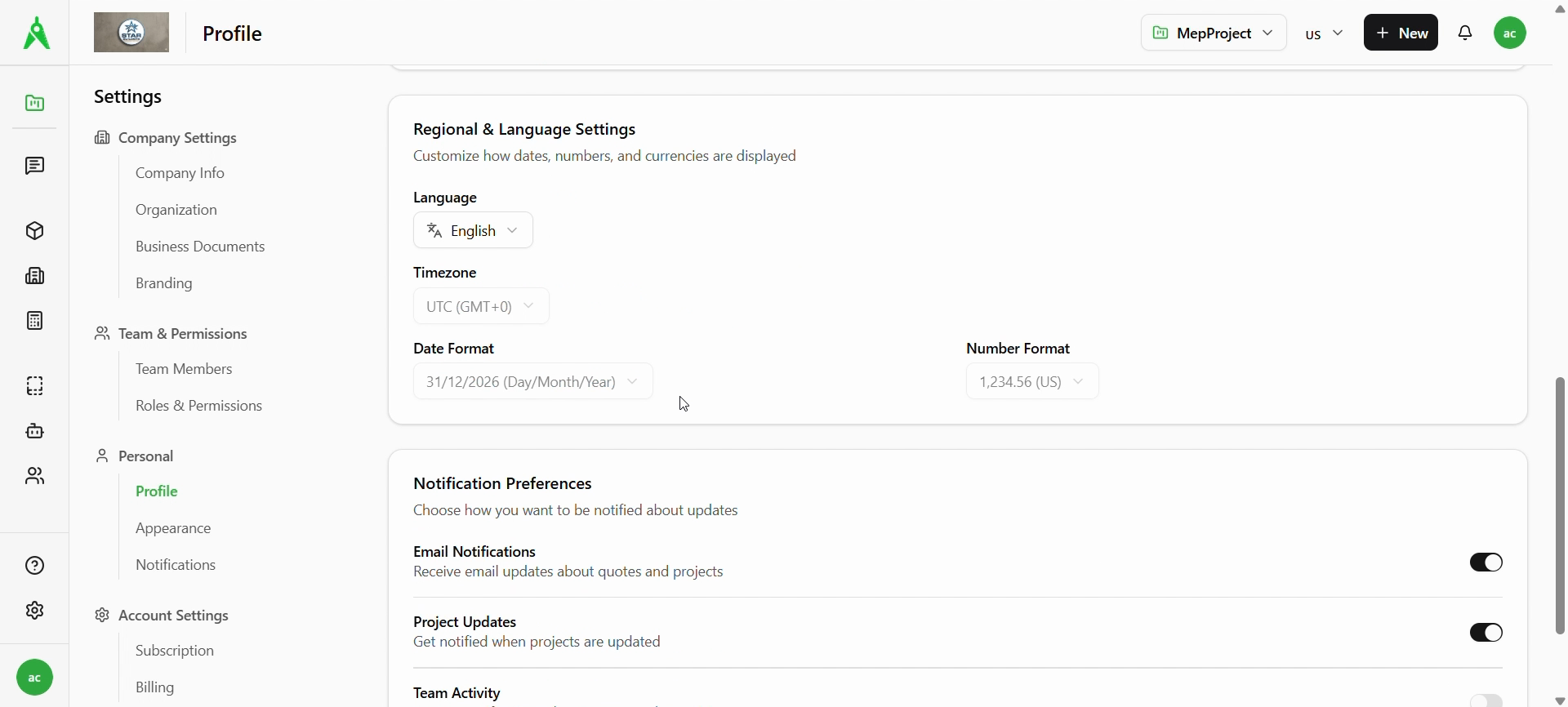
On the same Profile area, set Language, Timezone (if editable), Date format, and Number format. Use the toggles for Email notifications, Project updates, and Team activity as you prefer.
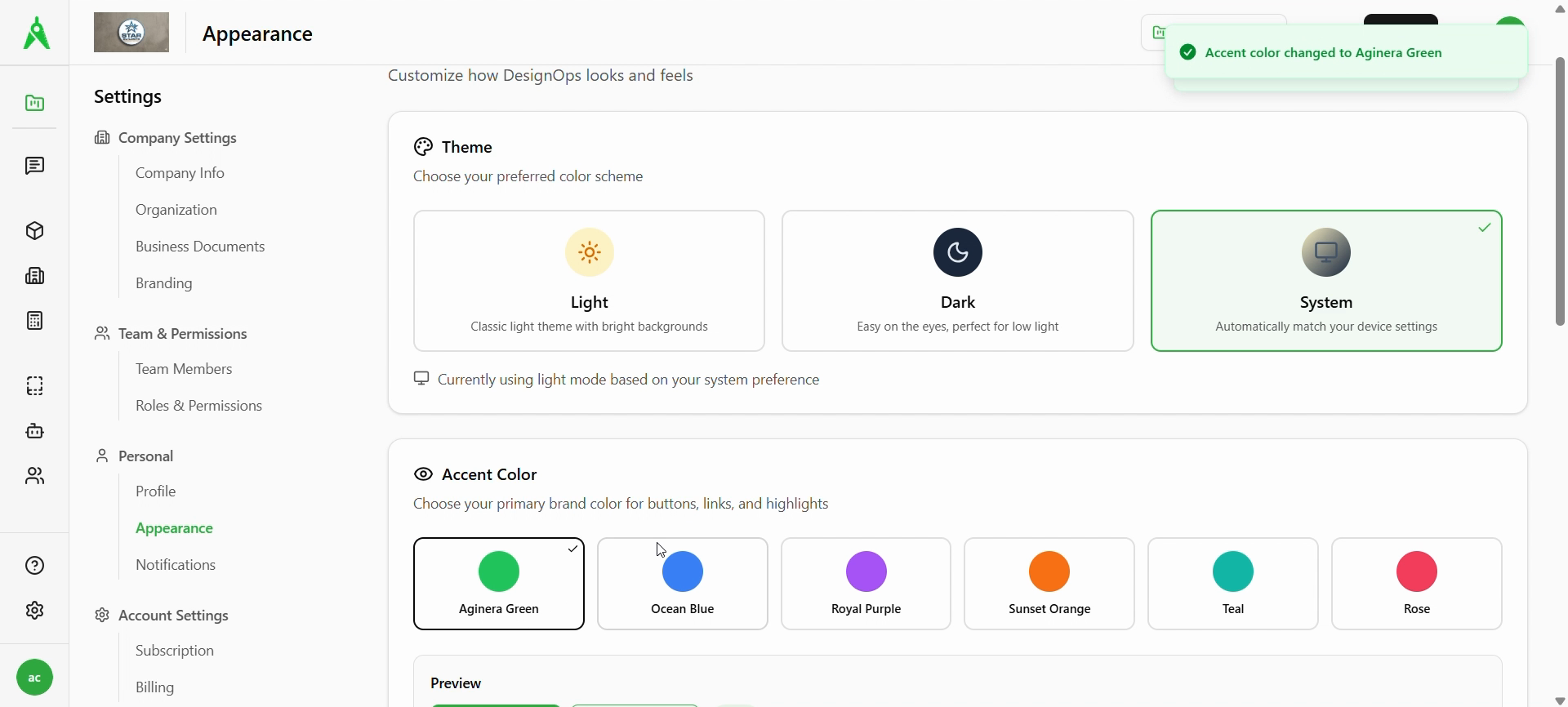
5. Appearance — theme and accent
Go to Settings → Personal → Appearance. Pick Light, Dark, or System theme, then choose an Accent color (e.g. Aginera Green). A confirmation toast may appear when the accent updates.
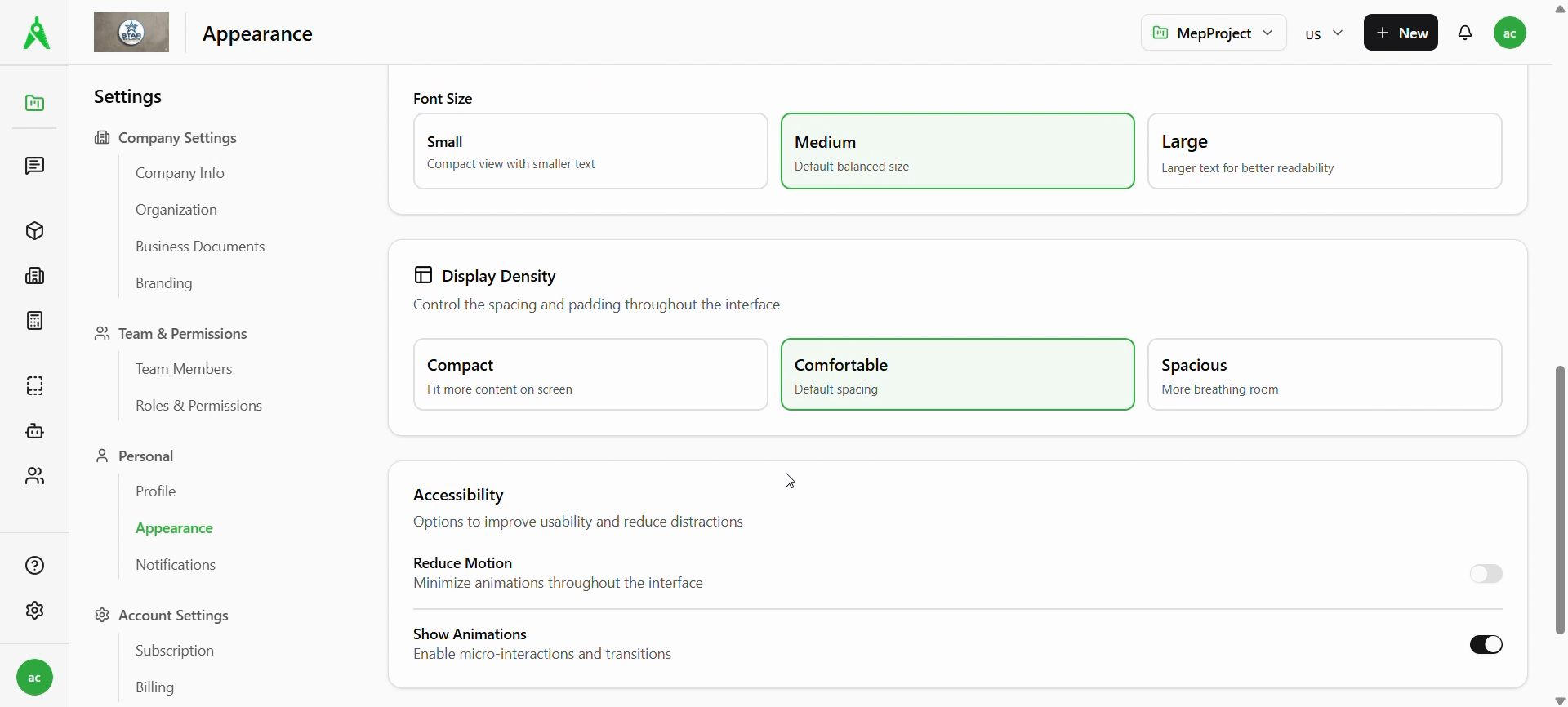
6. Appearance — font, density, accessibility
Set Font size (Small / Medium / Large), Display density (Compact / Comfortable / Spacious), and toggles such as Reduce motion and Show animations.
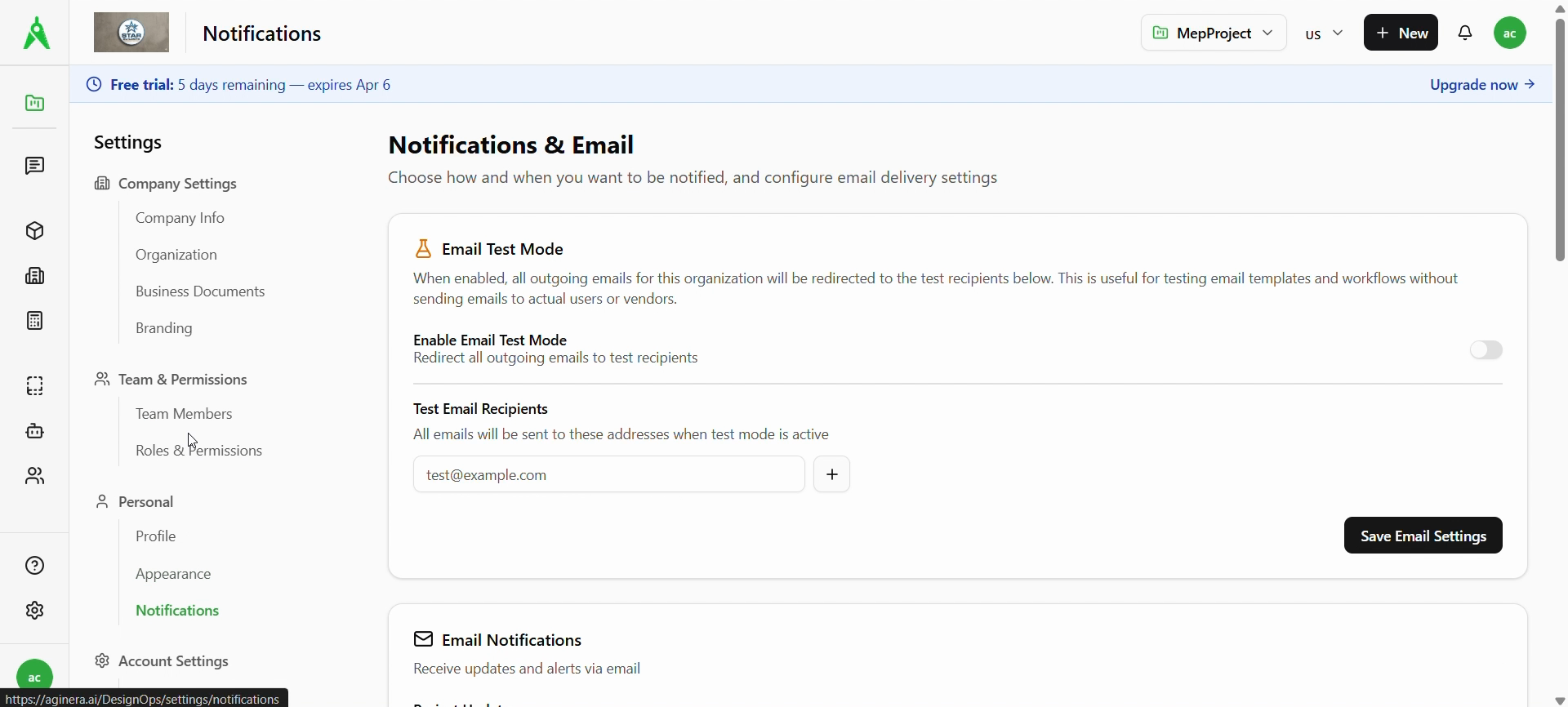
7. Notifications — email test mode
Open Settings → Personal → Notifications. If your organization uses it, Email test mode can redirect outgoing emails to test recipients; add addresses and use Save Email Settings when shown.
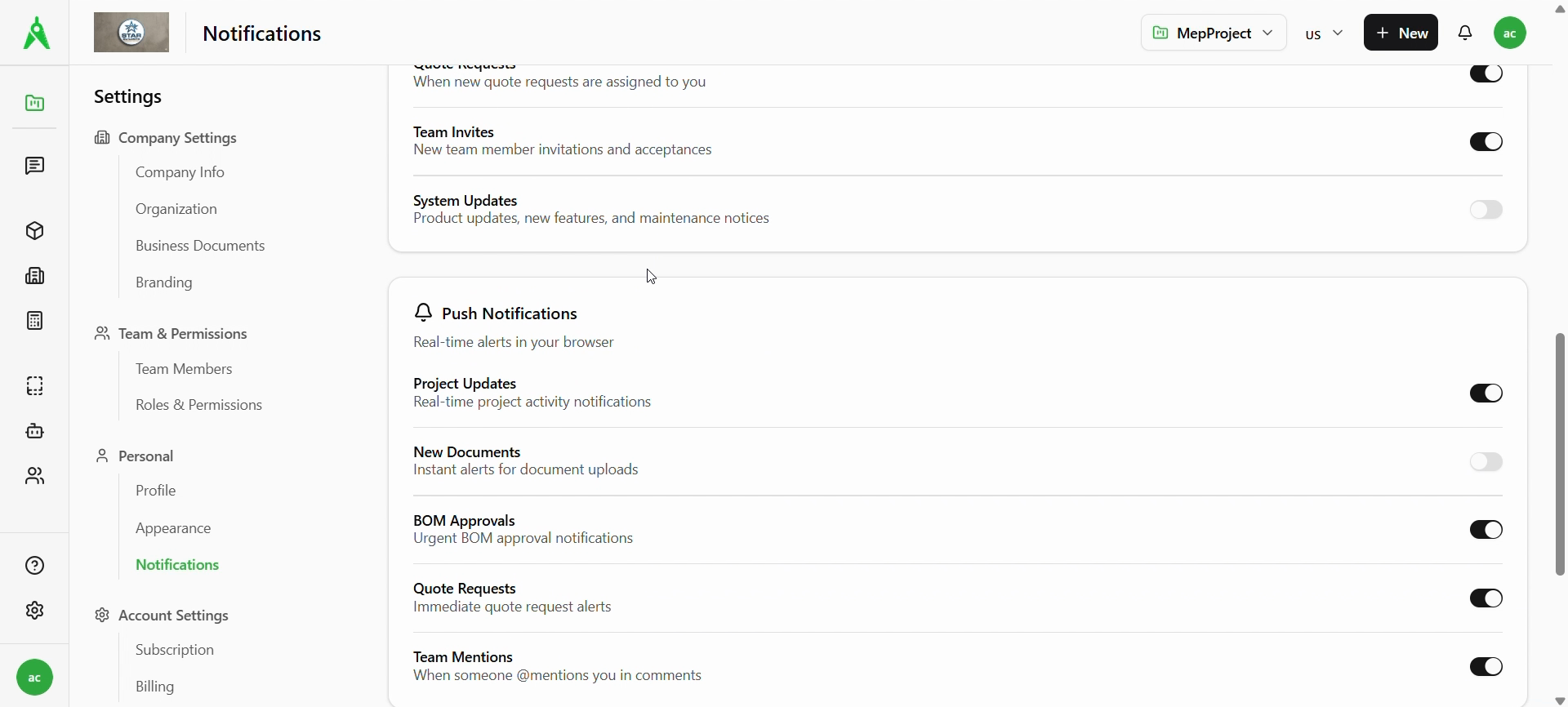
8. Notifications — email and push
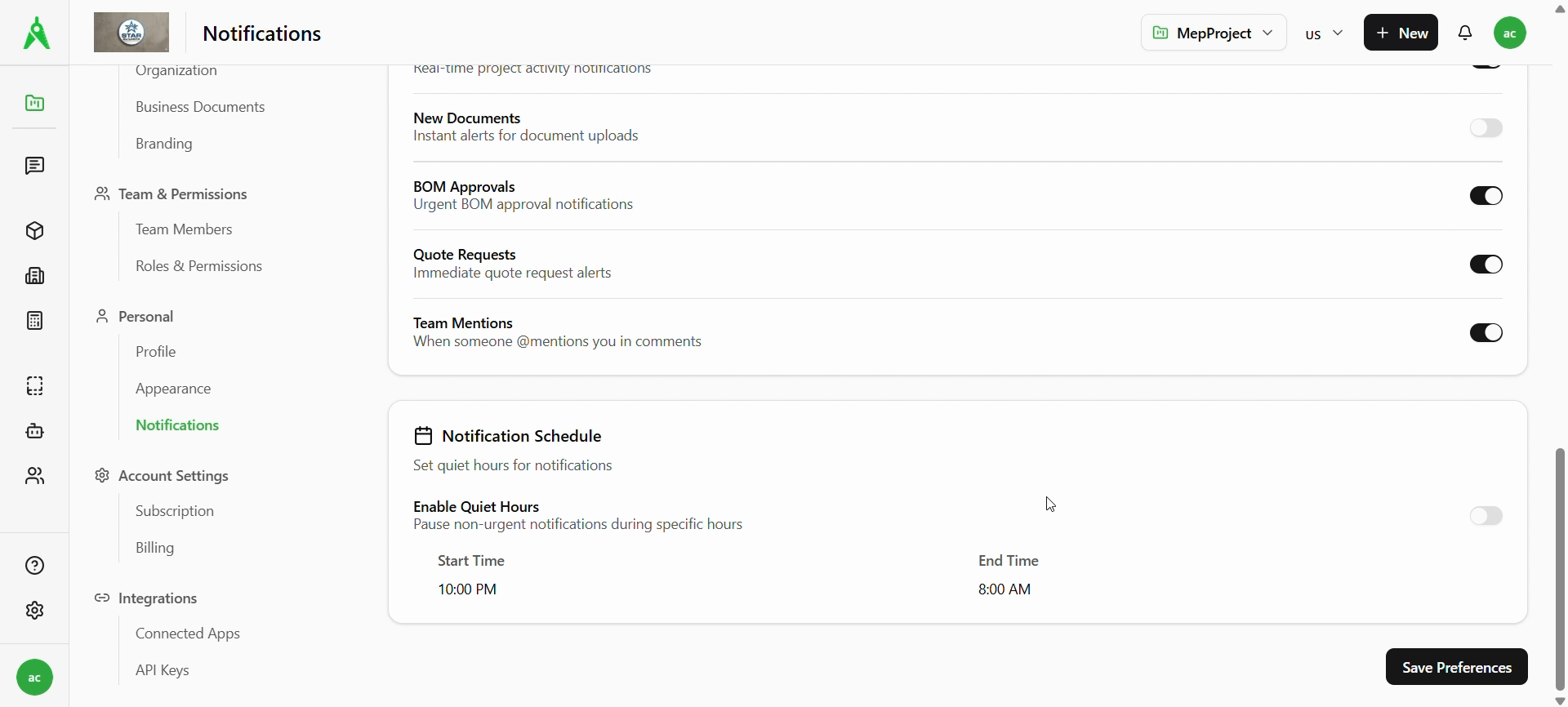
Turn categories on or off (e.g. Quote requests, Team invites, System updates) and configure Push notifications for project updates, documents, BOM approvals, quotes, and mentions.
9. Notifications — quiet hours and save
Optional Quiet hours pause non-urgent notifications between a Start time and End time. Click Save Preferences to apply notification changes.
Expected result
- Your profile, locale, and display choices persist across sessions.
- Notification preferences match how you want to be reached (email, push, quiet hours).
Troubleshooting
- Changes don’t save: use Save Preferences or section save buttons where shown; refresh and retry; check network.
- Email can’t be edited: expected when the tenant uses SSO; change email in your identity provider if required.
- Wrong theme or accent: revisit Appearance and reselect; clear cache if the UI looks stale.
Related
- Previous: Organisation settings
- FAQ