Components
View extracted components by trade, review extractions, run AI takeoff, and manage parts catalog pricing.
Purpose
Components is where you review items extracted from your drawings—grouped by trade (e.g. Electrical, Mechanical, Plumbing)—check pricing status, run AI Takeoff or Run Extraction where available, and move items into your parts catalog with unit prices.
Who this is for
- Estimators / QS reviewing extracted lines before pricing and estimates.
- Project leads validating quantities and categories by discipline.
Prerequisites
- A project with documents uploaded and extraction/takeoff run so component rows exist.
- Appropriate permissions to view the project Components tab.
Steps
1. Open Components for the project
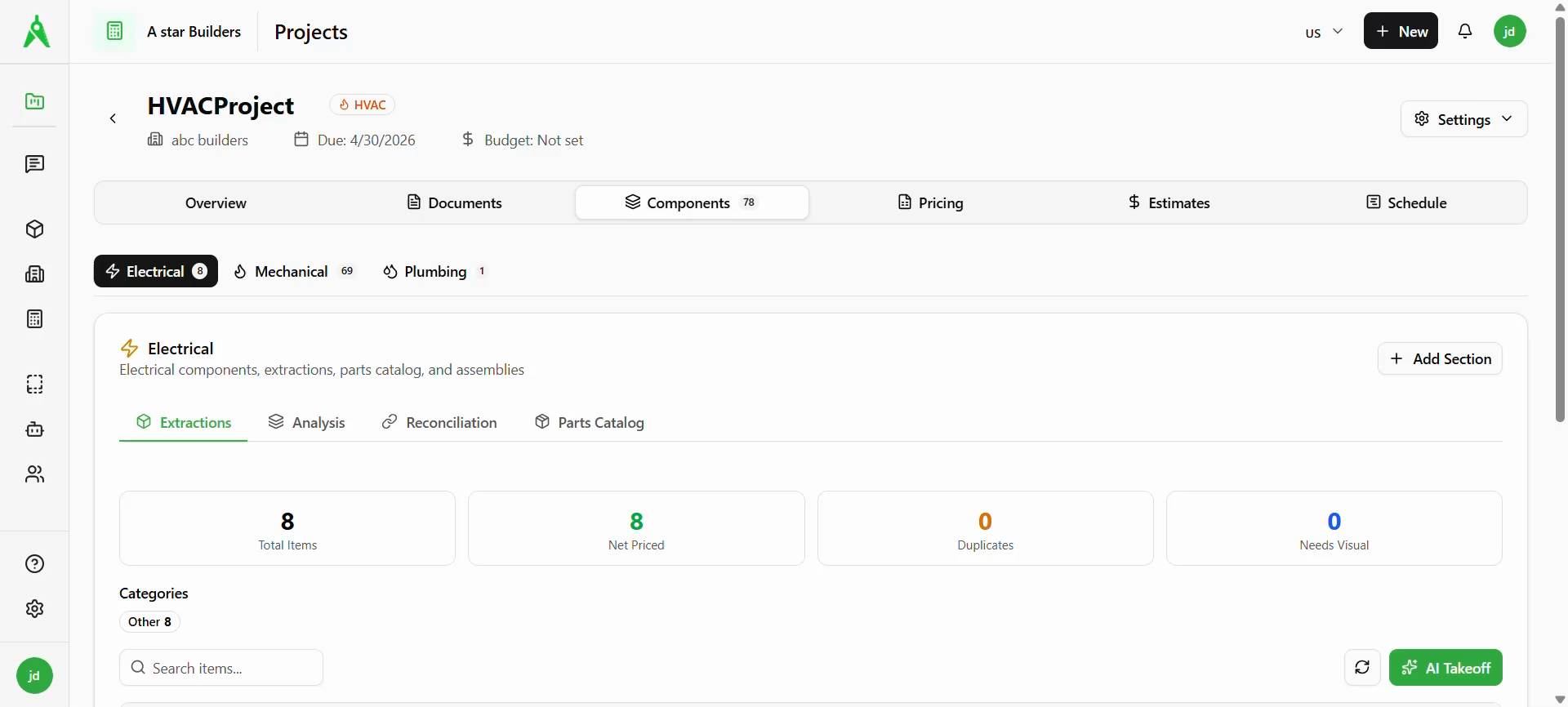
Open your project and select the Components tab (the badge shows the total count, e.g. Components (78)).
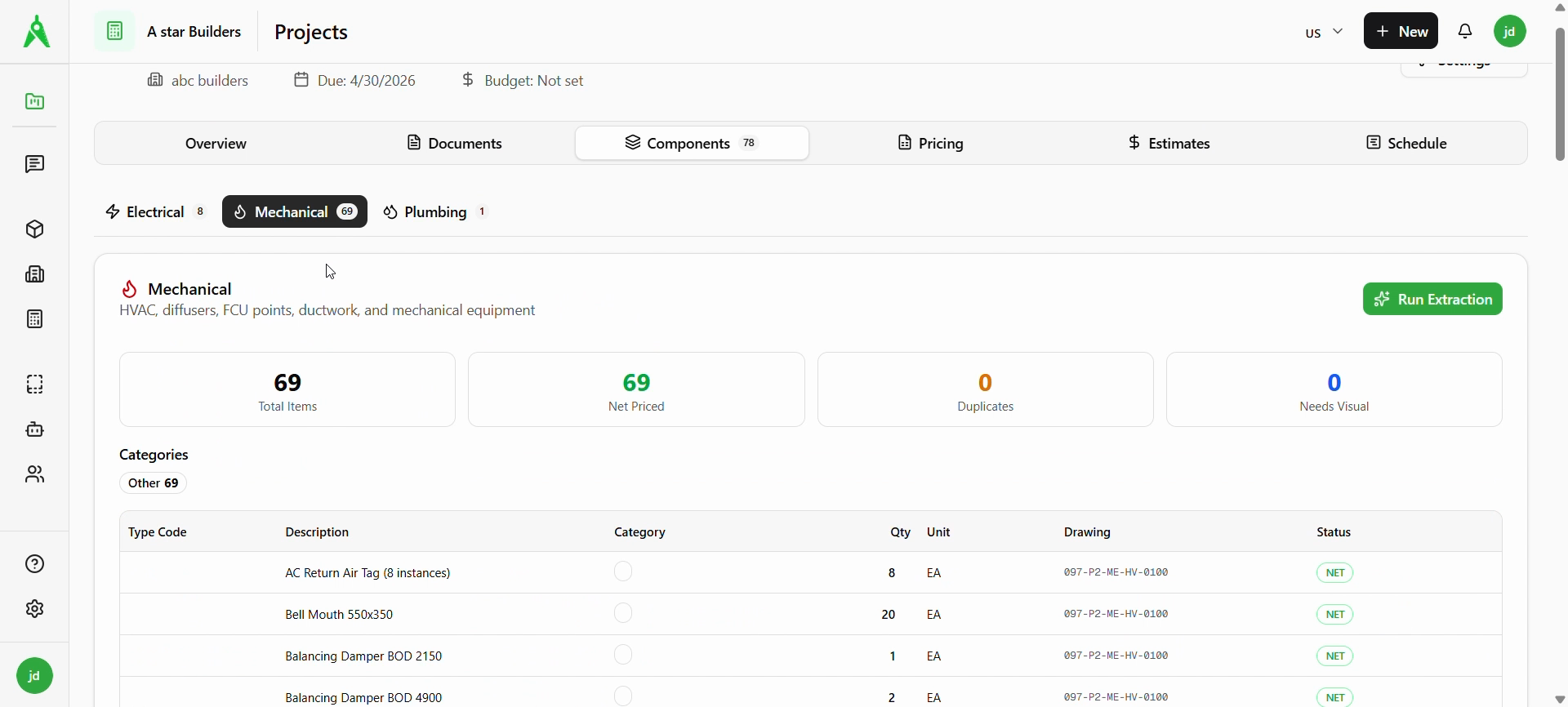
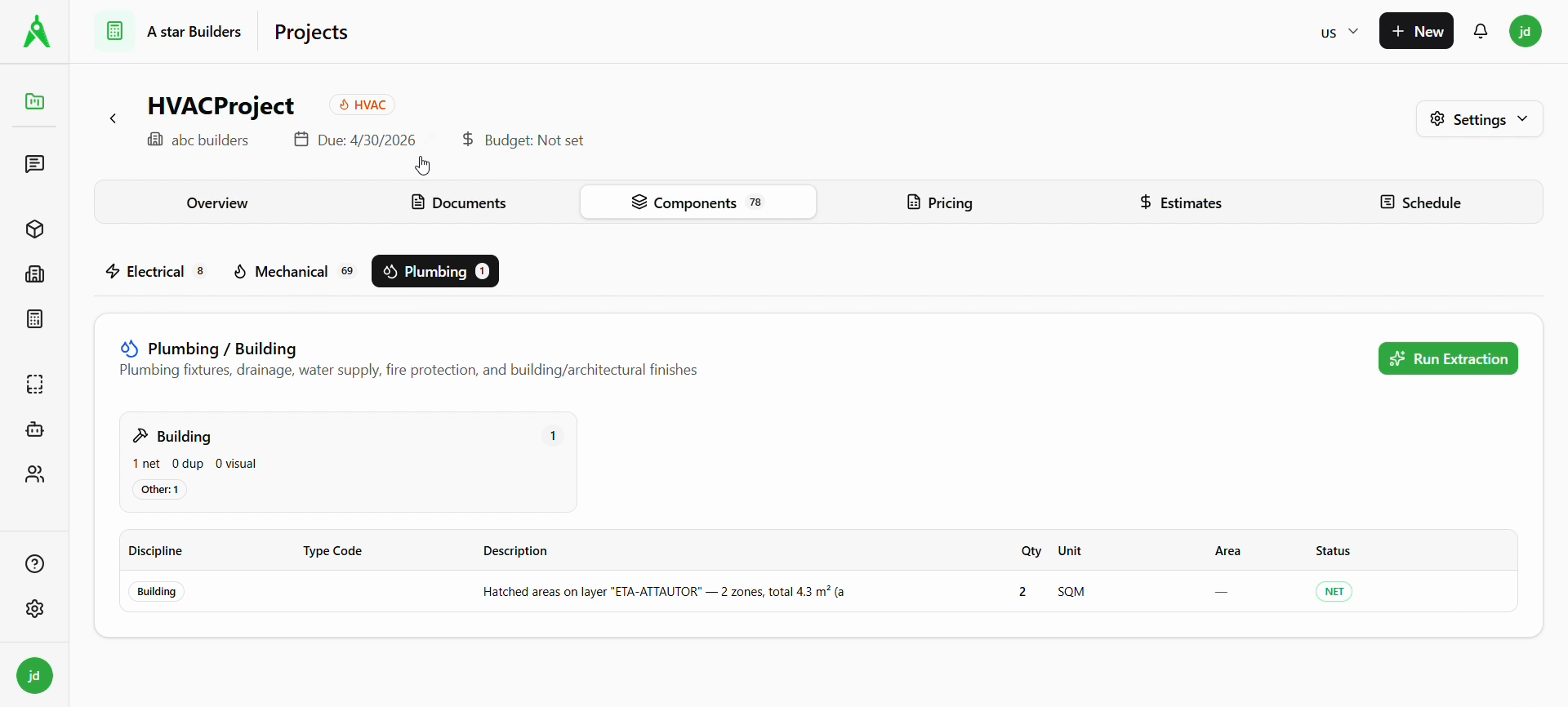
Use the trade chips (Electrical, Mechanical, Plumbing) to switch discipline. Each trade shows a short description and tools for that scope.
2. Review Extractions
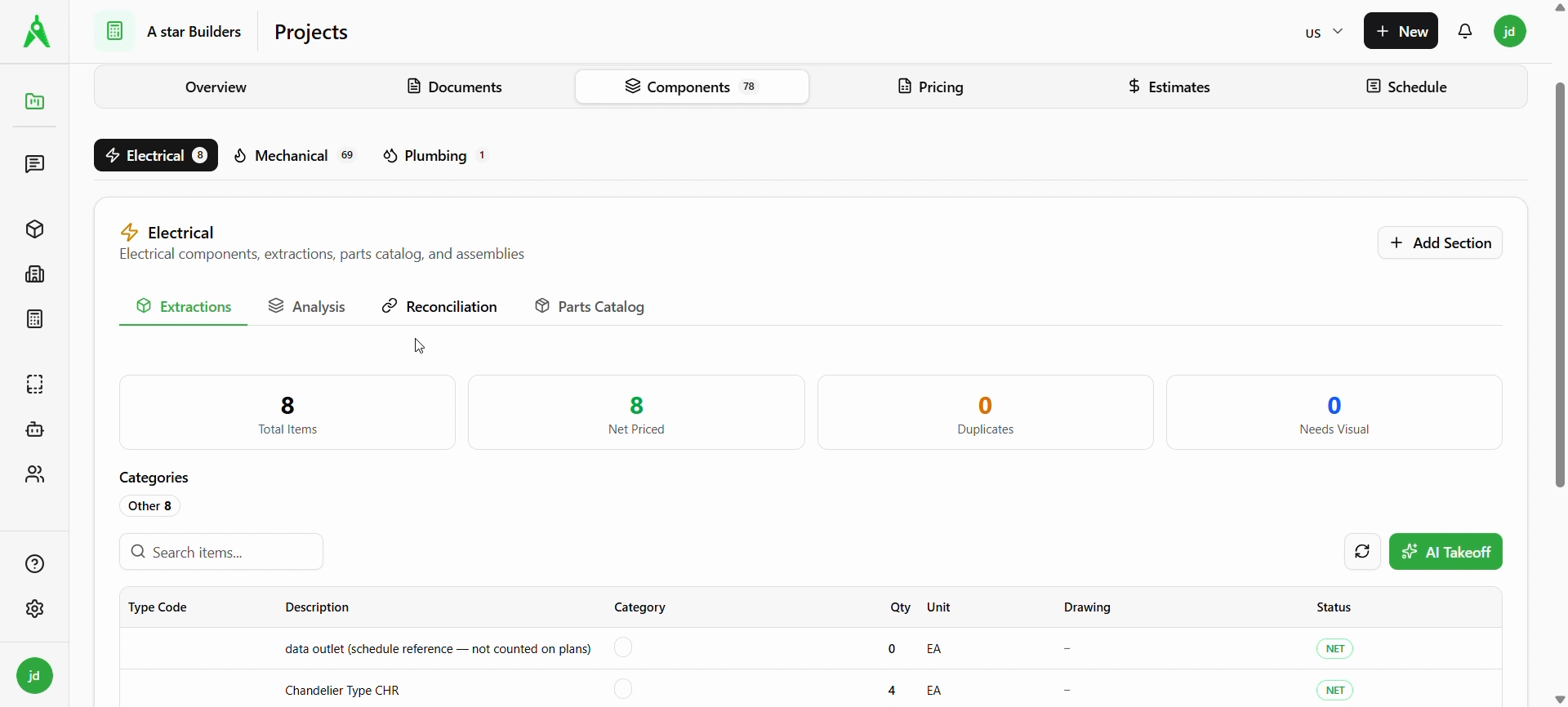
Under each trade, open Extractions to see summary cards (e.g. Total Items, Net Priced, Duplicates, Needs Visual), category tags, and a searchable list. Use Search items… to filter rows. Line items show Description, Qty, Unit, Drawing reference where applicable, and Status (e.g. NET).
3. Run extraction or AI takeoff when needed
Depending on trade and state, use Run Extraction to process or refresh that discipline, or AI Takeoff (where shown) to drive automated extraction into this list.
4. Parts catalog and pricing
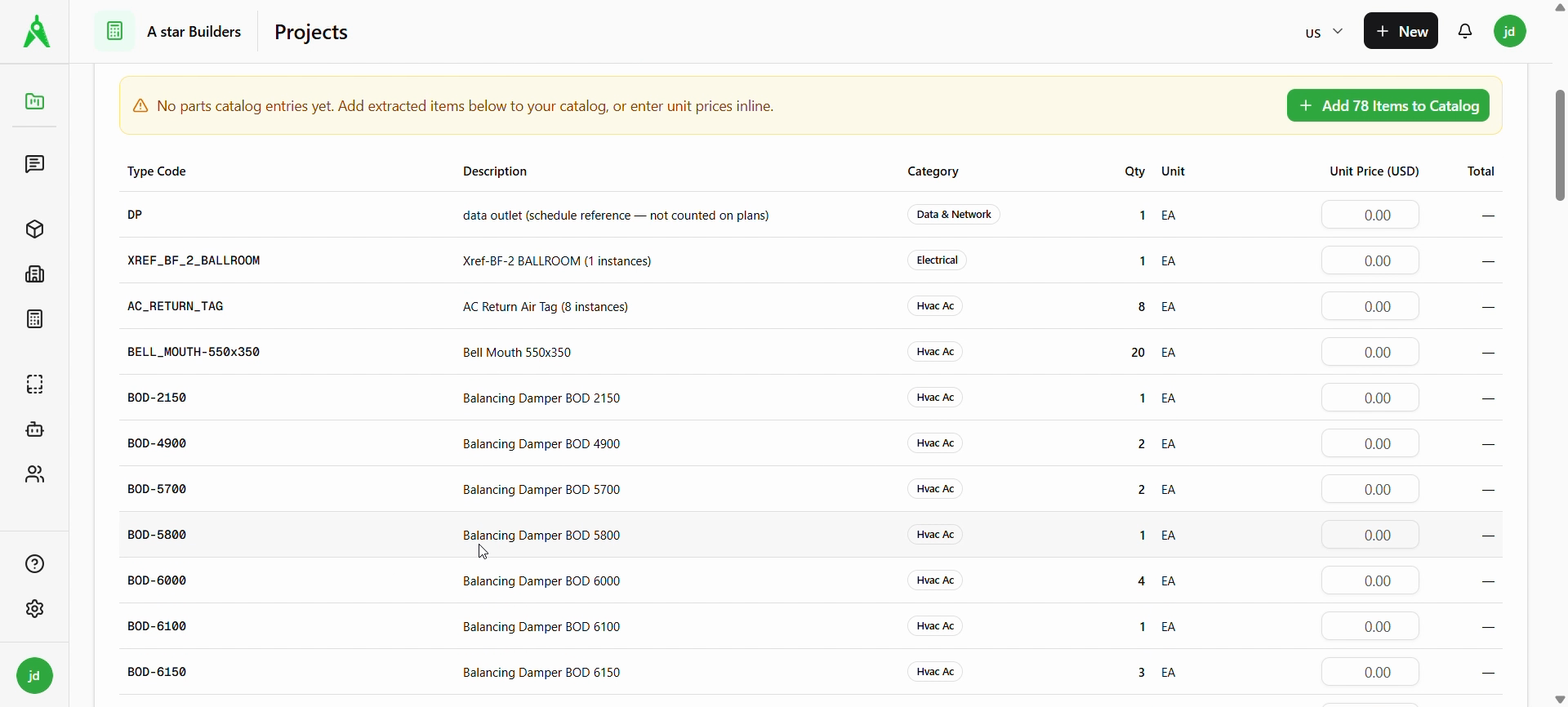
When you need catalog-backed or inline pricing, open Parts Catalog (and related subtabs such as Analysis / Reconciliation where your workspace uses them). If items are not yet in the catalog, you may see a prompt to add extracted items to the catalog or enter unit prices inline in the grid.
Expected result
- Components are visible by trade with clear extraction and pricing status.
- You can search, refresh, and proceed to RFQ (if your process uses vendor quotes) or Pricing schedule and then Estimate with aligned line items.
Troubleshooting
- Empty Components: confirm documents are uploaded and extraction/takeoff has been run for that project.
- All NET but totals look wrong: verify quantities, duplicates, and drawing references; re-run extraction if the source drawings changed.
- Cannot add to catalog: check permissions and whether items must be confirmed in Extractions first.
Related
- Previous: Document upload
- Next: Request for quote (RFQ)