Assistant
Use the AI Assistant to ask questions about your project documents, quantities, costs, and standards.
Purpose
The Assistant helps you get answers from your project context: drawings, extracted data, costs, and codes like NEC / IPC / IMC—without leaving DesignOps.
Who this is for
- Estimators / engineers asking quick questions about drawings or takeoff output.
- Anyone who needs standards-based answers with document context.
Prerequisites
- You are signed in and can open Assistant from the sidebar (chat icon).
- For document-specific answers, select a project in the header (e.g. HVACProject) and add the right document context (see below).
Steps
1. Open Assistant
From the left sidebar, choose Assistant. The main area shows What can I do for you? and a prompt to ask about drawings, quantities, costs, or standards.
Use + Add context and the scope control (All projects or your project) so the Assistant knows which data to use.
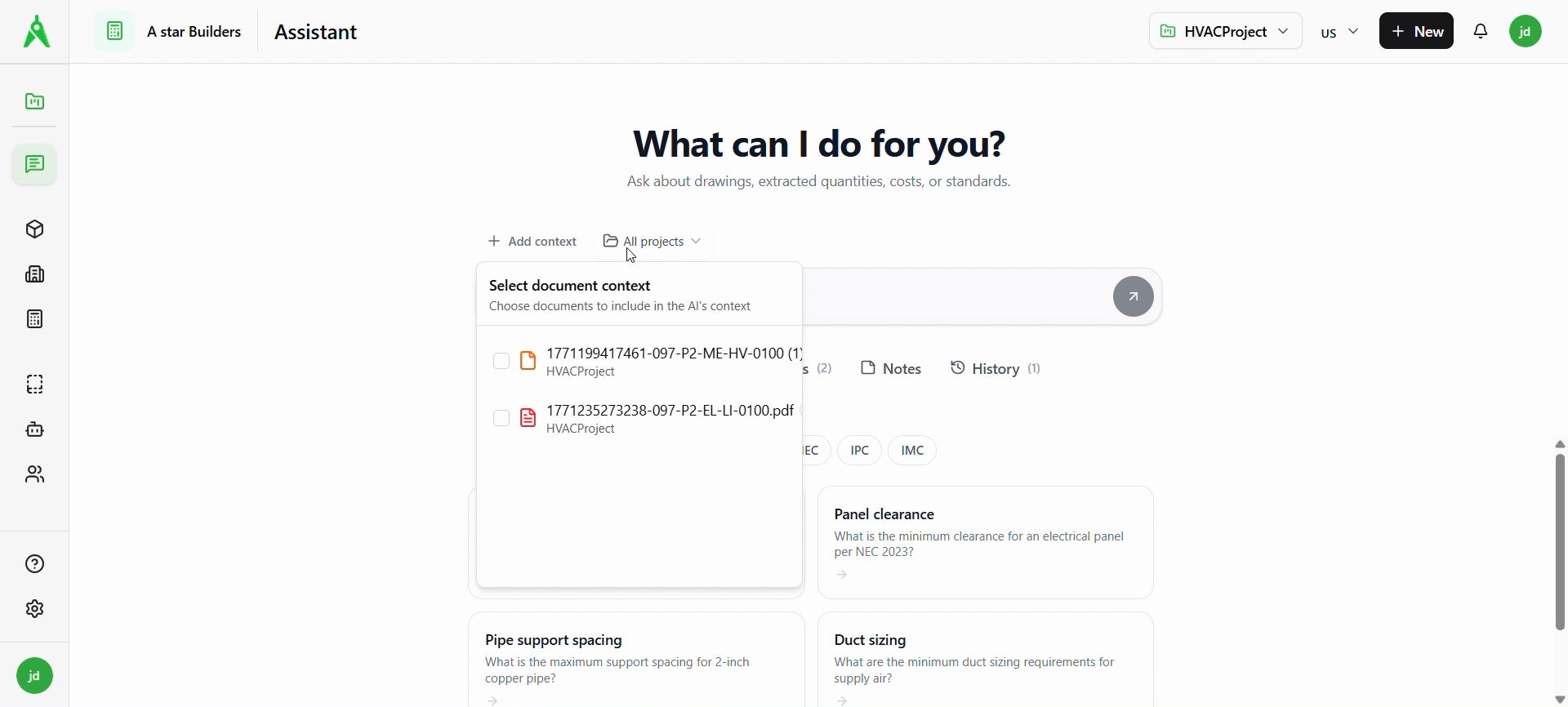
2. Pick documents and tabs
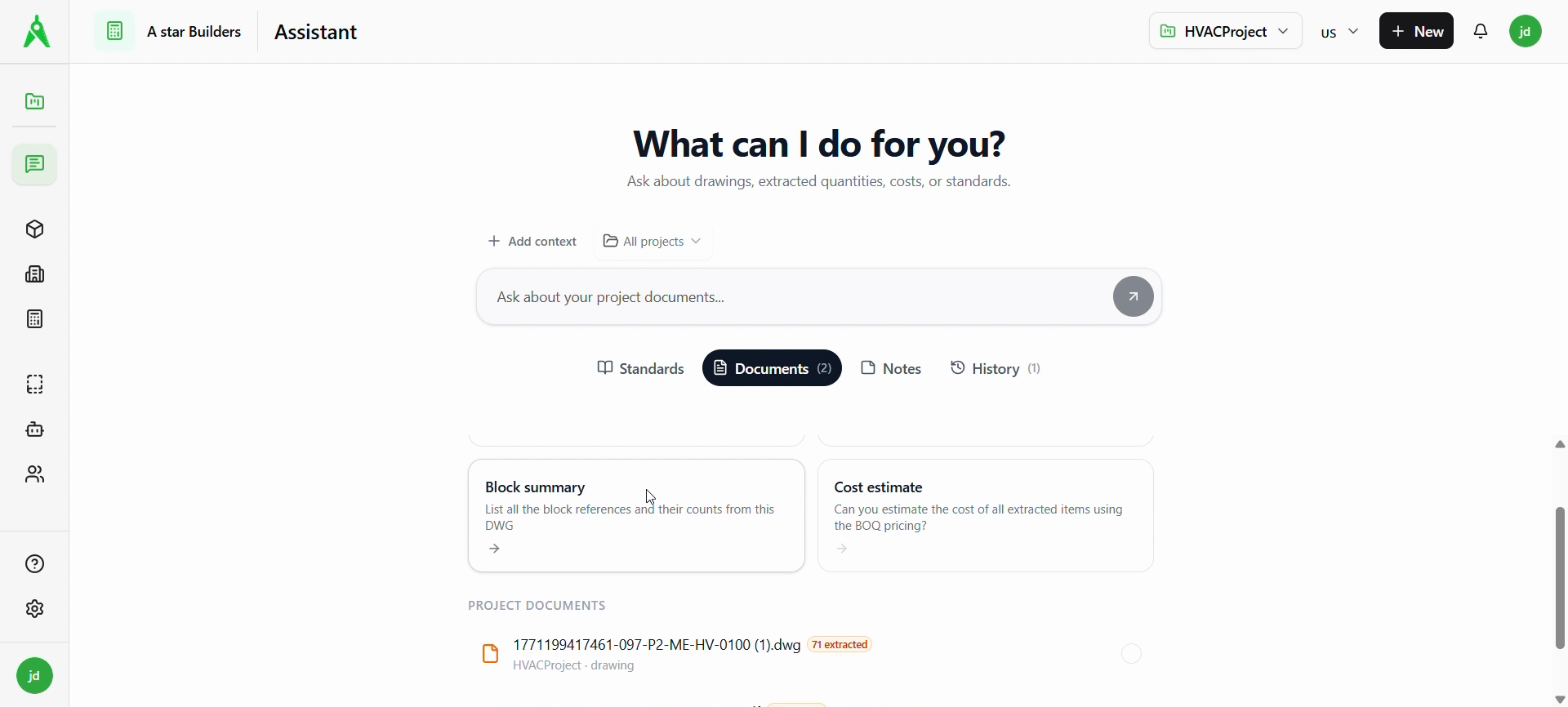
Use the tabs under the input (e.g. Standards, Documents, Notes, History) to work with the right material. On Documents, you’ll see PROJECT DOCUMENTS with files for the current project (type, name, extraction status).
Suggested question cards (e.g. block summary, cost estimate) help you start a query.
3. Ask a question
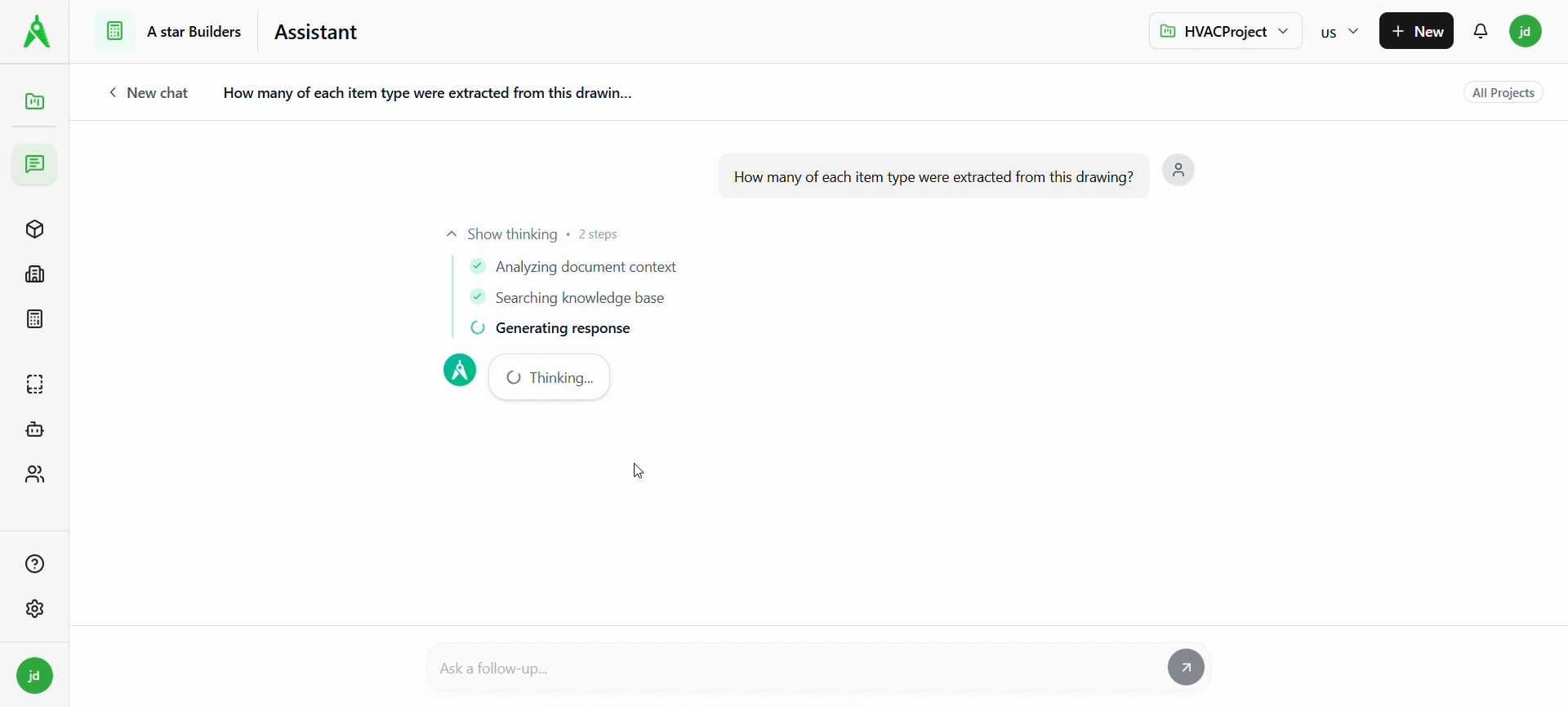
Type your question in the field (e.g. How many of each item type were extracted from this drawing?) and submit. While the Assistant works, you may see Show thinking with steps such as analyzing context, searching the knowledge base, and generating the response.
4. Read the answer and follow up
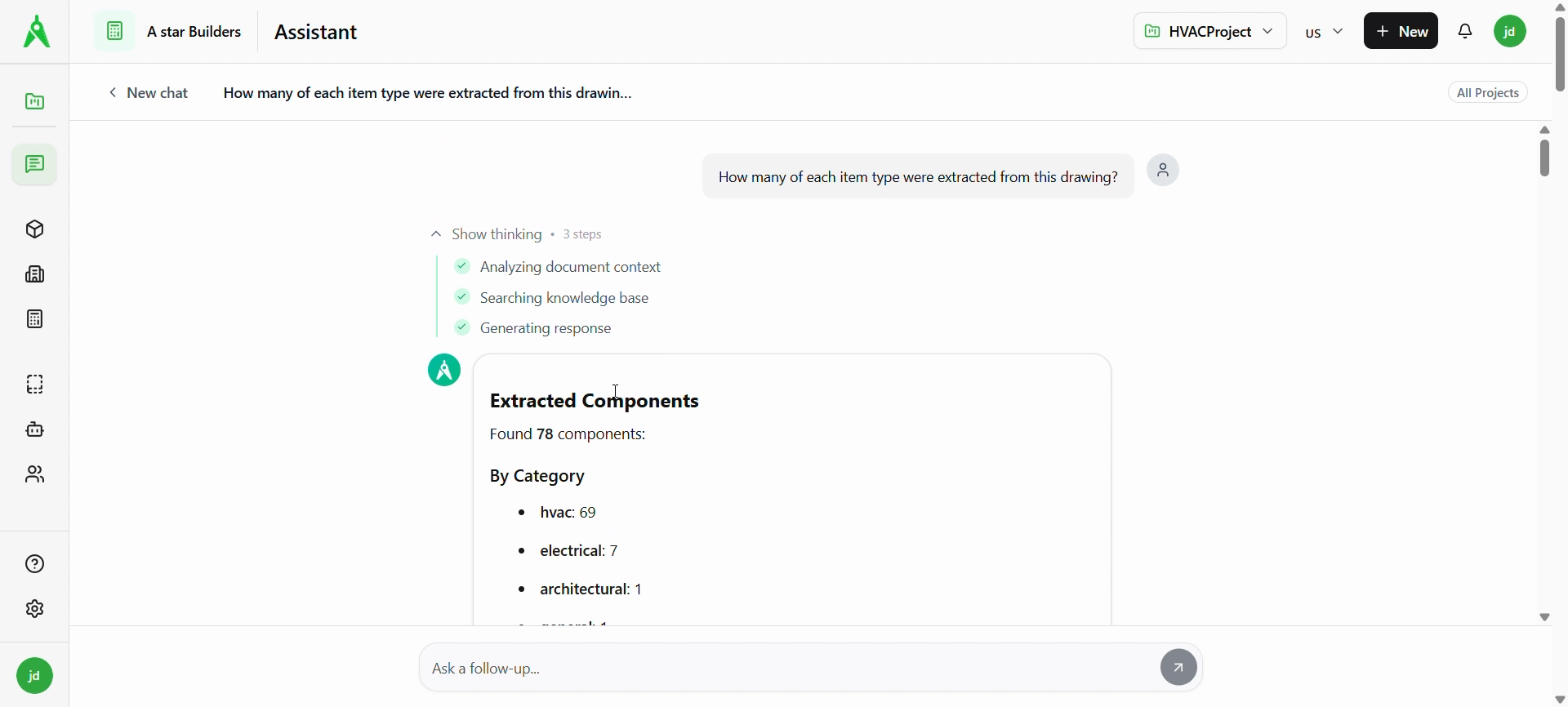
When the reply is ready, it appears in the thread (for example a breakdown by category such as HVAC, electrical, architectural). Use Ask a follow-up… to continue the same conversation, or New chat to start fresh.
Expected result
- You get grounded answers tied to your selected project and documents where applicable.
- You can iterate with follow-up questions in the same chat.
Troubleshooting
- Wrong or generic answers: Narrow context—pick the correct project and documents under Add context / Select document context.
- No documents listed: Upload or process documents in the project first, then return to Assistant.
- Standards questions: Use the standards chips or ask explicitly (e.g. NEC 2023) so the Assistant can target the right code set.
Related
- Previous: Schedule
- Next: Team settings