Team settings
Invite people, share your organization code, and manage member roles for your workspace.
Purpose
Use Team to see who belongs to your organization, invite people by email with a role, and share your organization code or invite link so others can join after they sign in. You can also open Roles & permissions from Settings when you need to review what each role can do.
Who this is for
- Admins: inviting users, copying the org code, and updating member roles.
- Estimators / QS: knowing how access is granted so they can ask for the right role.
Prerequisites
- Permission to manage team membership (typically an admin).
- Colleagues’ email addresses and the role they should have.
Steps
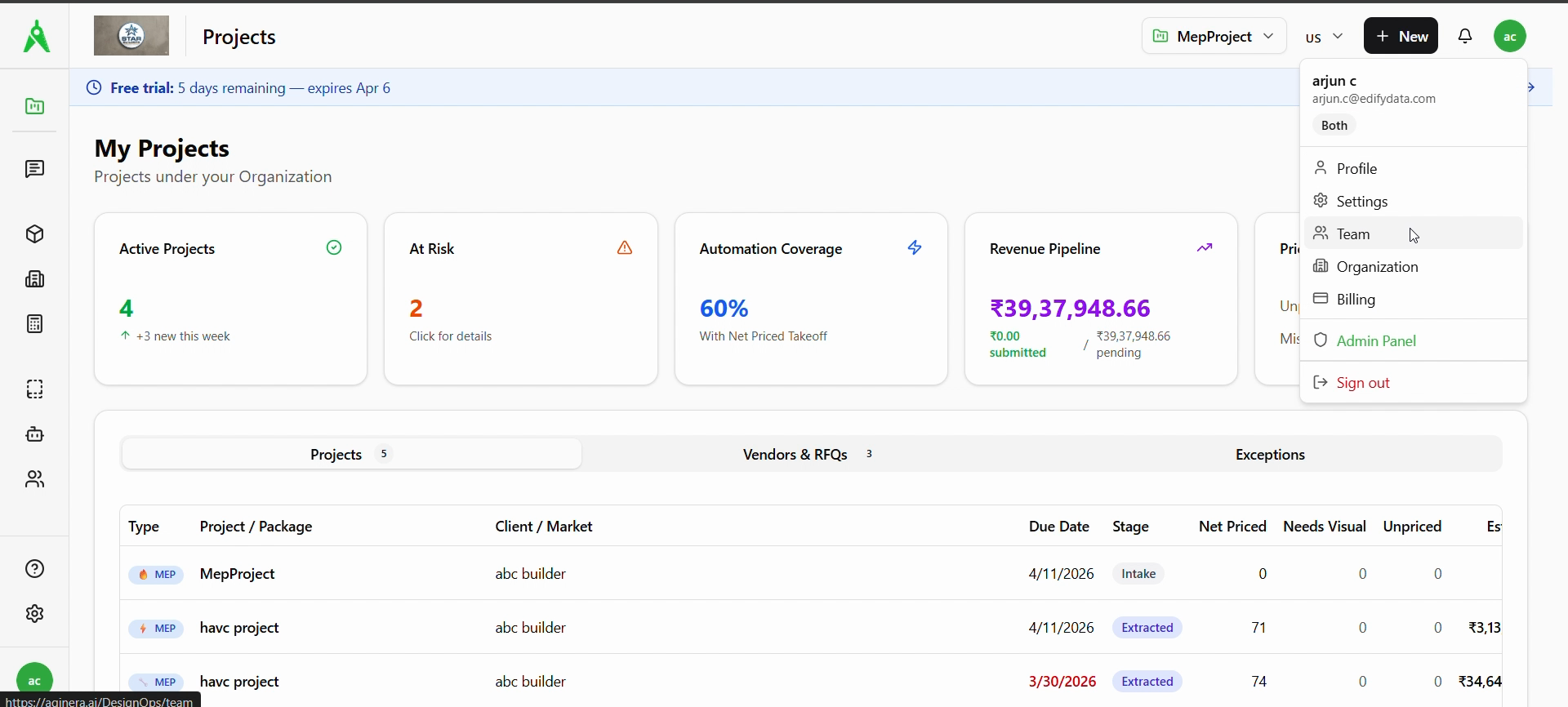
1. Open Team
Option A — Avatar menu: Click your avatar (top right), then choose Team (e.g. /DesignOps/team).
Option B — Sidebar: Select the Team icon (people) in the left rail.
2. Team overview
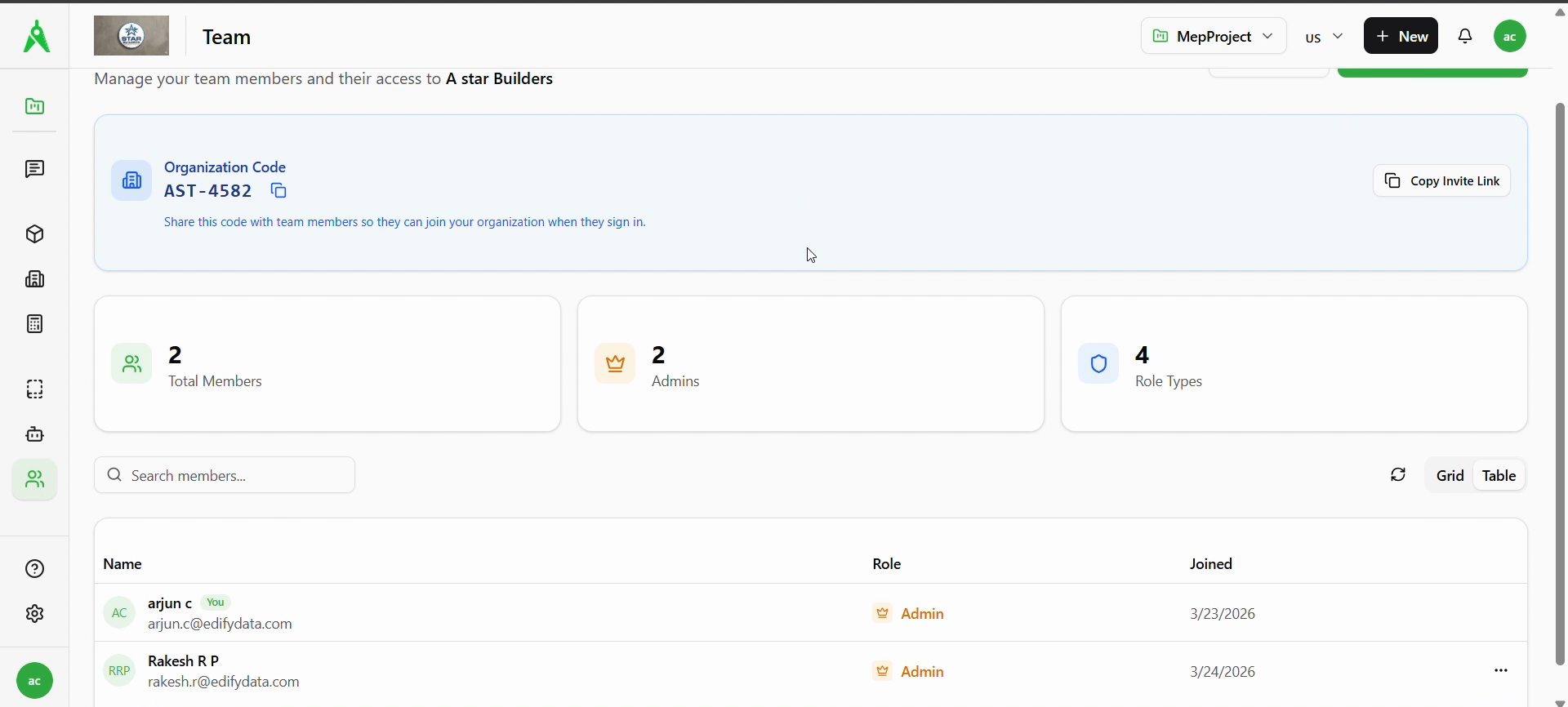
The Team page shows your organization name and a short description. At the top you’ll see:
- Organization code (e.g.
AST-4582) with copy, plus text explaining that people can use it when they sign in. - Copy invite link to share a join link.
Summary cards typically include Total members, Admins, and Role types. Use Search members…, refresh, and Grid / Table to browse the roster. The table lists Name, Role, Joined, and row actions (⋯) where available.
3. Invite a team member
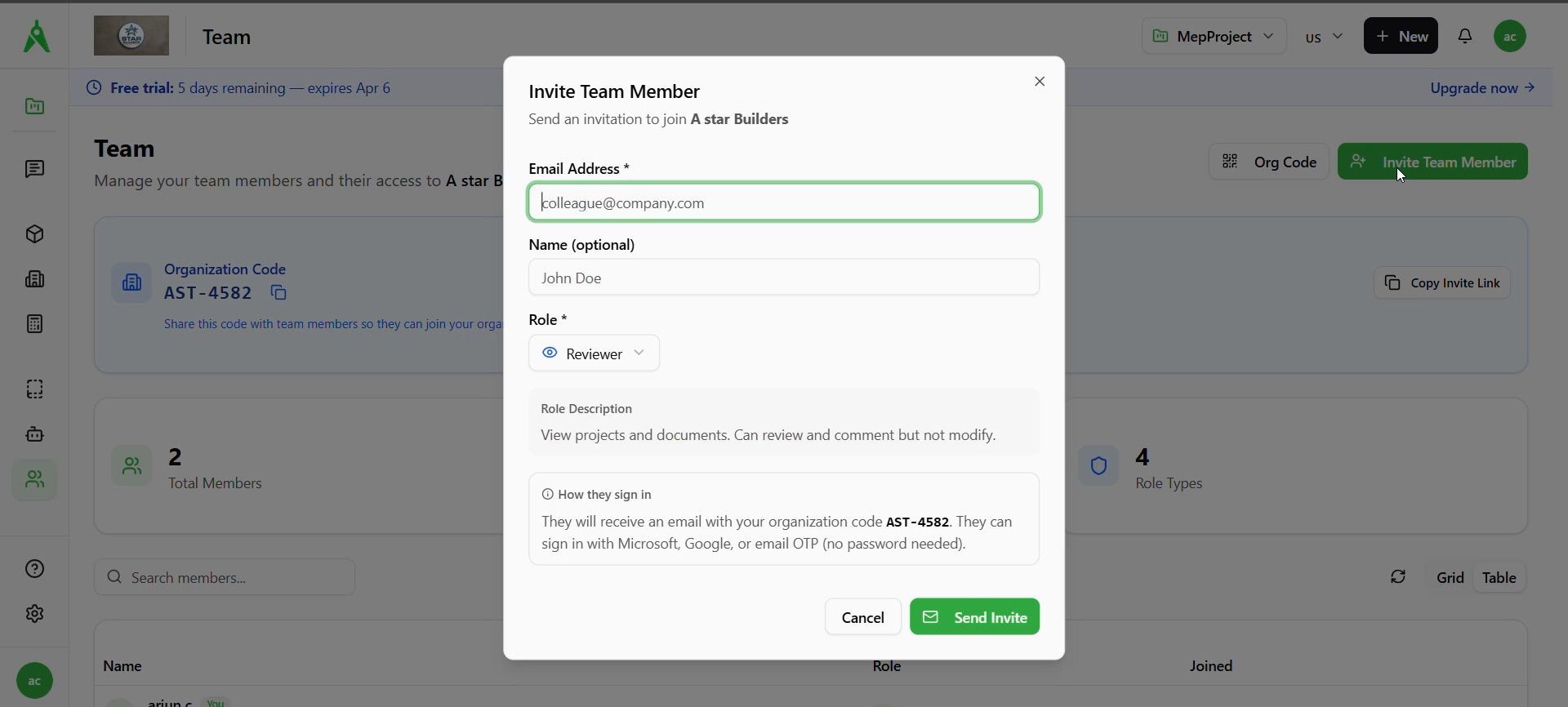
Click + Invite Team Member. In the dialog:
- Enter their email (required) and optional name.
- Choose a role from the dropdown (e.g. Reviewer). Read the role description so it matches what they need to do.
- Invites explain how the person signs in (e.g. Microsoft, Google, or email OTP) and may reference your organization code.
Click Send Invite, or Cancel to close without sending.
4. Organization code and invite link
Click Org Code (or equivalent) to open the Organization Code dialog. There you can:
- Copy code or Copy invite link.
- Read how it works: share the code or link → teammate signs in → they enter the org code to join.
Use Regenerate only if you need a new code (the old one stops working).

5. After someone joins
Ask new members to sign in with the method your tenant allows. If roles or project access look wrong, confirm their role on the Team list and adjust via ⋯ where your UI allows; for detailed permission names, use Settings → Team & permissions → Roles & permissions.
Expected result
- Invites are sent and new users appear in the member list after they accept and join with the org code or link.
- Roles match each person’s responsibilities.
Troubleshooting
- Invite not received: confirm the email address; check spam; resend from Team if available.
- Can’t join: verify they use the correct organization code or invite link after signing in.
- Wrong access: change role on Team or review Roles & permissions; ask the user to sign out and back in if changes don’t apply immediately.
Related
- Previous: Assistant
- Next: Organisation settings
- Permissions